Through the camera

QR Scanner

Scan QR codes and barcodes, create your own, and organize saved codes and lists.

Scan QR codes and barcodes, create your own, and organize saved codes and lists.

Get it onGoogle PlayComing soon to the App Store
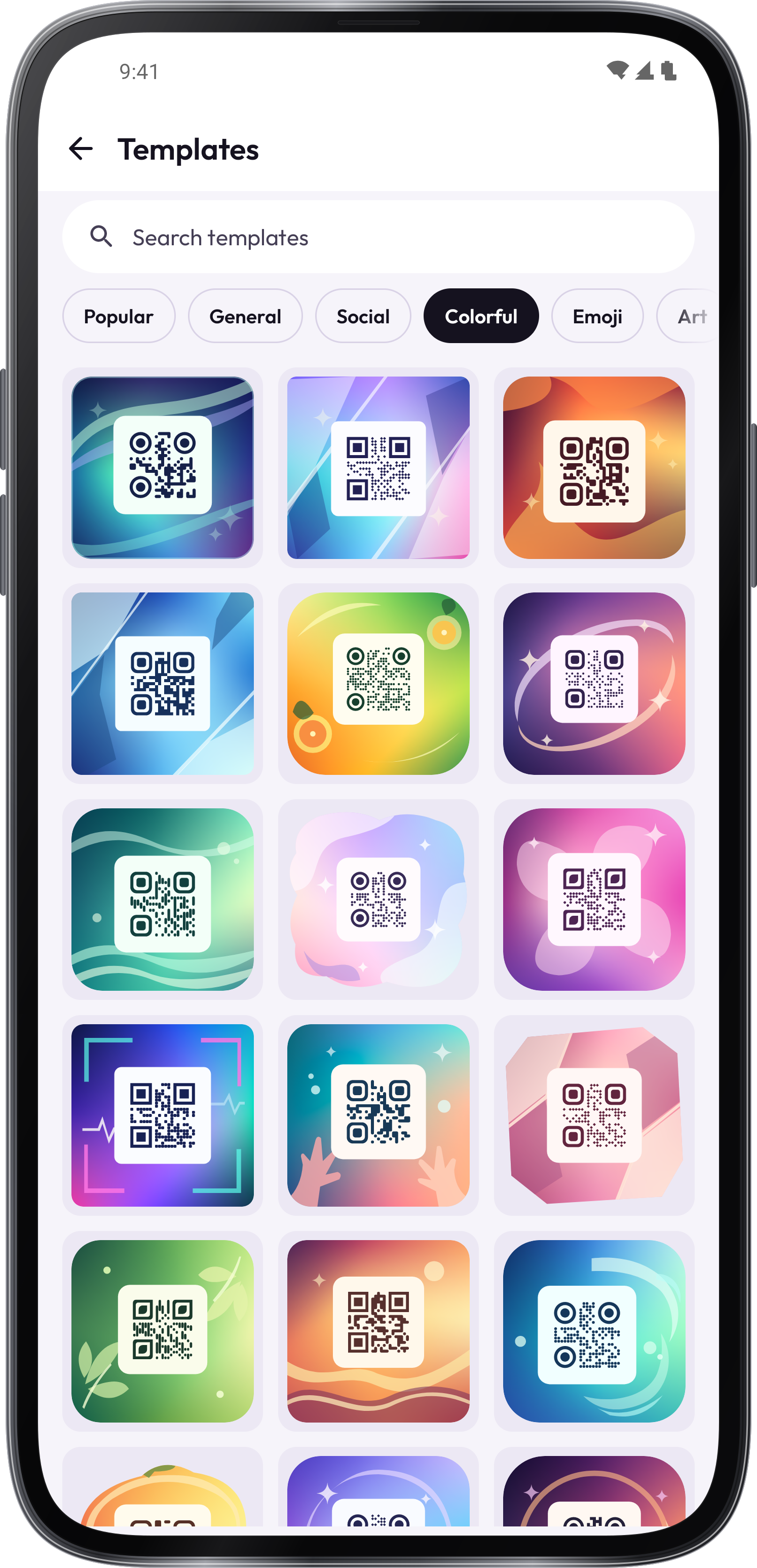
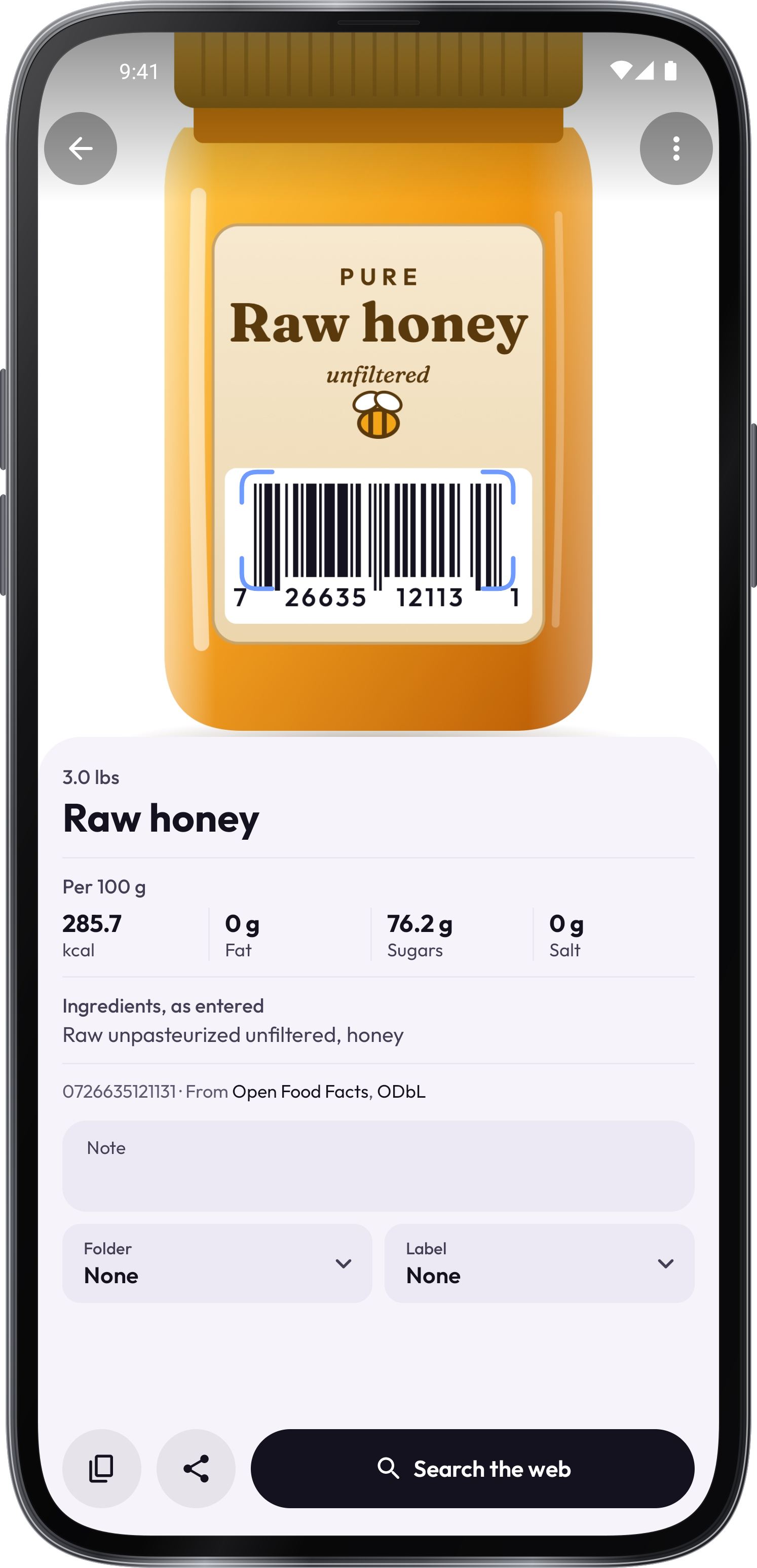
QR code templates · Create › Templates › ColorfulFood · Look up details, as entered

Step by step.

Read every step ›
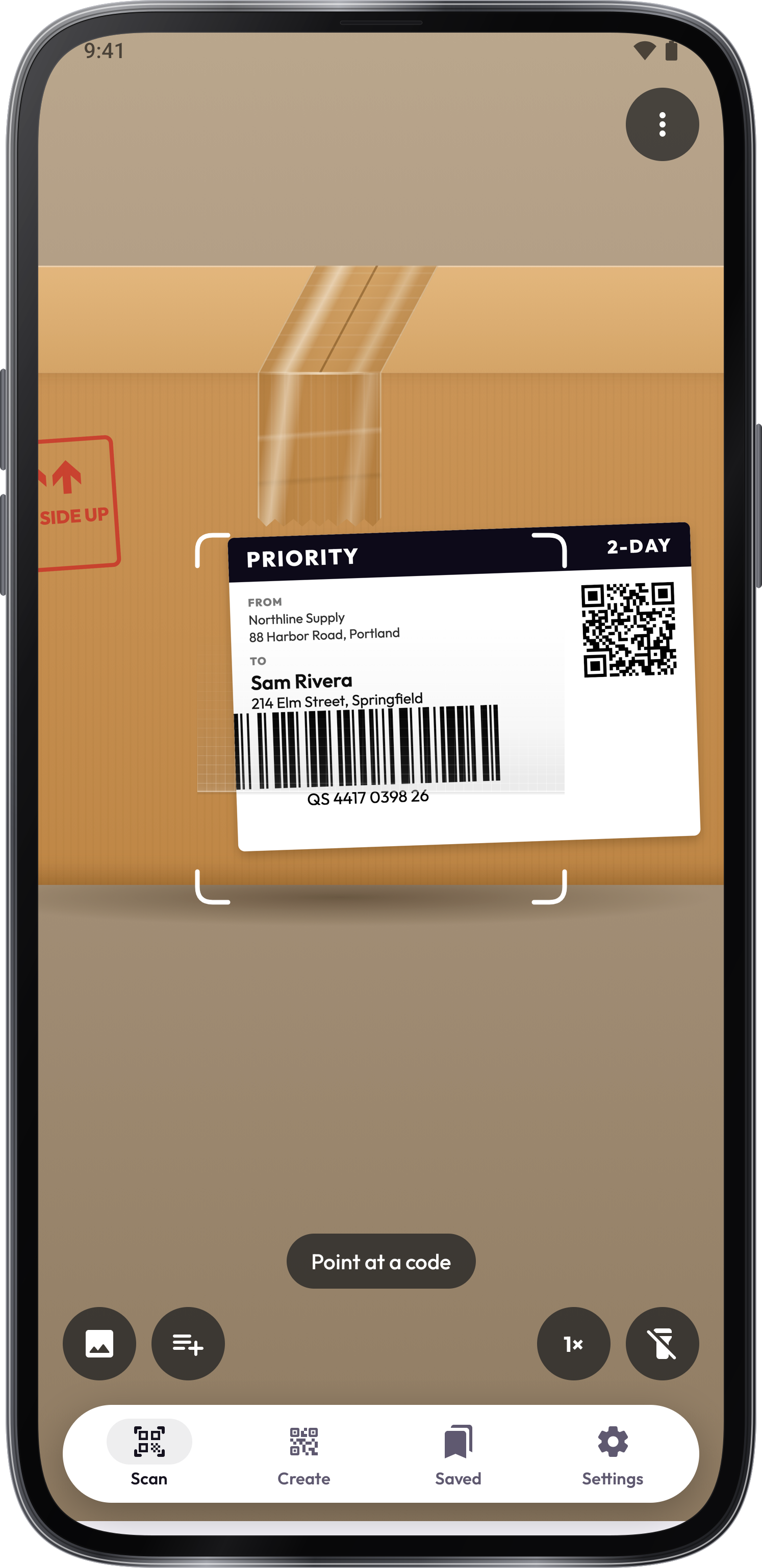
Scan a code

Open Scan and point the camera at a sharp code, or choose a photo or PDF. Use Torch when more light helps.
Review the result

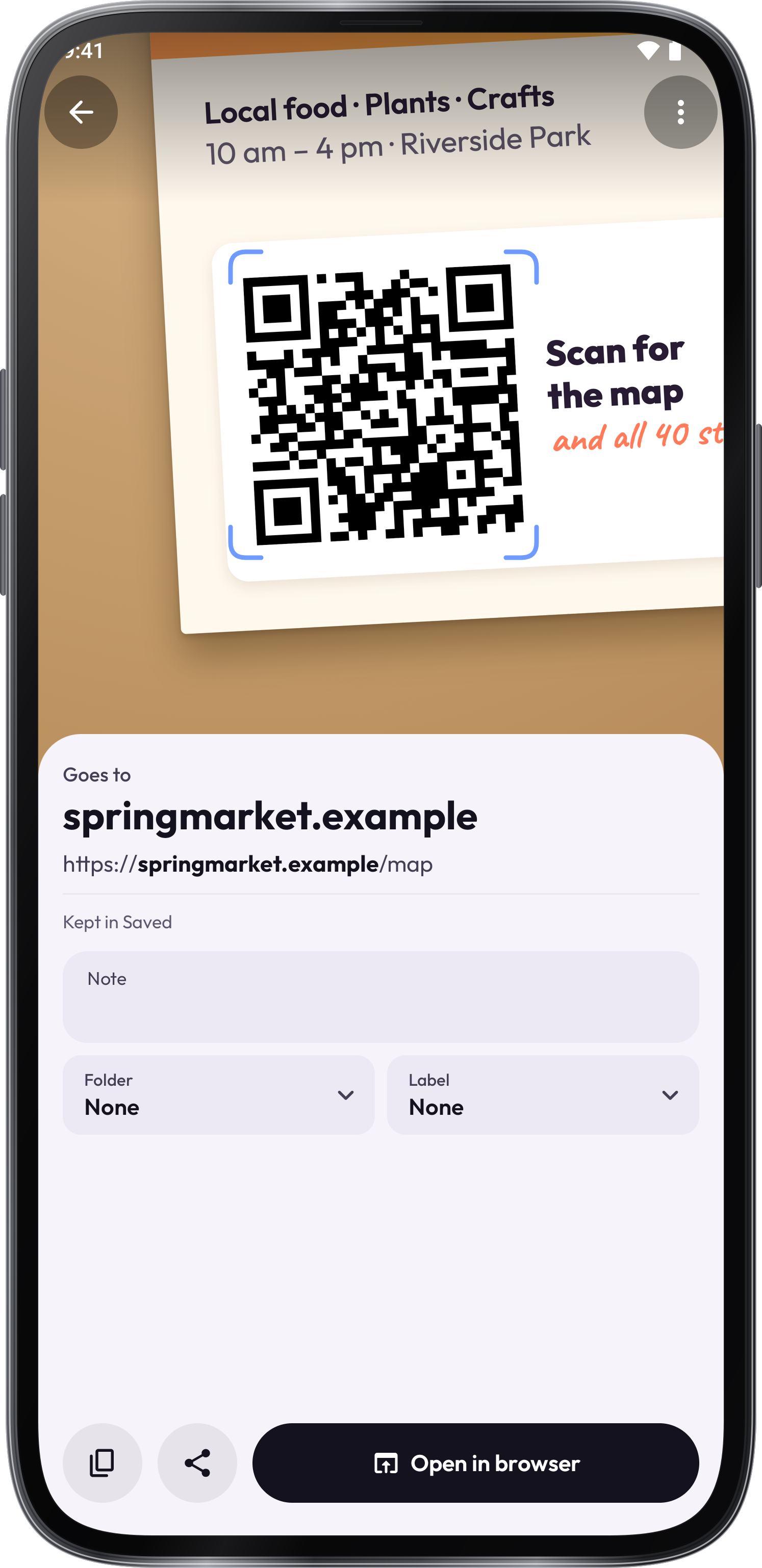
Check the text and destination before choosing Open, Copy or Share. Settings controls whether links open immediately and whether scans are kept in Saved.
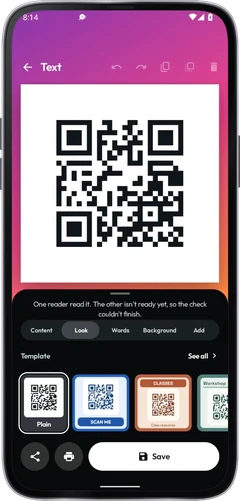
Create a code

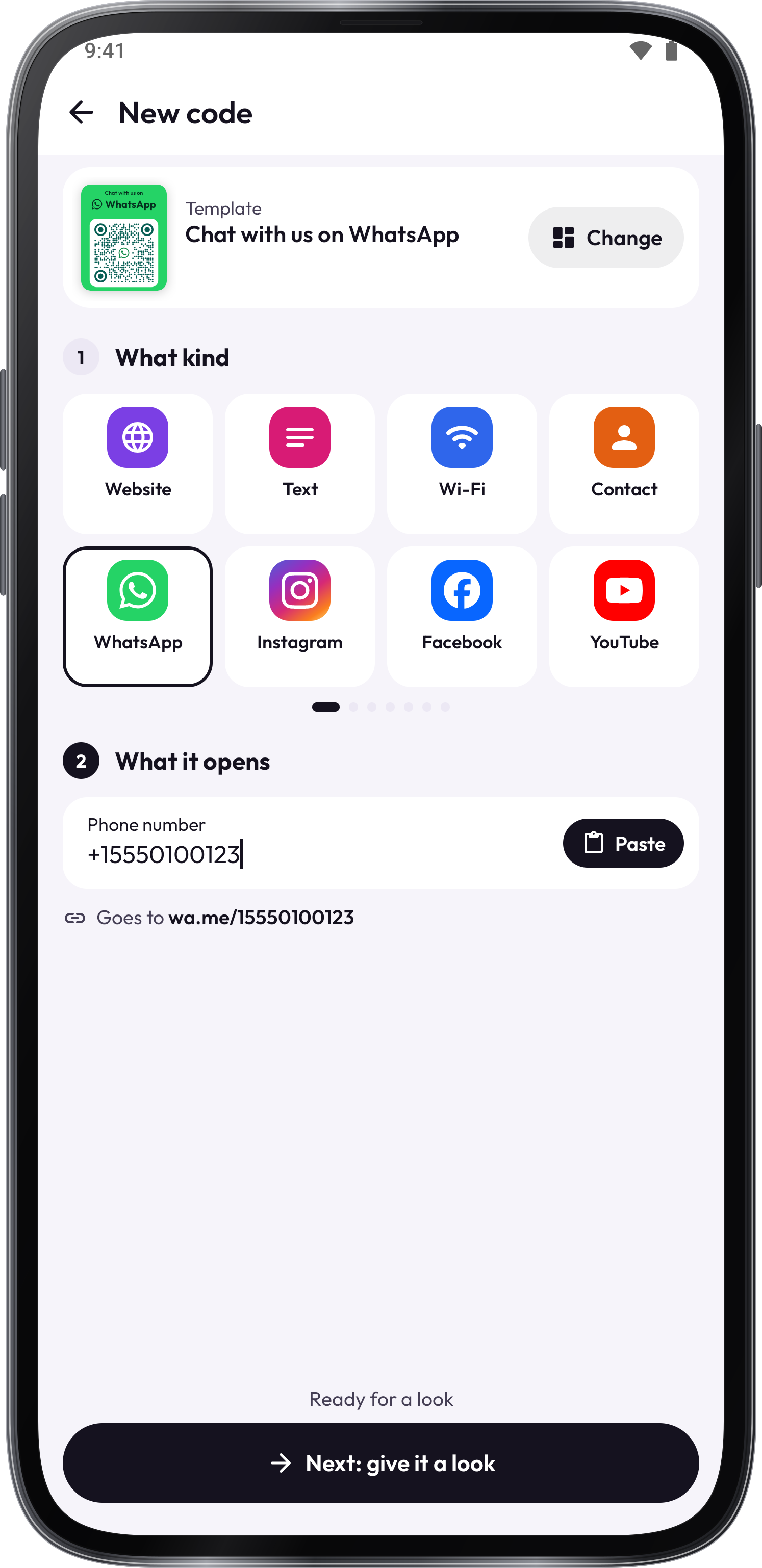
Open Create, choose the content or a template, and enter your details. Save the code, then use Verify, Download or Print.

Give your code a look

Logo shape changes the badge in the center of the QR code. In the color picker, type or paste a HEX or RGB value, or use the wheel.

Scan several codes

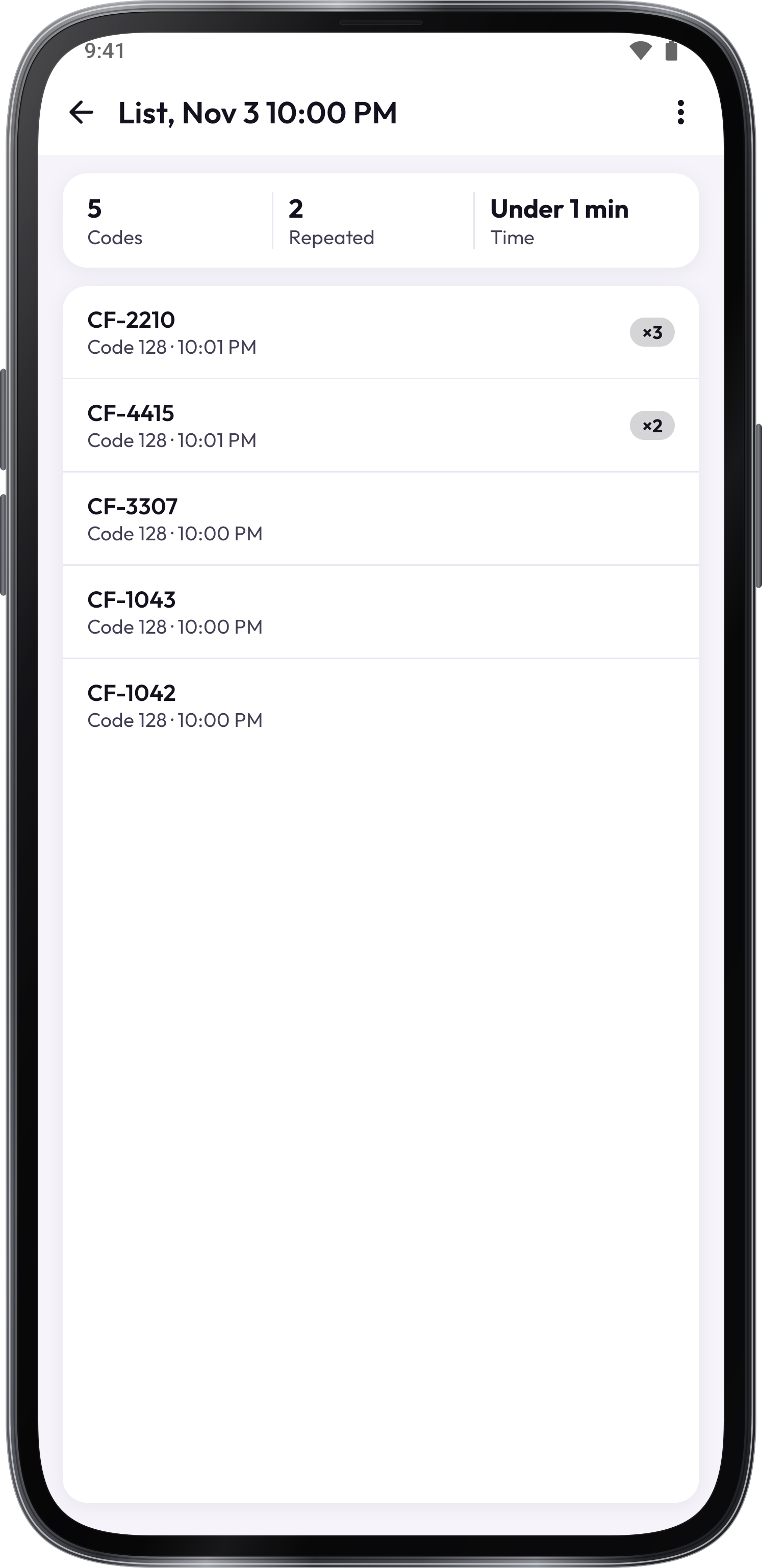
Open Scan several and tap Start. Scan the items, then Stop to review the list and export it.

Organize saved codes

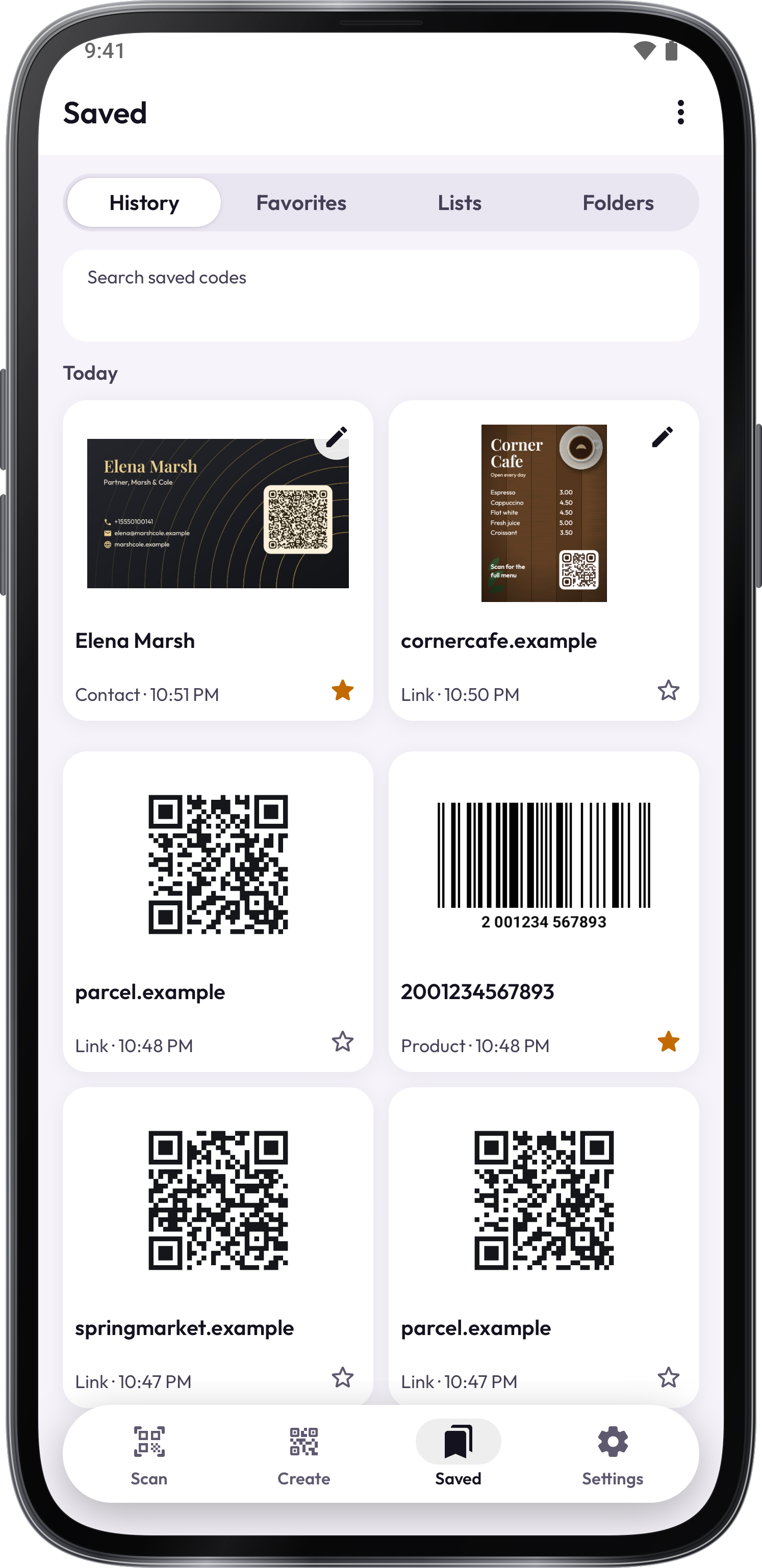
Search Saved, star favorites and use folders, labels and notes. Open a code you made to edit it again.

Back up your work

Use Back up to keep codes, lists and settings in a file. Restore adds them to your existing saved work.

Options

Scan

Scan

  • QR code

    Point at a code

  • Barcode

    Tap the words on the camera to type the digits under the bars.

  • Scan a photo

    Move a little closer, tap Torch for a dark place, or read it from a picture with the Scan a photo key.

  • Torch

Code types

SettingsCode types

Reading fewer types is quicker, and misreads are rarer.

  • Common

    • QR Code
    • EAN and UPC
    • Code 128
    • Code 39
    • Data Matrix
    • PDF417
  • More

    • Micro QR
    • rMQR
    • GS1 DataBar
    • MicroPDF417
    • Telepen
    • Aztec
    • Code 93
    • Codabar
    • ITF

All kinds

CreateAll kinds

  • Link

  • Text

  • Wi-Fi

  • Contact

  • Address

  • Barcode

  • Many at once

  • Website

  • SMS

  • Phone number

  • Email address

Templates

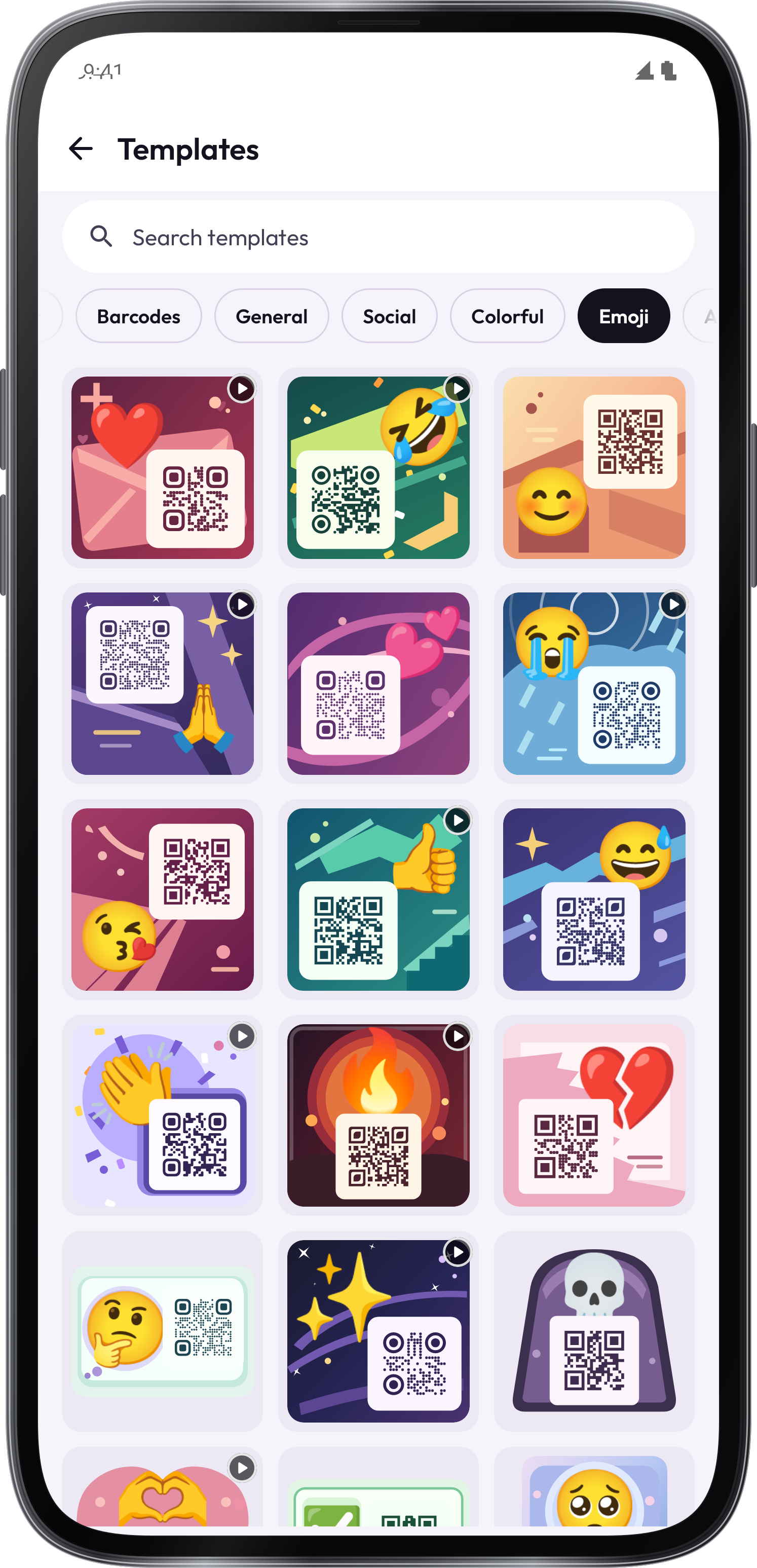
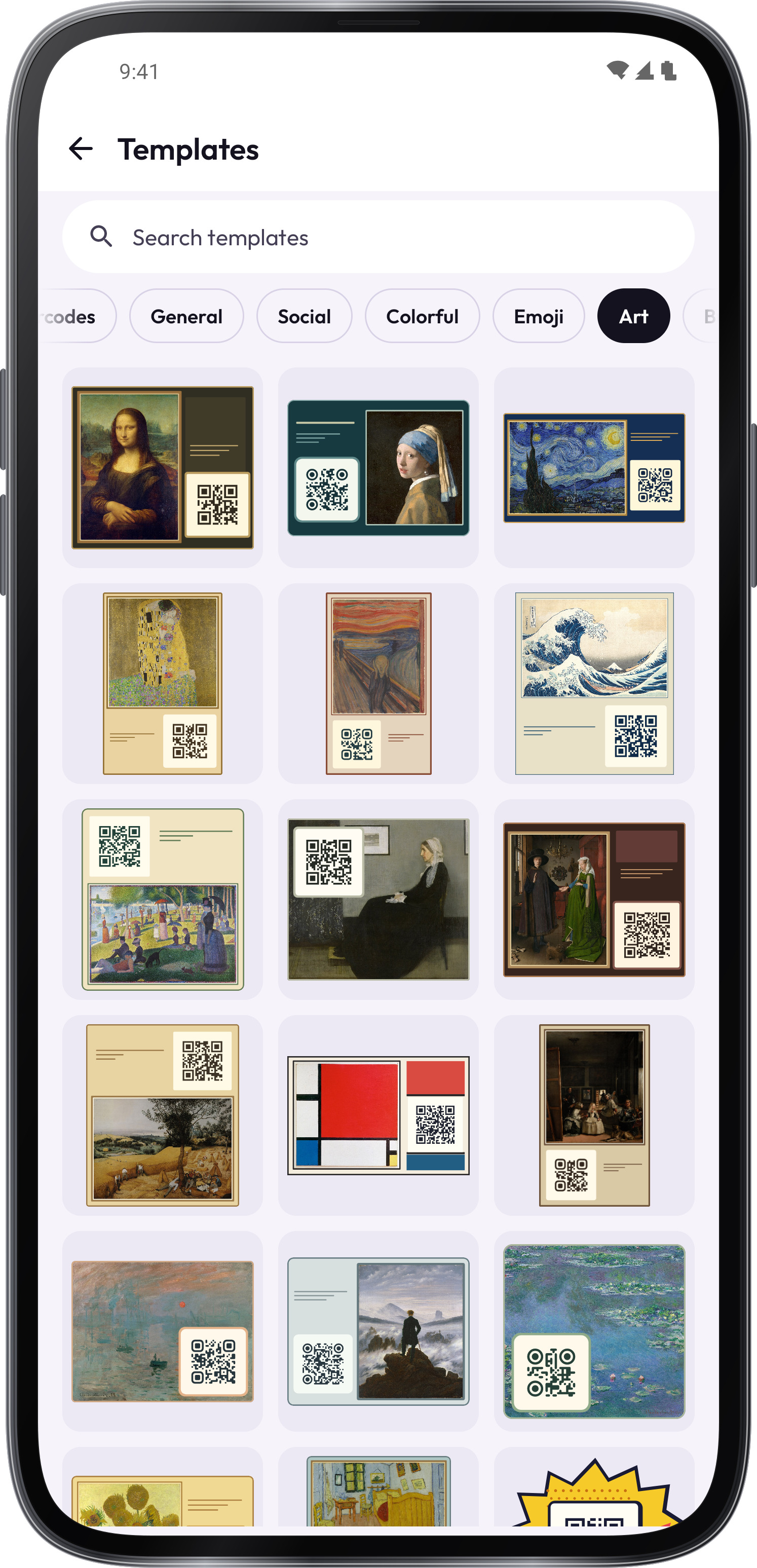
CreateTemplates

Type what it's for, such as menu, or tap a group. Picked from Look, a template keeps what you typed.

  • Popular

  • GIF

    • Background effects
    • QR effects
    • Custom shapes

    The GIF category in Templates groups designs by background effects, QR effects and custom shapes. Moving looks can animate the background or the colors while the QR pattern stays fixed. Share or download it as a GIF. Pick Still under Moving on Look to stop it.

  • Social

  • Business

    • Business cards
    • Menus
    • Shop
    • Work & assets
  • General

    • Text cards
    • Patterns & frames
    • Gradients
    • Patterns
  • Occasions

    • Events
    • Love
    • Holiday
    • Community
  • Guides

    • Travel
    • Learning
    • Media
  • Crypto

  • Colorful

  • Emoji

  • Art

    • Paintings
    • Pop art
    • Painter styles
  • Barcodes

    Make EAN, UPC, Code 128 and Data Matrix codes. A number gets its check digit, and the page says which digit doesn't fit. Use Template to change the layout while keeping what you entered. Pick a design in Templates › Barcodes. It sets the format and label text. Enter your own barcode value.

  • Yours

    Open a code, then tap Edit.

Results

Scan

  • Open in browser

  • Copy text

  • Share

  • Search the web

Practical tips.

Move a little closer, tap Torch for a dark place, or read it from a picture with the Scan a photo key.

A worn barcode that won't read offers Can't read it? on the camera. Type the digits, and the check digit is tested.

Read a link’s destination before opening it. A readable code does not prove that a website is trustworthy. A short link hides where it goes. Show where it goes asks the short link service, and the page itself stays closed.

Reading a lot of codes? Scan several keeps the camera on and collects them into one list. A list can leave the phone as CSV, TXT, Excel or PDF.

Show all tipsShow fewer tips

Test a code with Verify and another reader before printing many copies.

For a ticket or a pass, Show at the counter draws it large on a bright screen.
Everyday uses.

Scan a code

Open Scan and point the camera at a sharp code, or choose a photo or PDF. Use Torch when more light helps.

Create a code

Open Create, choose the content or a template, and enter your details. Save the code, then use Verify, Download or Print.

Organize saved codes

Search Saved, star favorites and use folders, labels and notes. Open a code you made to edit it again.

Use Scan, Create, Saved and Settings for camera scanning, code design and saved work. All features are free.

Get the app

QR Scanner

How to use ›
Get it onGoogle PlayComing soon to the App Store