Set a board or frame
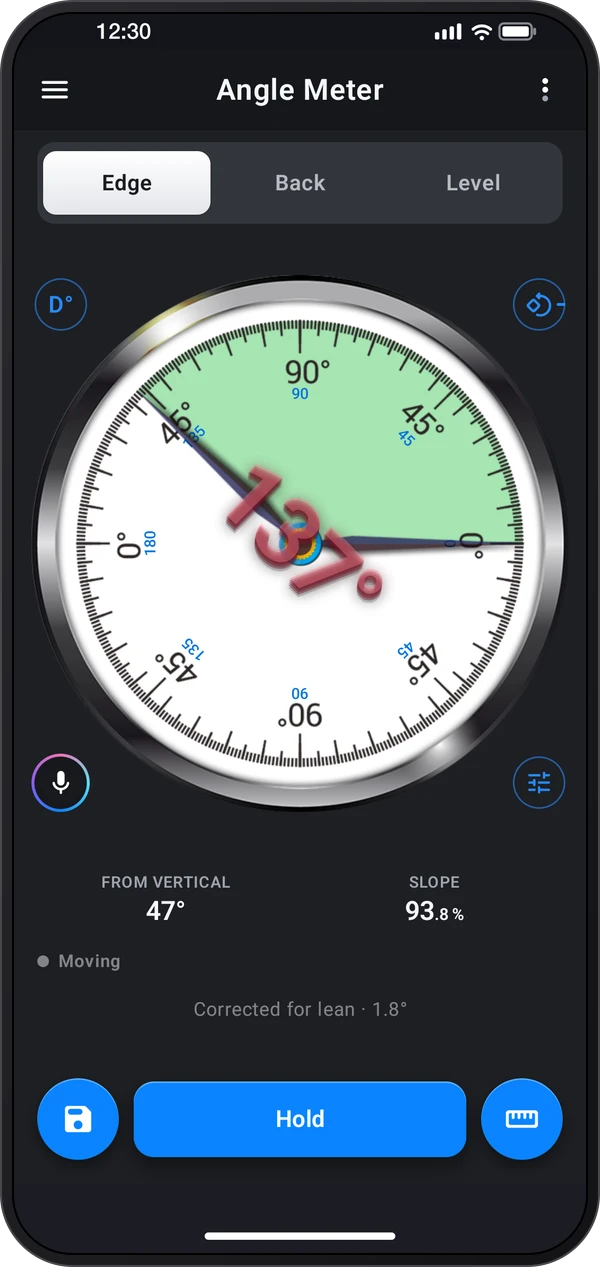
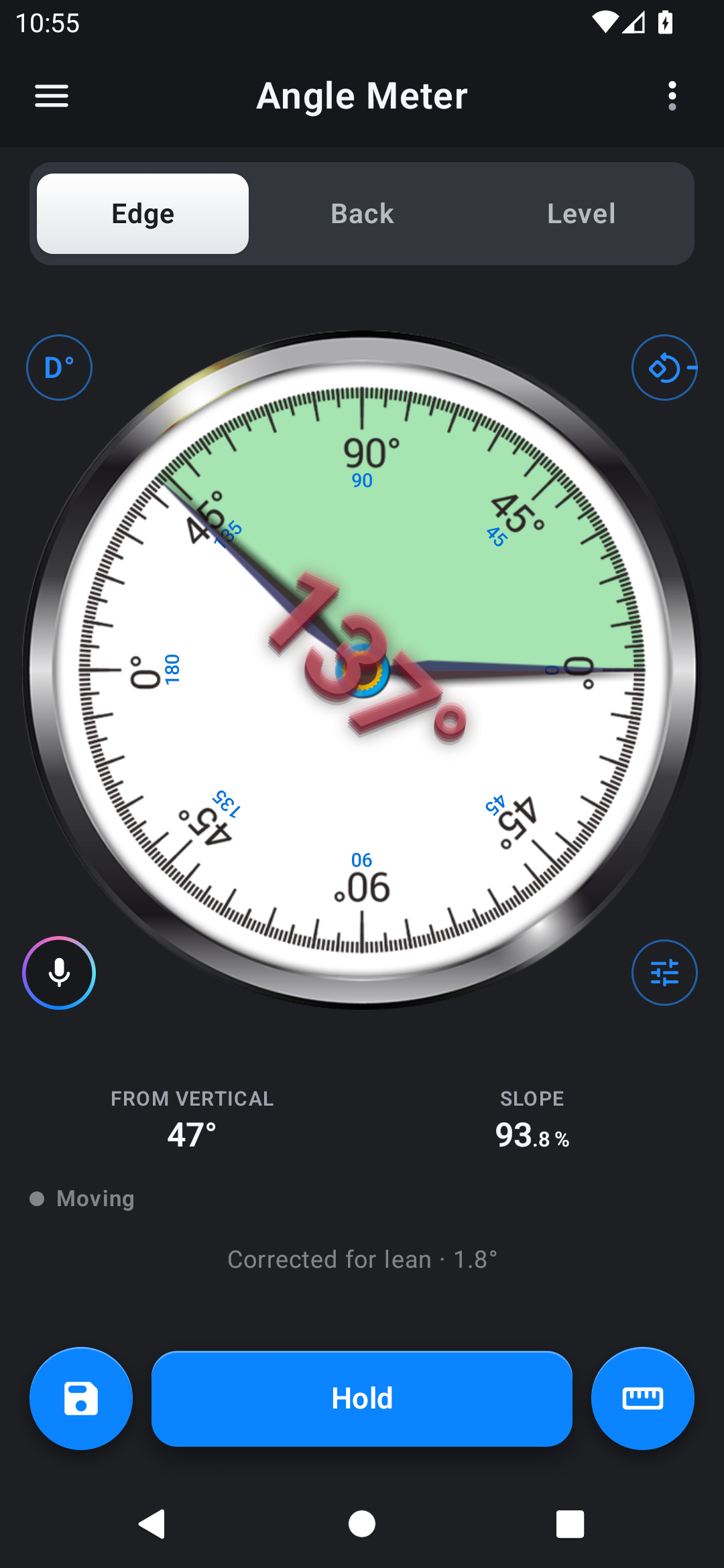
Use Edge to see its inclination, then Hold or Target lock while adjusting the part.
Angle Meter
Angle Meter for iPhone
Coming soon to the App Store
Free to download.
Turn your phone into a practical angle finder for boards, frames, pipes and everyday setup. Edge measures along the phone’s side, Back reads the slope beneath it, and Level shows tilt in both directions. Keep a reading with Hold, compare two parts with Difference, or set a part as zero in Relative angle. The free app and paid Angle Meter Pro share this measurement workflow. Pro adds permanent Pro access and an ad-free app; the free app labels optional Plus and Pro features.
Explore the screens, then follow the guide to try them yourself.
Practical ways to use Angle Meter.
Use Edge to see its inclination, then Hold or Target lock while adjusting the part.
Difference keeps the first and second angles and shows the angle between them; Relative uses one part as zero.
Save a named reading and note in Records; Pro interval measurement can collect a changing reading over time.
Start with a useful task, then keep the result.
Choose Edge, Back or Level to match how the phone rests. Calibrate on a known level surface; select the Edge zero mark first.
Keep the phone still, choose the unit the job uses, then tap the dial to Hold.
Save with details to add a title and note. Use Open on the saved message to review the record.
In the meter open ⋮ › Tour & lessons. Tour starts with calibration; Showroom explains features and Lessons guide actions on the live meter. The same learning tools serve the free and Pro editions.
Practice 1
Use a known level surface to set the reference for the phone’s sensors. Place the phone on a known level surface, keep it still, then open Calibrate and tap Calibrate to set it to 0°. Each zero mark on Edge keeps its own calibration.
Practice 2
Rest the phone’s long side on the edge. The needle points at the angle, and the number stays upright however you turn the phone.
Practice 3
Put the phone on its back, top edge uphill. Back reads the slope of whatever it lies on: panels, lids, ramps and roofs.
Useful habits for your next task.
Match the tab to the phone’s position: Stand the phone on its long side for Edge. Lay it on its back for a surface slope, or use Level to see both directions together.
Calibrate the side you are using: On Edge, choose the Right, Top, Left or Bottom zero mark before calibrating on a known level reference. Each side keeps its own calibration.
Compare two parts: Choose Difference, set angle 1 on the first part, then move to the second. Use Relative angle instead when you want the first part to read zero.
Wait for a steady reading: Let the phone settle, then tap the dial to Hold. You can lift the phone away to read the result without changing it.
Read the unit the job uses: Open the unit control for degrees, percent, a ratio, pitch or mm/m. Fall over a span can turn the slope into a rise or drop over a length you enter.
Save useful context: Use Save with details to add a title and note. Open the saved message to return to the record later.
Angle Meter. Angle finder, bubble level and protractor: single, difference or relative.
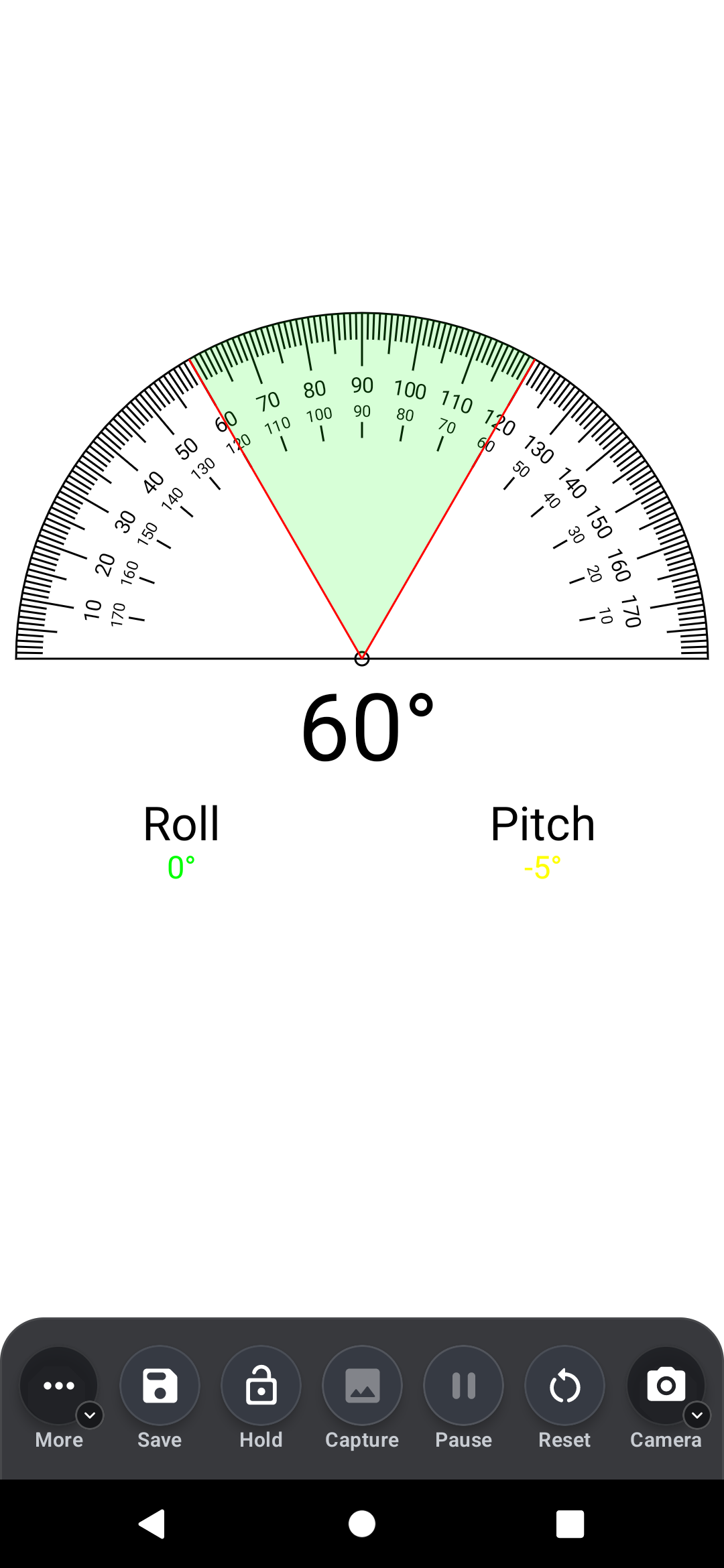
Explore the tool ›Protractor. Measure an angle on the screen or over the camera.
Explore the tool ›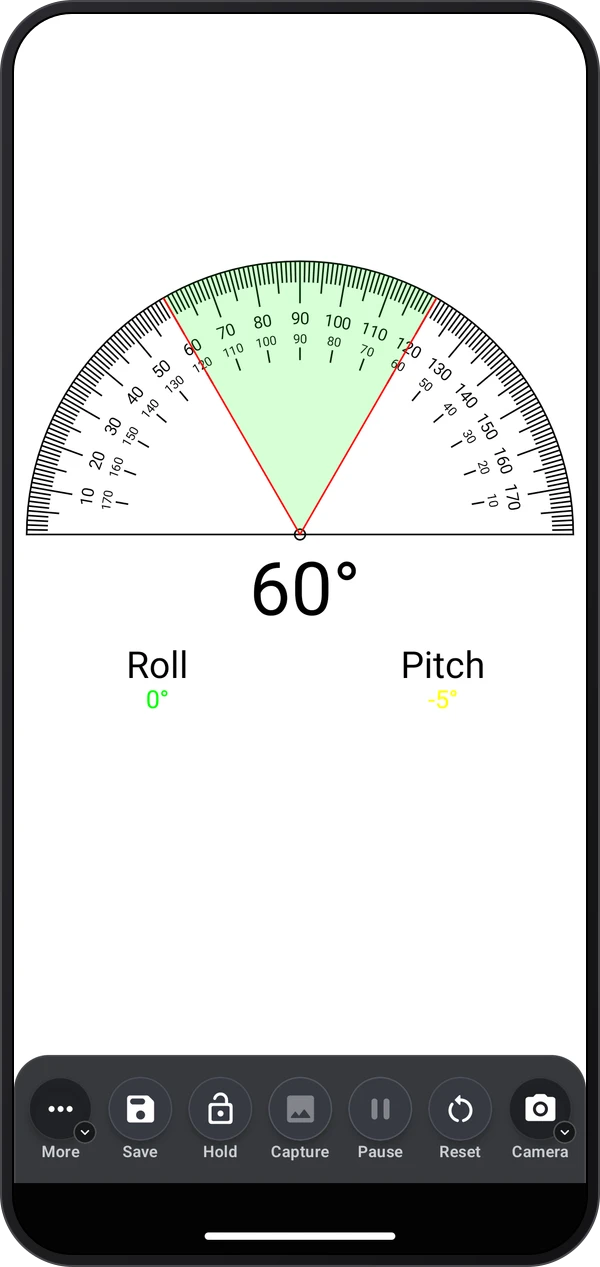
Corner rotation. Press the phone to each wall of a corner to read the angle between them.
Explore the tool ›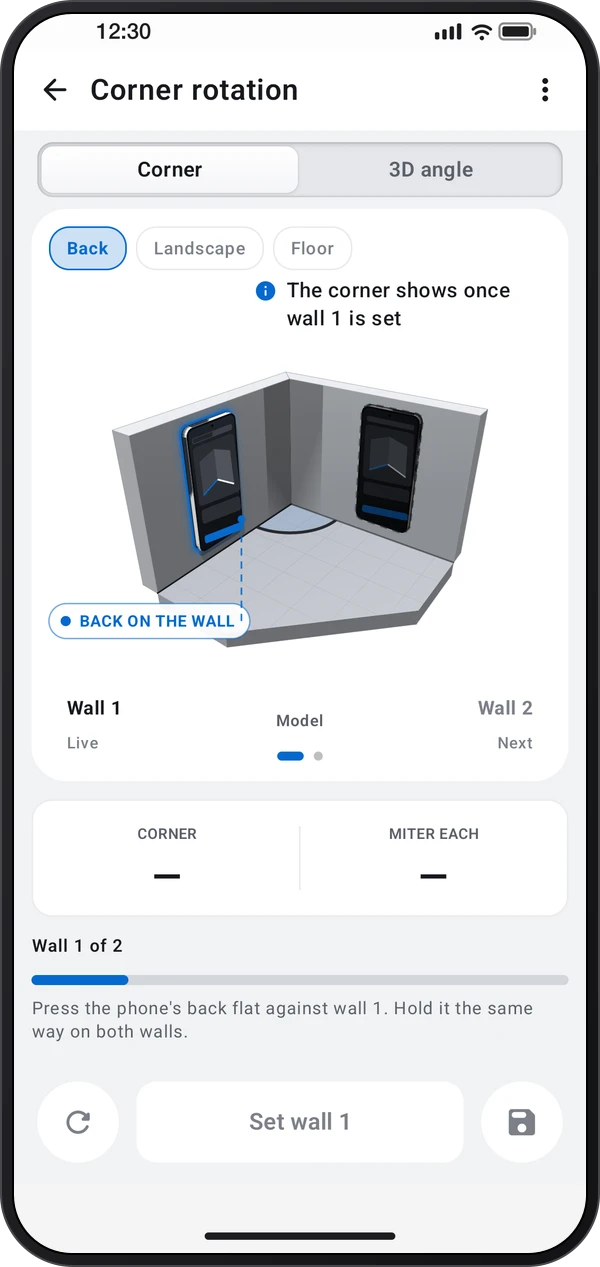
Rotation angle. Counts how far a part turns: a handwheel, a steering wheel or a wrench.
Explore the tool ›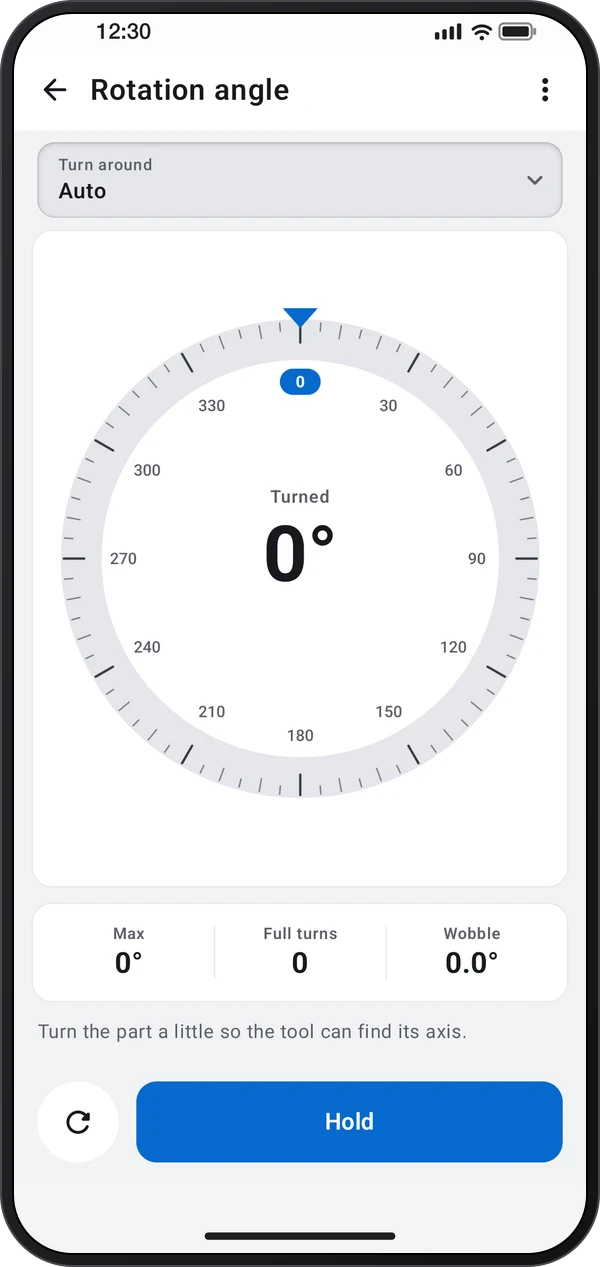
Laser Level. Laser lines through the camera for hanging, tiling and lining things up.
Explore the tool ›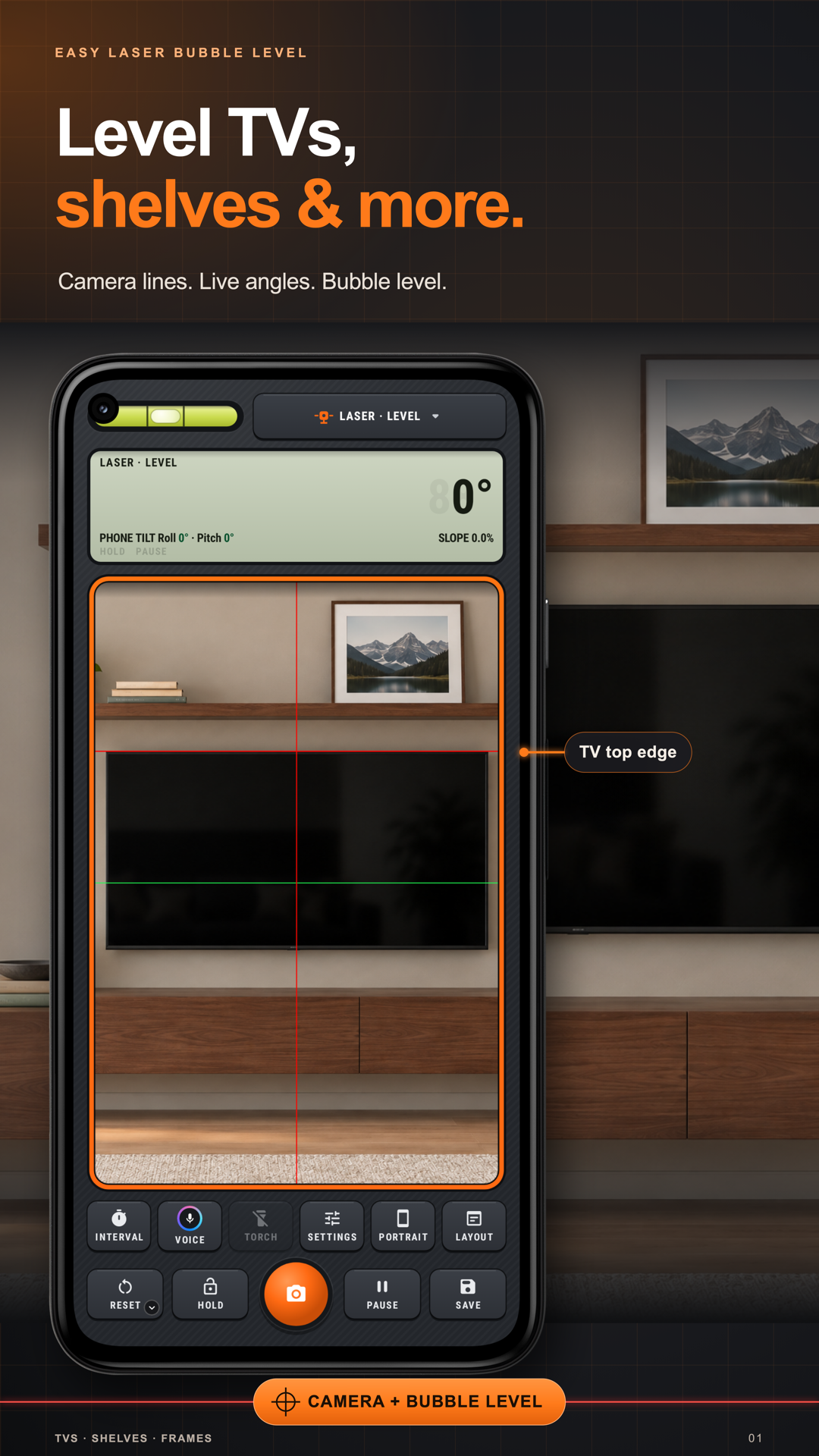
Angle Meter. Angle Meter edge dial with an angle reading
Read the guide ›Protractor. The shared Protractor tool showing adjustable angle lines
Read the guide ›Stand the phone on its long side. Read the angle of the edge it rests on.
Lay it on its back, top edge uphill. Read the slope of the surface under the phone.
Set it flat. Level shows both directions at once; the bubble centers when the surface is level.
Step-by-step instructions for the app and its tools.
Video coming soonBasics · Written steps
Read the steps : Choose a toolVideo coming soonBasics · Written steps
Read the steps : Choose Edge, Back or LevelVideo coming soonTools · Written steps
Read the steps : ProtractorGet the app
Free to download. Coming soon to iPhone.