Check a slope directly
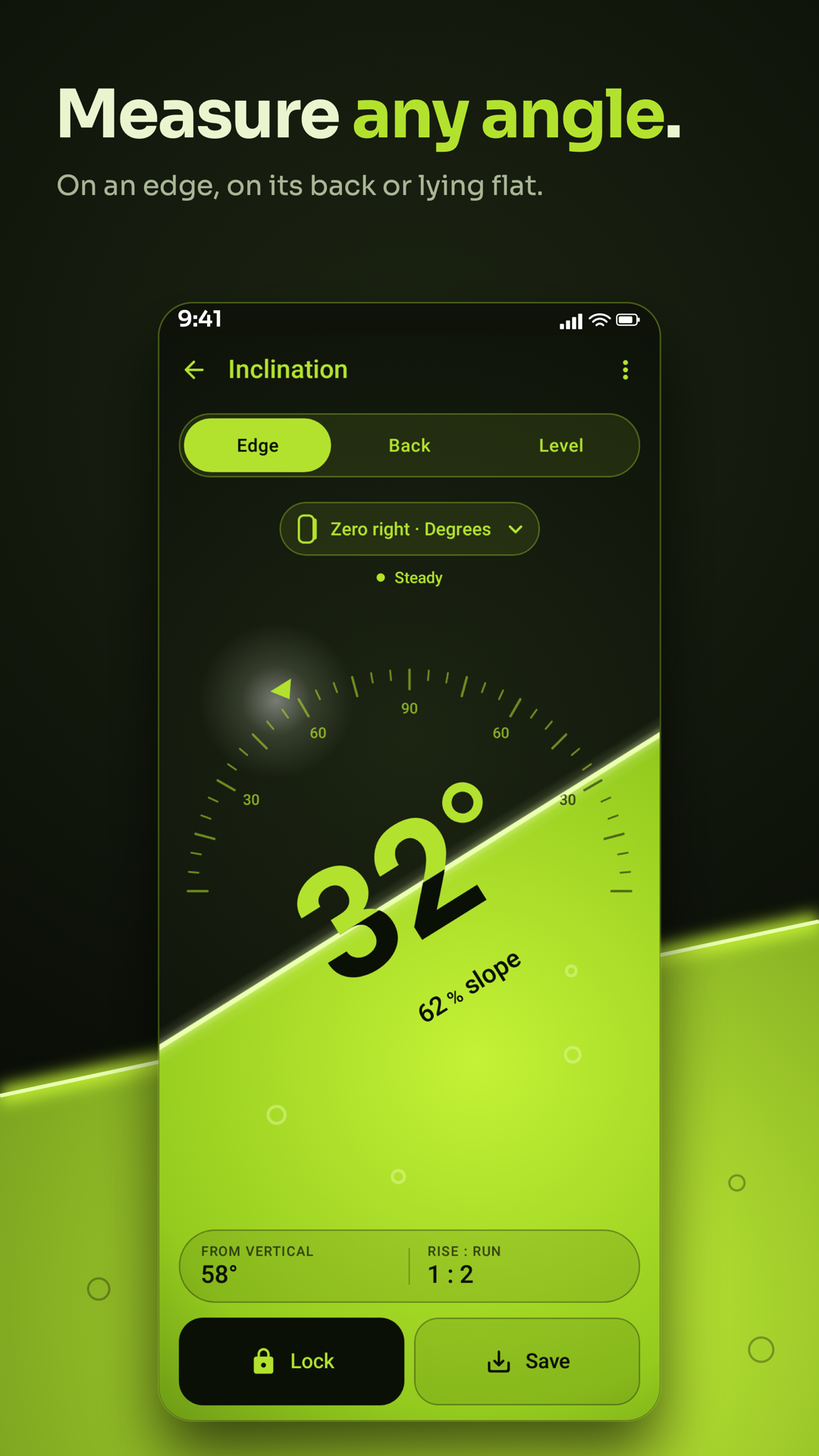
Use Edge, Back or Level to read the surface where the phone rests.
Inclination
Inclination for iPhone
Coming soon to the App Store
Android app coming soon.
Read a slope on the phone, keep a level guide over the camera, or draw an angle on a photo. The Inclination app opens its live meter. Its app menu also opens Laser level, Image angle, Records, To-do, Settings and Help. This Android app is in development. The guide describes its current tools; public store availability has not been announced.
Explore the screens, then follow the guide to try them yourself.
Practical ways to use Inclination.
Use Edge, Back or Level to read the surface where the phone rests.
Open Laser level for a horizontal, vertical or cross guide on the camera picture.
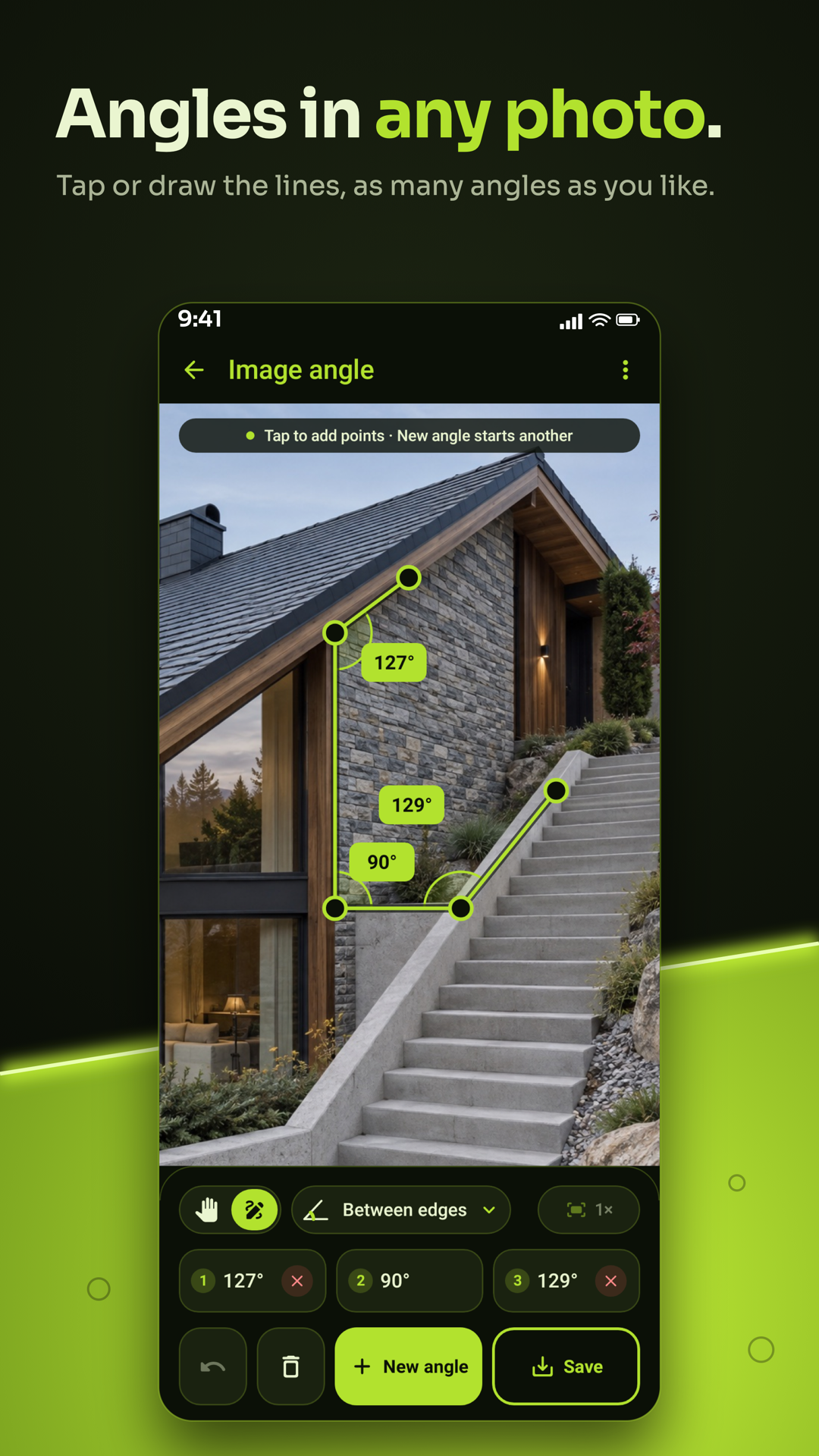
Open Image angle, draw or tap an angle along visible edges and save the result to Records.
Start with a useful task, then keep the result.
Choose Edge, Back or Level, then use the setup pill for the unit and zero mark.
Calibrate from a known reference when needed, then Lock the settled reading.
Save to Records, or open Laser level or Image angle from the app menu for a camera/photo task.
Use this website’s guided walkthrough for the meter, camera level and manual photo angles. The Android app is in development, and Inclination currently has no dedicated in-app Tour or Showroom.
Practice 1
Choose the placement that matches how the phone rests and read the live angle.
Practice 2
Lock the reading, save it and open Records from the saved message.
Practice 3
Open Image angle from the app menu, choose a picture and draw along two visible edges.
Useful habits for your next task.
Rest the phone on a clean stable contact surface and account for a protective case or camera bump.
Choose Edge, Back or Level to match the way the phone rests; changing a screen layout only changes its presentation.
Choose the Edge zero mark for the side in use before calibrating on a known level reference.
Wait for a stable reading, Lock it and then lift the phone away. Unlock returns to live measurement.
Use Relative on Edge when comparing two parts: Zero on the first part, then read from that reference on the next.
Photograph straight edges as square-on as possible for Image angle, then tap or draw the angle points manually and adjust them carefully.
The camera level’s line is a screen guide. Place it on a visible edge in the image; the phone does not project a physical beam.
After Save, use Open on the message to check the result in Records. A photo angle describes the photographed perspective.
Inclination. Measure Edge, Back or Level, lock the reading, take a relative angle and save it to Records.
Explore the tool ›Images coming soon
InclinationLaser level. Keep a horizontal, vertical or cross guide level over the camera in Inclination.
Explore the tool ›Images coming soon
Laser levelImage angle. Tap or draw an angle on a photo, move its points and keep the result in Records.
Explore the tool ›Images coming soon
Image angleInclination preview. Inclination app angle-measurement preview
Read the guide ›Photo angle preview. Inclination app photo-angle preview
Read the guide ›Step-by-step instructions for the app and its tools.
Video coming soonBasics · Written steps
Read the steps : Choose Edge, Back or LevelVideo coming soonBasics · Written steps
Read the steps : Choose a unit and hold a readingImages coming soon
Laser levelTools · Written steps
Read the steps : Laser levelGet the app
Coming soon. Explore the guide while we prepare the app.