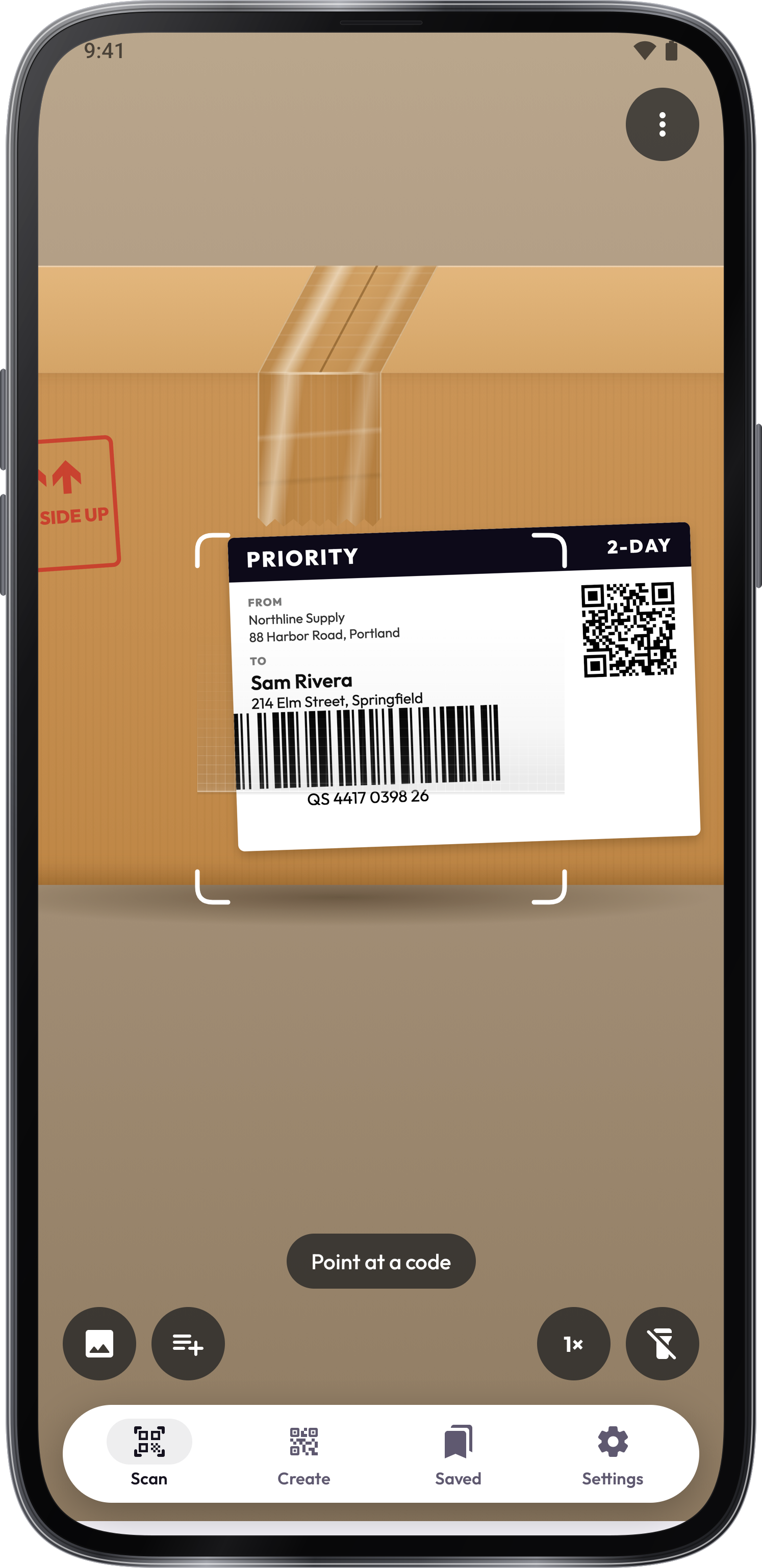
Move a little closer, tap Torch for a dark place, or read it from a picture with the Scan a photo key.
How to use QR Scanner
Instructions and practical tips for the app and its tools.
Scan QR codes and barcodes, create your own, and organize saved codes and lists.
Step by step.
Scan a code
Scan a code
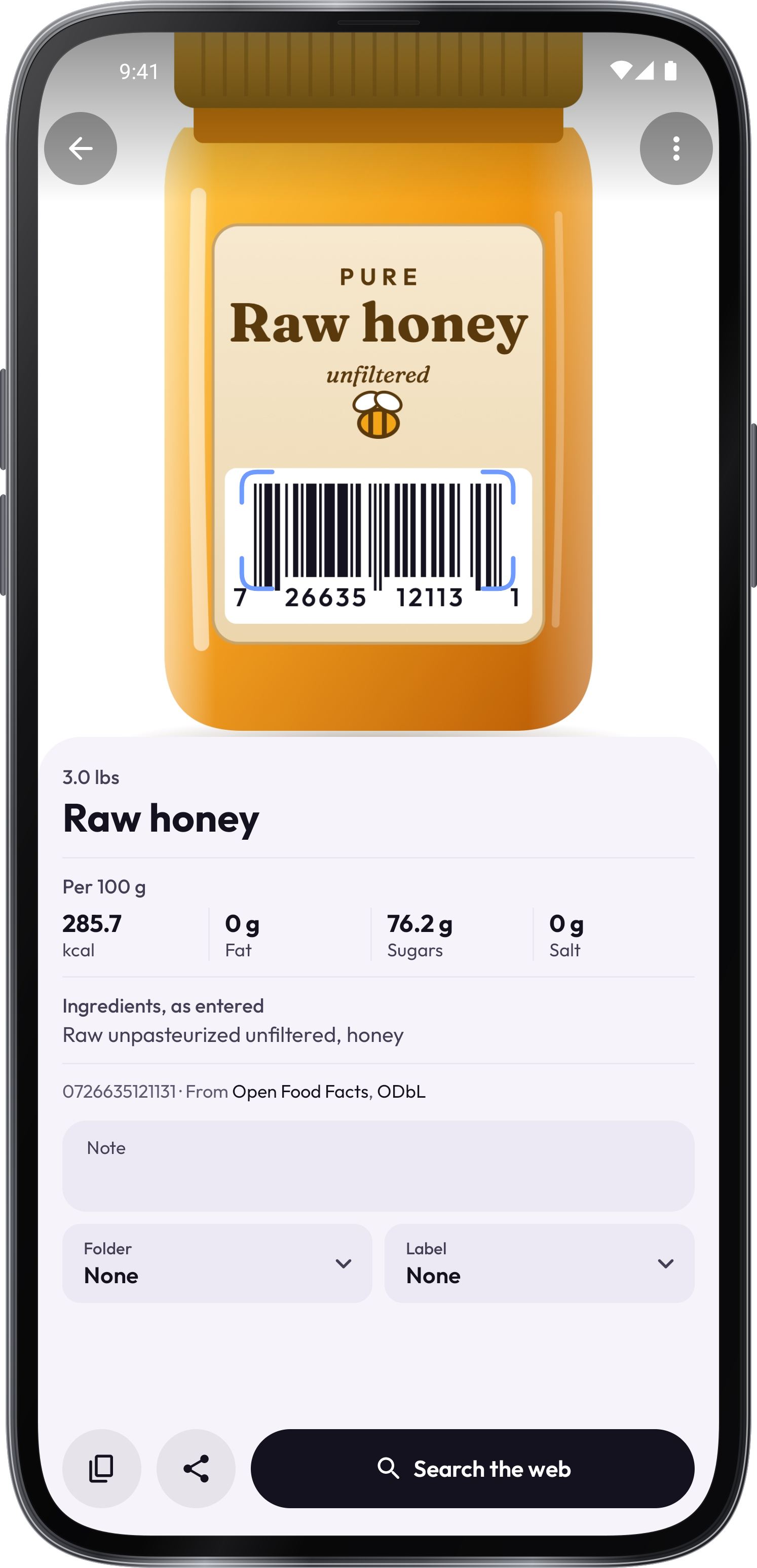
Open Scan and point the camera at a sharp code, or choose a photo or PDF. Use Torch when more light helps.
Review the result
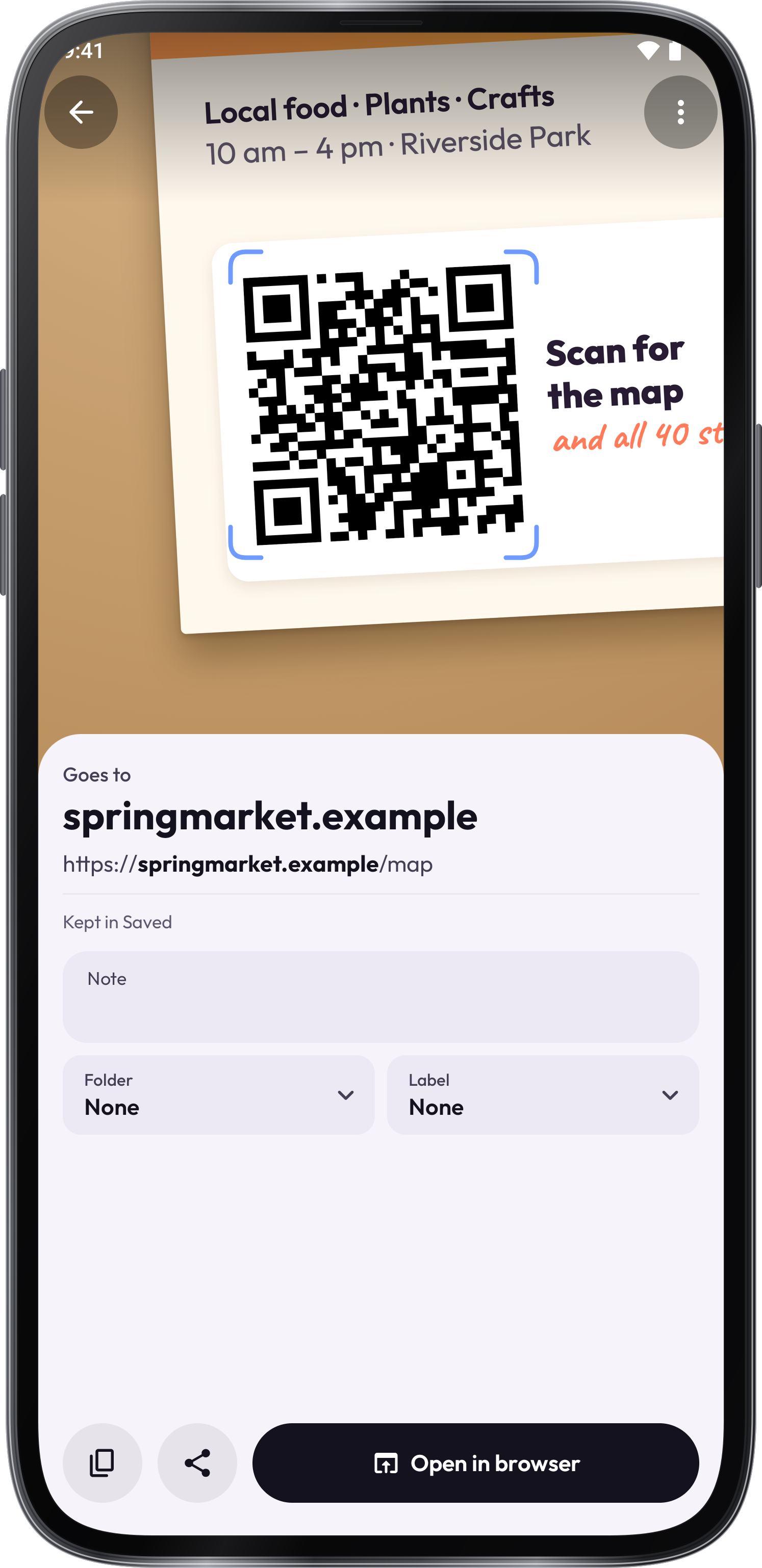
Check the text and destination before choosing Open, Copy or Share. Settings controls whether links open immediately and whether scans are kept in Saved.
Scan several codes
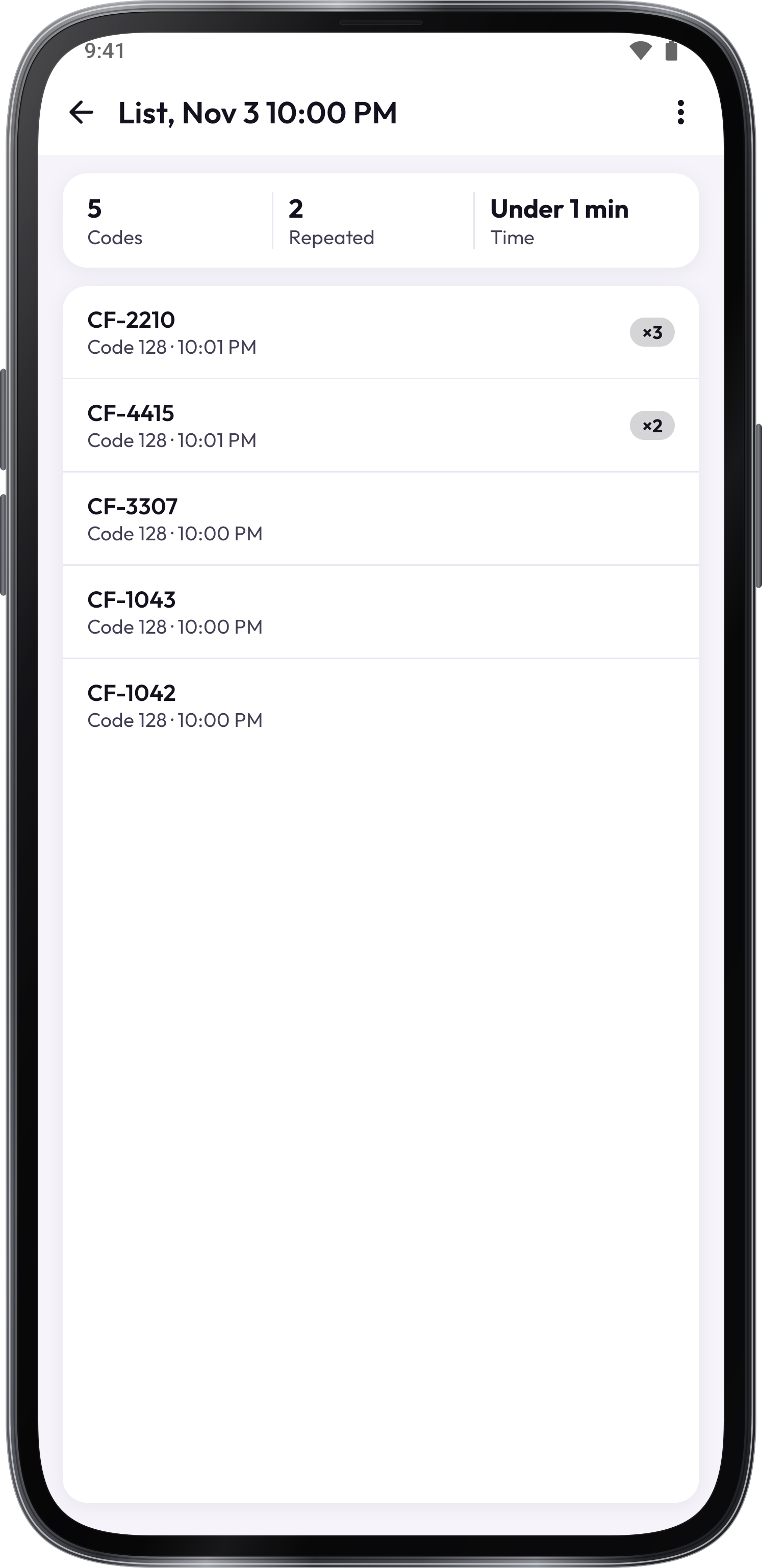
Open Scan several and tap Start. Scan the items, then Stop to review the list and export it.
Create a code
Create a code
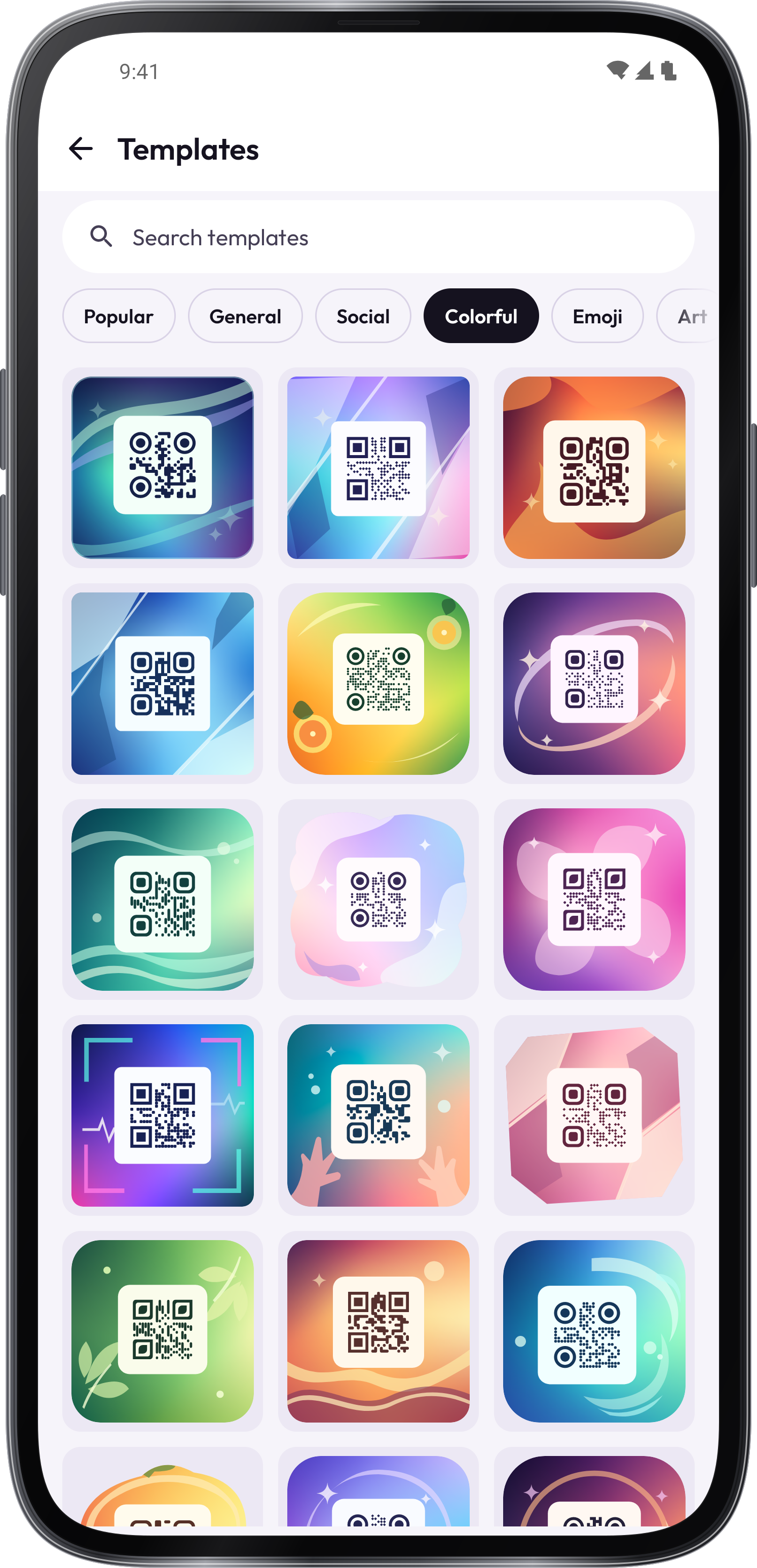
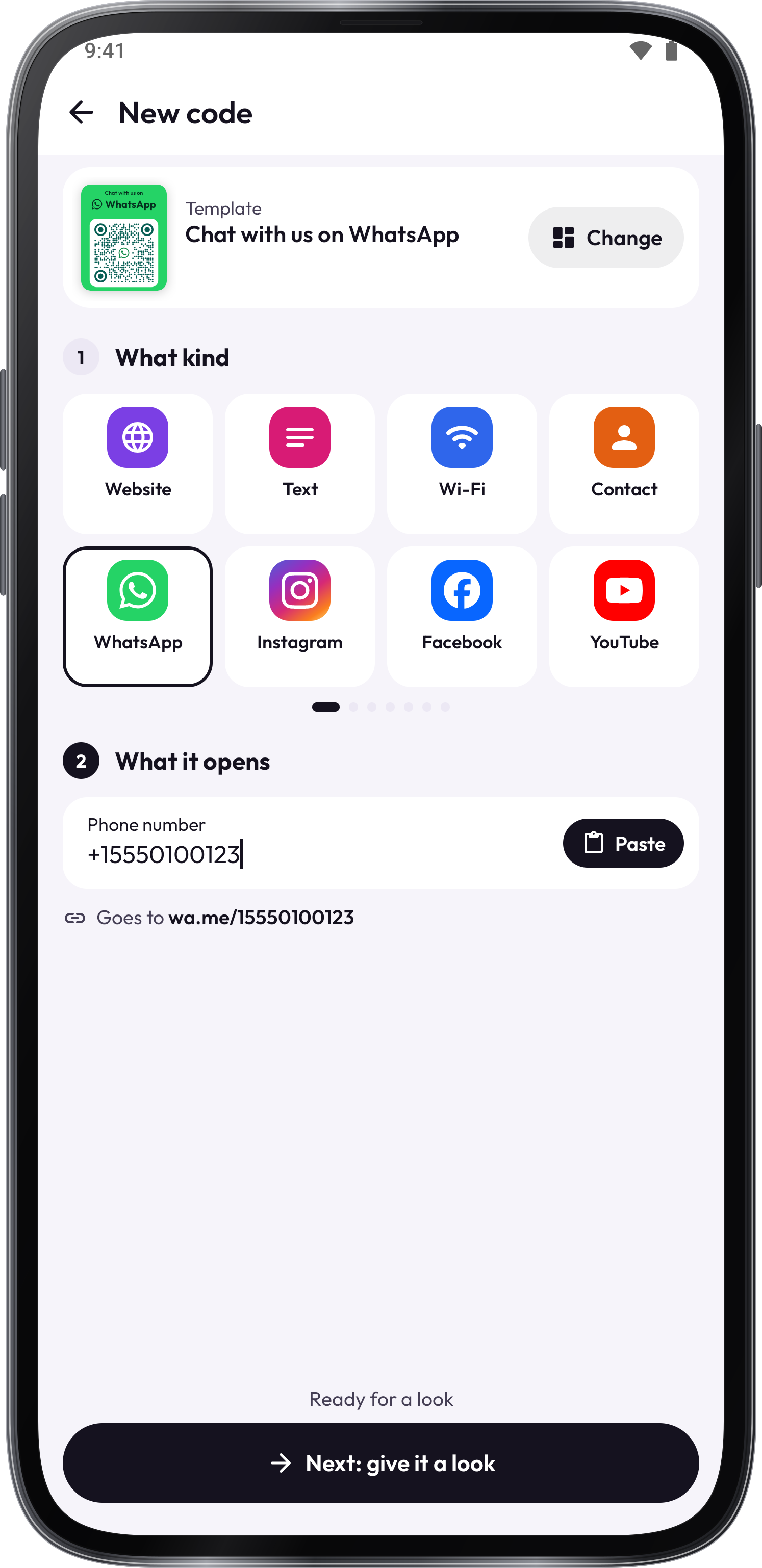
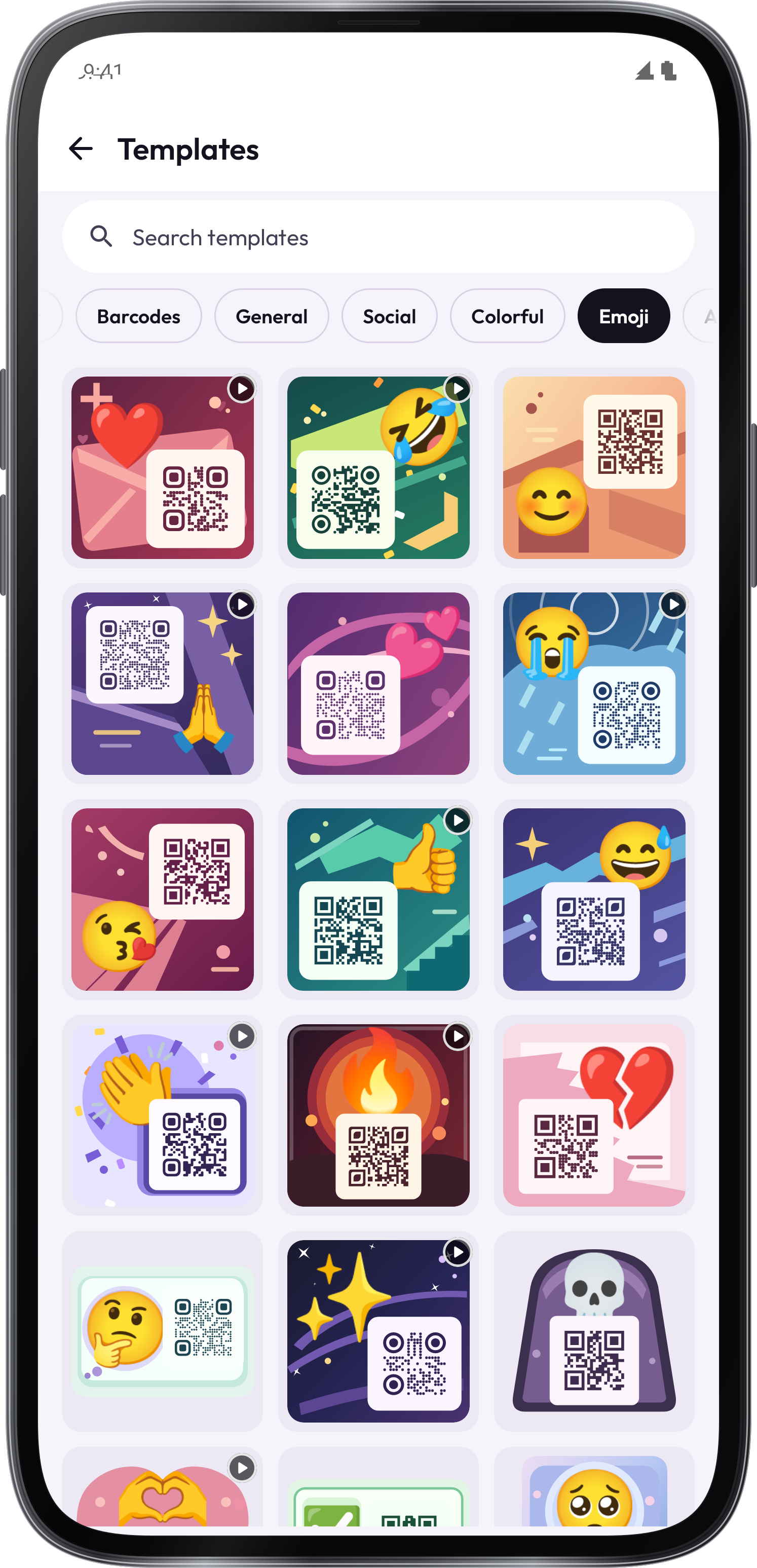
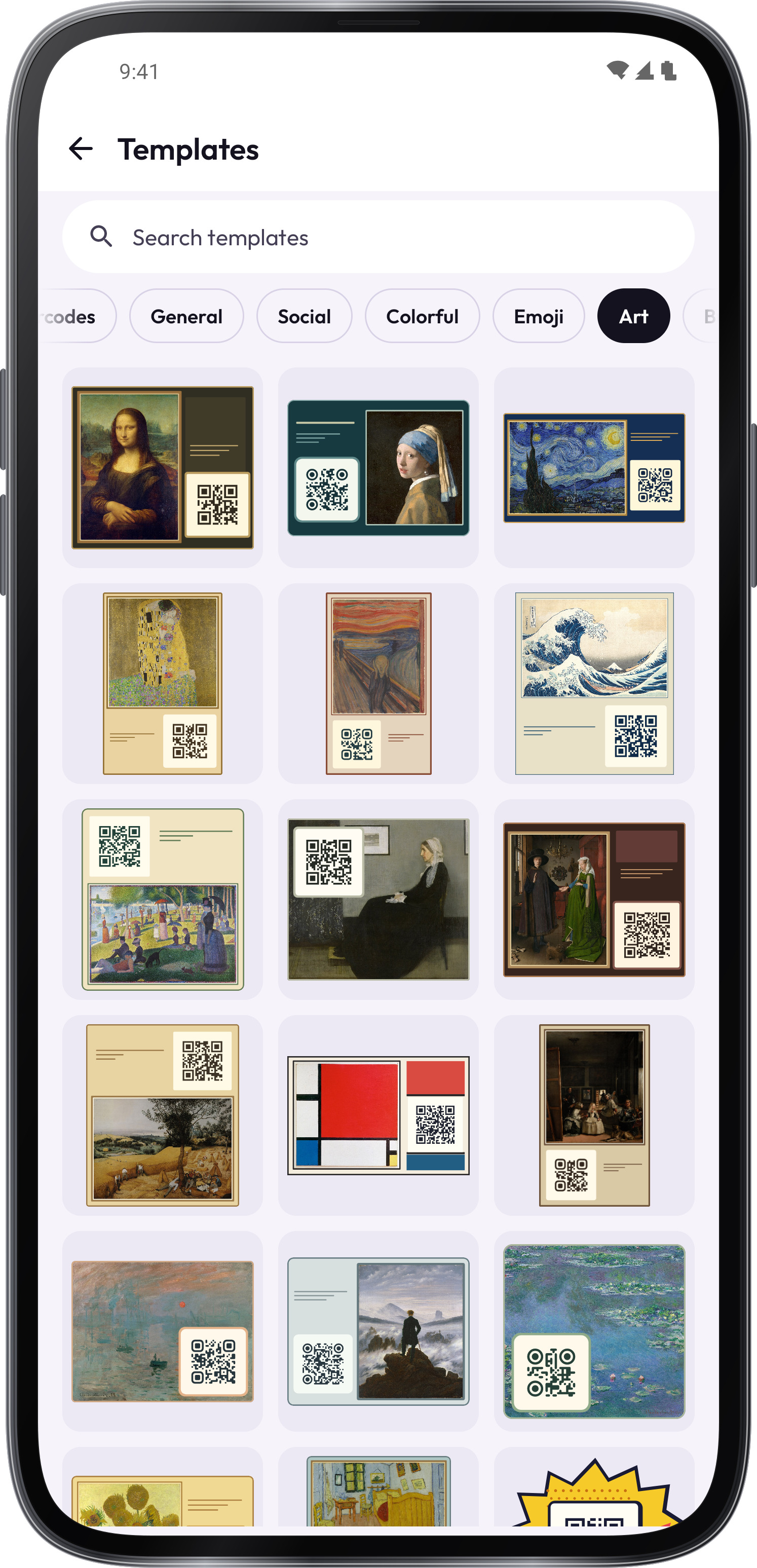
Open Create, choose the content or a template, and enter your details. Save the code, then use Verify, Download or Print.
Give your code a look
Logo shape changes the badge in the center of the QR code. In the color picker, type or paste a HEX or RGB value, or use the wheel.
Organize saved codes
Organize saved codes
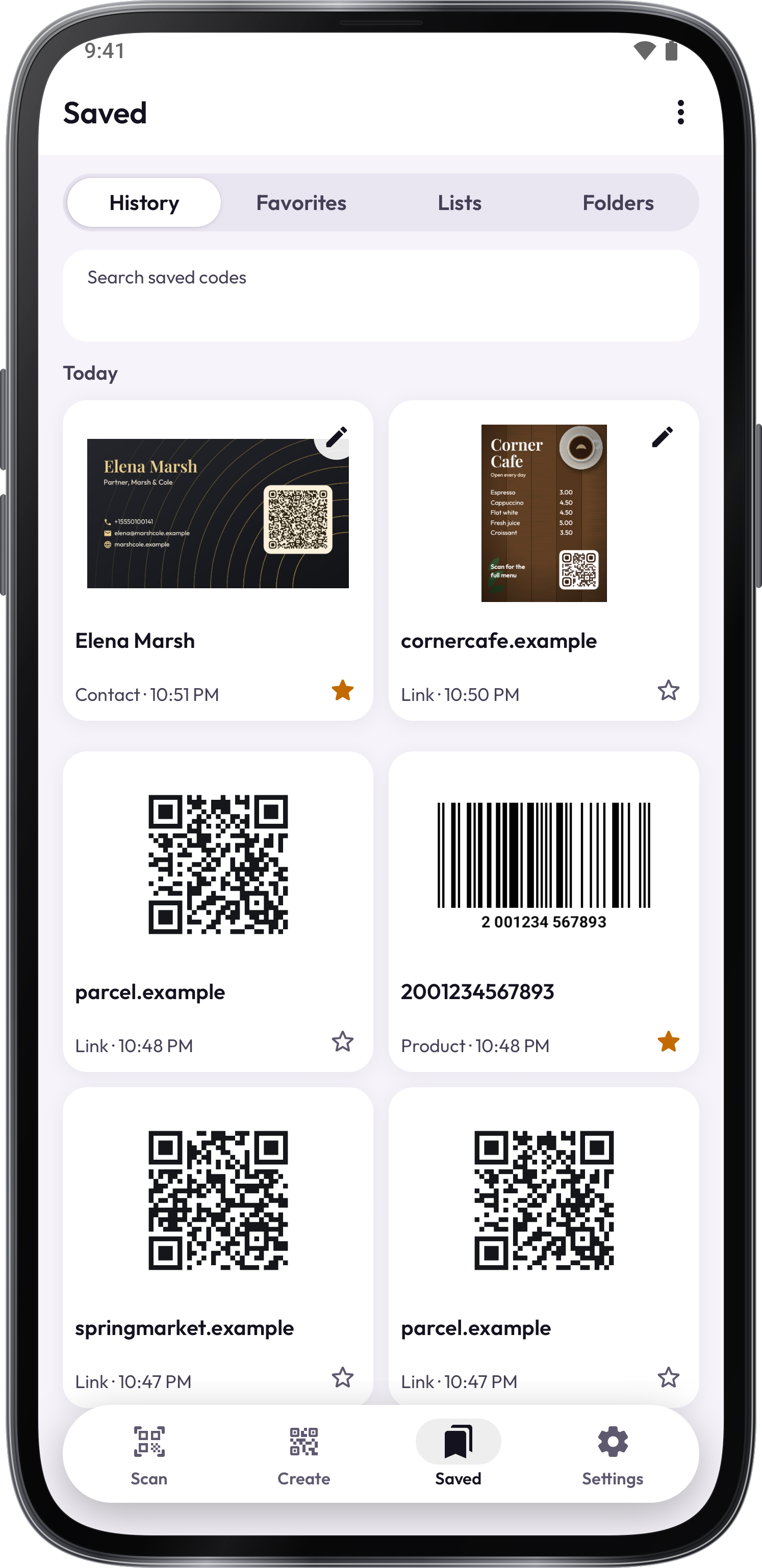
Search Saved, star favorites and use folders, labels and notes. Open a code you made to edit it again.
Back up your work
Use Back up to keep codes, lists and settings in a file. Restore adds them to your existing saved work.
Screenshots
1 / 8
Tool guides.
Each tool in QR Scanner has its own guide.
Tips.
A worn barcode that won't read offers Can't read it? on the camera. Type the digits, and the check digit is tested.
Read a link’s destination before opening it. A readable code does not prove that a website is trustworthy. A short link hides where it goes. Show where it goes asks the short link service, and the page itself stays closed.
Reading a lot of codes? Scan several keeps the camera on and collects them into one list. A list can leave the phone as CSV, TXT, Excel or PDF.
Test a code with Verify and another reader before printing many copies.
For a ticket or a pass, Show at the counter draws it large on a bright screen.