 Video coming soon
Choose a tool
Basics · Written steps
Read the steps : Choose a toolSteps, videos and tips for the app and its tools.
Line up shelves, frames and edges using level lines drawn over your phone’s camera picture. Move a line onto the object, type an angle for a sloping arrangement, use Sight to aim from where you stand, or place angle arms on a paused image. A separate bubble Level handles contact measurements, and the app keeps useful tools and saved work together.
Video coming soon
Getting started
Start with the main measuring screen, or choose another tool from the app’s navigation. The included-tool list below links to each tool’s manual.
This is a still image. The how-to video has not been recorded yet.
Read the stepsVideo coming soonBasics · Written steps
Read the steps : Choose a toolVideo coming soonBasics · Written steps
Read the steps : Choose a measuring modeVideo coming soonBasics · Written steps
Read the steps : Set a manual angle and hold the readingVideo coming soonBasics · Written steps
Read the steps : Choose the camera overlaysVideo coming soonBasics · Written steps
Read the steps : Set slope units and decimal places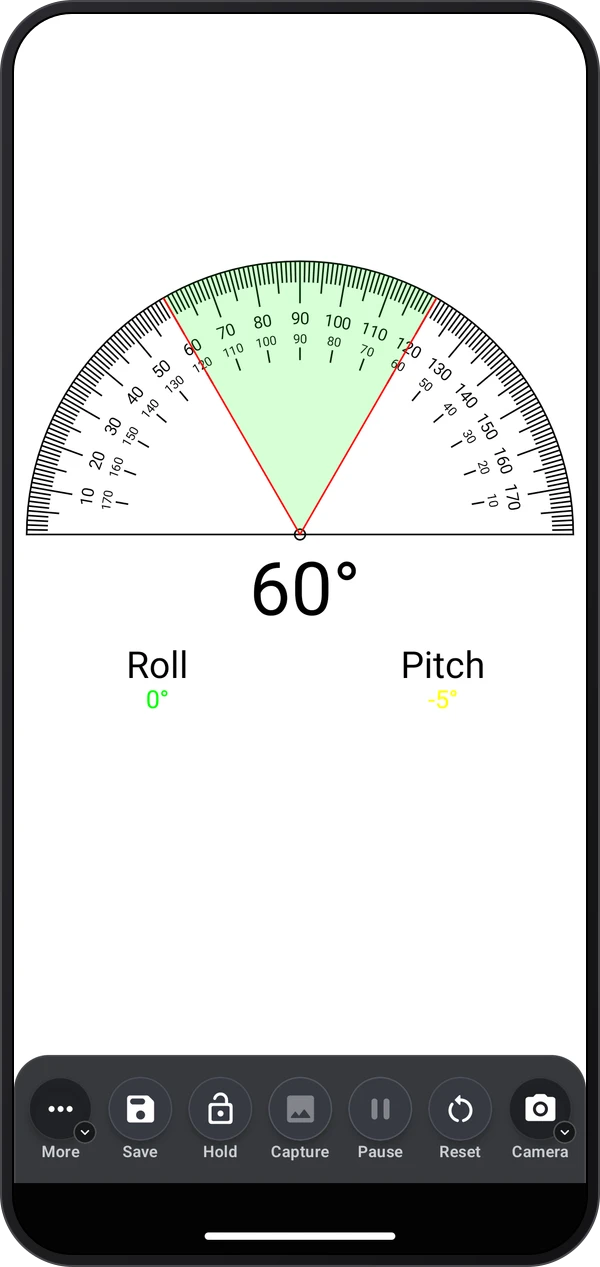 Video coming soon
Tools · Written steps
Read the steps : Protractor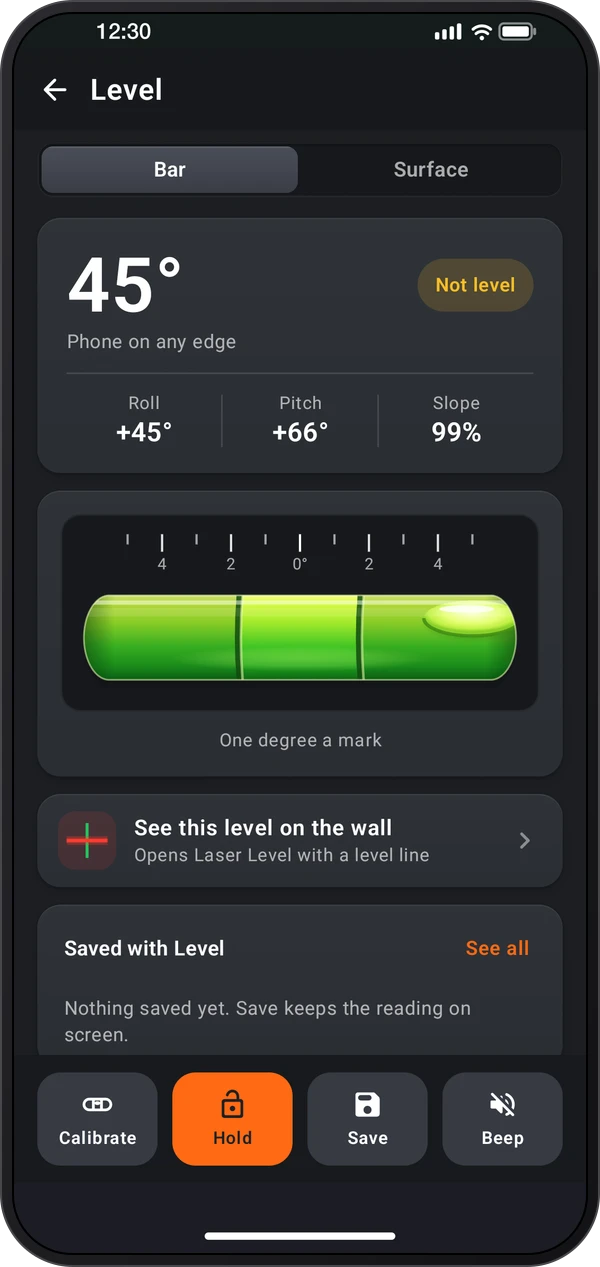 Video coming soon
Tools · Written steps
Read the steps : Level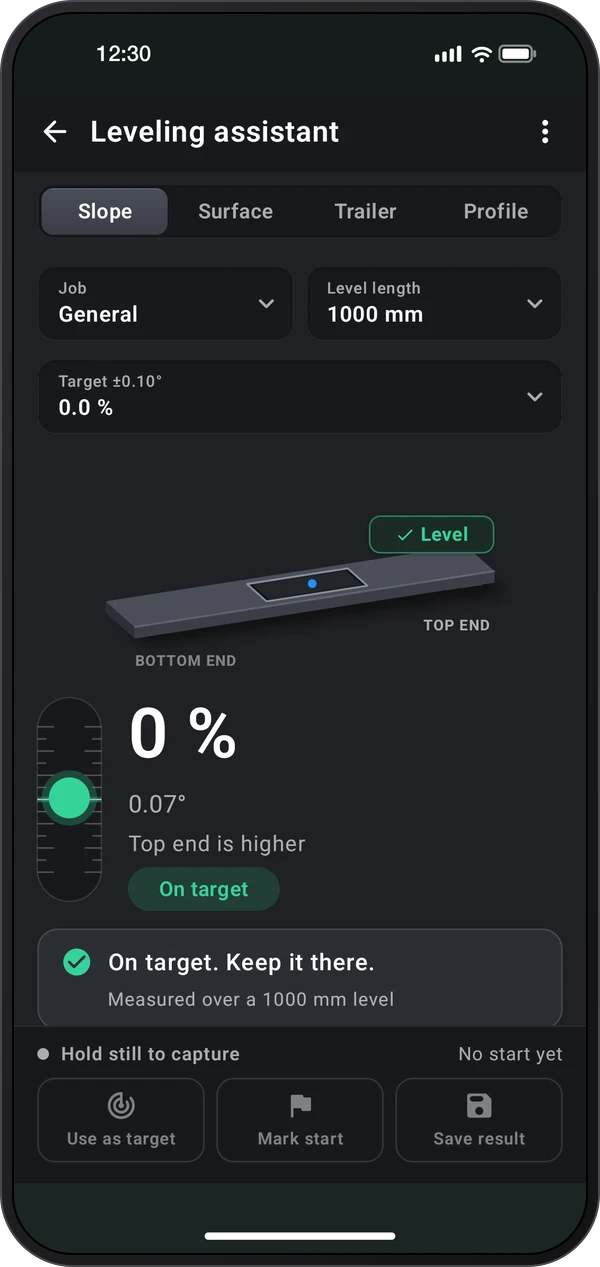 Video coming soon
Tools · Written steps
Read the steps : Leveling assistantStart with the main measuring screen, or choose another tool from the app’s navigation. The included-tool list below links to each tool’s manual.
Pick a mode, Laser, Detect, Sight or Angle, and then its type, such as Angle › Touch, Drag or Free; in the Original layout, tap the mode's button, or More › Measurement Mode in portrait. In Free, tap points to see inner and outer angles, then tap the first point or Close path to measure every corner.
Quick settings › Display shows or hides the dial, the lines, the reading, the roll and pitch gauges, and the date and GPS stamps.
Pick Laser › Manual to type an angle. Hold keeps the reading, and Reset › Reset measurement starts over.
Open Quick settings › Assist › Tour and practice. Tour tells short stories; Showroom opens each feature; Practice room guides the controls; Jobs around the room gives alignment tasks. Practice does not keep photos or records.
Quick settings › Measure › Unit writes the reading in degrees or as a slope: %, x/12, 1:n, mm/m or in/ft. Quick settings › Measure › Decimals writes the reading with no decimals or with one.
Tap Pause to freeze the picture, or turn on Auto pause in Quick settings › Measure. The shutter saves a photo with the reading; Save puts the measurement in Records, and a long press on Save adds a title and a note first.
Try these steps in the app. All tour instructions stay readable here.
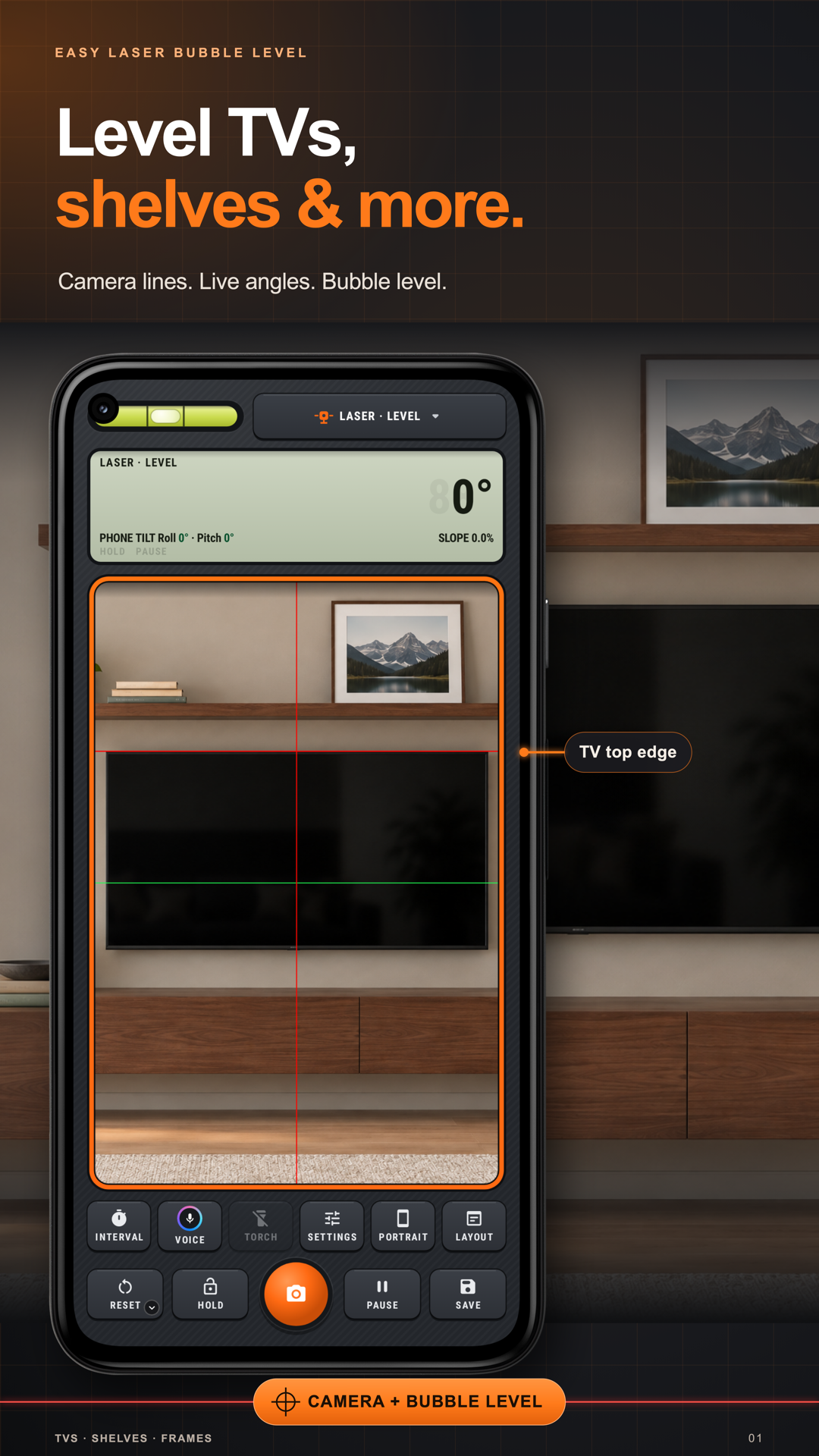
The red line stays level however you hold the phone. Drag it onto a shelf and line the shelf up, or type an angle for the stairs.
Put the crosshair on any edge: a TV, a shelf, a door. A spirit level lands on it and reads how far it is off.
Aim at a chimney for its height angle, lay a line on a roof for its true pitch, or drag two arms over anything.
Straighten the phone until Roll and Pitch read 0, then tap Pause, or keep still and Auto pause does it for you. Hold keeps the number, the shutter the picture, and Save puts it in Records.
Standing off to the side, the phone can’t tell how far you’re turned, so a level shelf reads crooked. Press the back of the phone flat on the wall it’s on, screen facing you, and tap Set. Then step back and aim from where you stand: it reads true.
Use Tour and practice to level the drawn shelf, straighten a picture or try a manual angle. These scenes demonstrate the tool; the practice badge means nothing is saved.
Each tool in Easy Laser Bubble Level has its own guide.
Put the guide on the object: Drag a level line onto the shelf or frame you are checking. Line up the object’s visible edge with the guide in the camera picture.
Type a slope for repeated alignment: Use Laser · Manual and enter the required angle when arranging items along stairs or another slope. Reposition the guide on the picture as needed.
Know what each keep control does: Hold preserves the reading, Pause freezes the camera picture and the shutter makes a photo. Choose the one that matches what you need to keep.
Aim steadily for Sight: Use Sight · Point for an elevation angle or Sight · Line along a visible roof edge. Keep the phone still and pause the picture when placing the guide.
Use the right image tool: For a photo angle, place the arms yourself along the visible edges and adjust their handles. Image Meter’s Tool edition uses manual drawing; it does not automatically recognize the angle.
Learn on the drawing first: Try a shelf, picture or door task in the Practice room before using the camera. The practice badge means nothing is being saved.