 Video coming soon
Choose a picture
Basics · Written steps
Read the steps : Choose a pictureSteps, videos and tips for the tool.
Measure and annotate photos with editable drawings.
Video coming soon
Getting started
The app opens the Full Image Meter library. Open an existing photo or sample, import one, or take a picture, then edit its drawings.
This is a still image. The how-to video has not been recorded yet.
Read the stepsVideo coming soonBasics · Written steps
Read the steps : Choose a pictureVideo coming soonBasics · Written steps
Read the steps : Choose the right editionVideo coming soonBasics · Written steps
Read the steps : Open a photo and add measurementsVideo coming soonBasics · Written steps
Read the steps : Adjust drawings and inspect detailsVideo coming soonBasics · Written steps
Read the steps : Set a reference and save the pictureThe app opens the Full Image Meter library. Open an existing photo or sample, import one, or take a picture, then edit its drawings.
In Angle Meter, Clinometer and Easy Laser Bubble Level, start from an existing photo or capture and use Angle, Free angle, Distance, Draw or Text. The extra Area, analysis and library features described here belong to Full Image Meter in its standalone app and Toolbox.
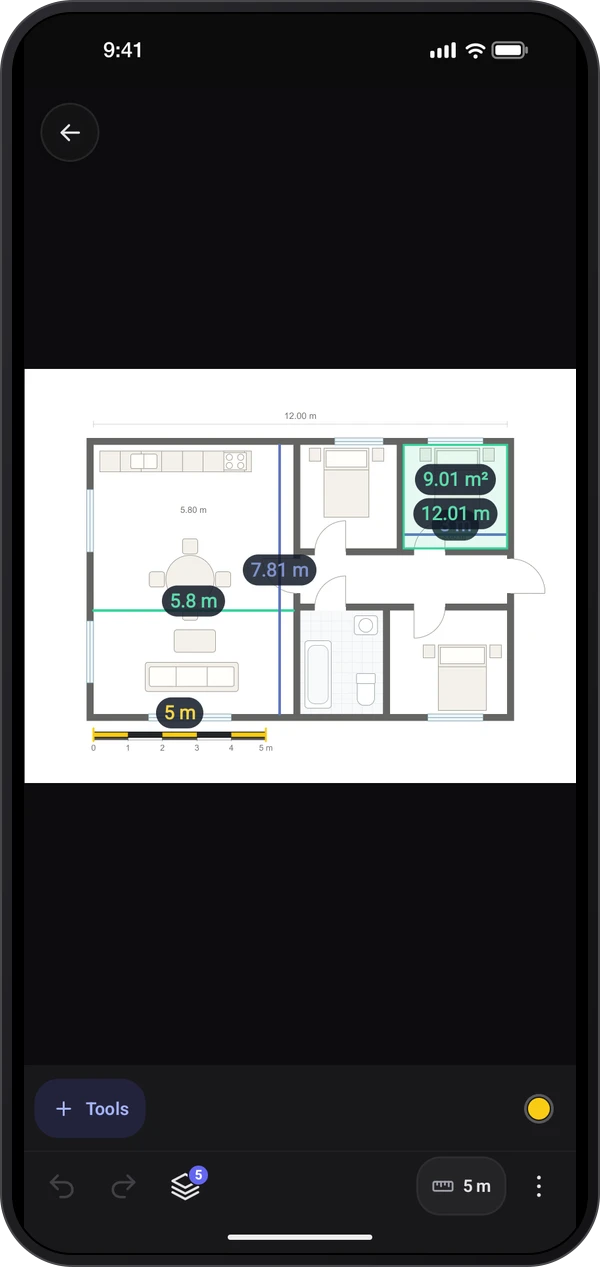
Pick a photo from the list or a sample, import one with Add, or take one. Tap Tools and pick a tool: draw an angle in one stroke, tap points with Free angle to see inner and outer angles, measure with Distance or Area, or add shapes, labels, notes and pen marks.
Select a drawing to move it or adjust its handles. Pinch to zoom and pan. Use the grid and magnifier for placement; undo or redo edits.
Pick Scale line under Reference, drag it along something of known size and enter its length and unit; for a wall or floor seen at an angle, use Perspective plane. Manage drawings in Layers. ⋮ › Save puts the marked-up picture in your gallery, and the drawings stay editable when you reopen the photo from the list.
Try these steps in the app. All tour instructions stay readable here.
Start from the library and open a sample, import a photo or a PDF page, or take a picture. Choose a tool before placing points or drawing on the image.
Place a Scale line on a known length and enter the real length and unit. Zoom in when setting the endpoints; a long, clearly visible reference reduces placement error.
Use Perspective plane for a wall or floor seen at an angle. Match its four corners to a rectangle with known size on the same plane as the measurements.
The Full app offers edge snapping, shape suggestions and reading of printed sizes. Check the selected shape or value, then confirm it; real-world lengths still depend on a correct reference.
Add dimensions, areas, labels and notes, and adjust them with their handles. Save a marked-up picture for sharing, then reopen the photo in Image Meter to edit its retained drawings.
Find Image Meter in these apps.
Set a known reference size before trusting a length; without it the drawing reads pixels.
Choose a long, clearly visible reference and zoom in before placing its endpoints.
For a wall or floor seen at a slant, use a four-corner perspective reference on the same plane as the measurement.
Keep measurements linked to the appropriate reference when the photo contains more than one surface.
Review detected shapes and printed sizes before confirming them; suggestions do not establish real-world scale.
Reopen the original photo in Image Meter to edit its drawings; the image saved to the gallery is a flattened copy.