Annotate a project photo
Combine dimensions, arrows and notes on the image and retain the drawings for later editing.
Image Meter
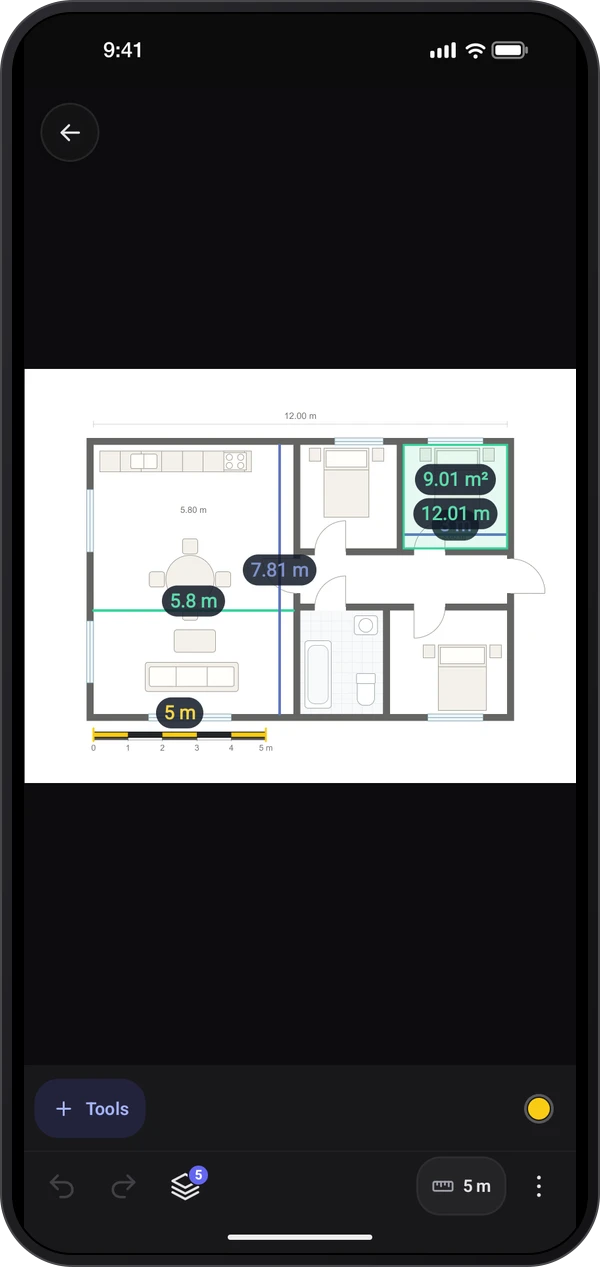
Image Meter for iPhone
Coming soon to the App Store
Android app coming soon.
Turn photos and plans into editable measurement drawings. Add a known-size reference, place lengths, angles and areas, then annotate and export a picture or report with the context intact. The app opens its photo library, with your pictures, samples and import options. Use the website walkthrough below to plan a first measurement, then practise with the app’s own controls. The standalone Android app is being prepared for release. This guide describes its implemented workflow; screenshots may show a development build.
Explore the screens, then follow the guide to try them yourself.
Practical ways to use Image Meter.
Combine dimensions, arrows and notes on the image and retain the drawings for later editing.
Set a real size on the same plane, then add lengths and areas to the photo or plan.
Keep related photos and measurements, then export a marked-up picture or a Full-edition report.
Start with a useful task, then keep the result.
Open a sample or photo from the library, import a picture or PDF page, or capture a new one.
Set a known-size Scale line or a four-corner Perspective plane before interpreting real-unit lengths.
Place measurements, zoom to refine endpoints, add notes and save a marked-up copy.
Image Meter includes Tour, Showroom, Lessons and Tips with practice images. Use its learning pages for hands-on practice; the website walkthrough below covers references, point placement and editable saves.
Practice 1
Start from the library and open a sample, import a photo or a PDF page, or take a picture. Choose a tool before placing points or drawing on the image.
Practice 2
Place a Scale line on a known length and enter the real length and unit. Zoom in when setting the endpoints; a long, clearly visible reference reduces placement error.
Practice 3
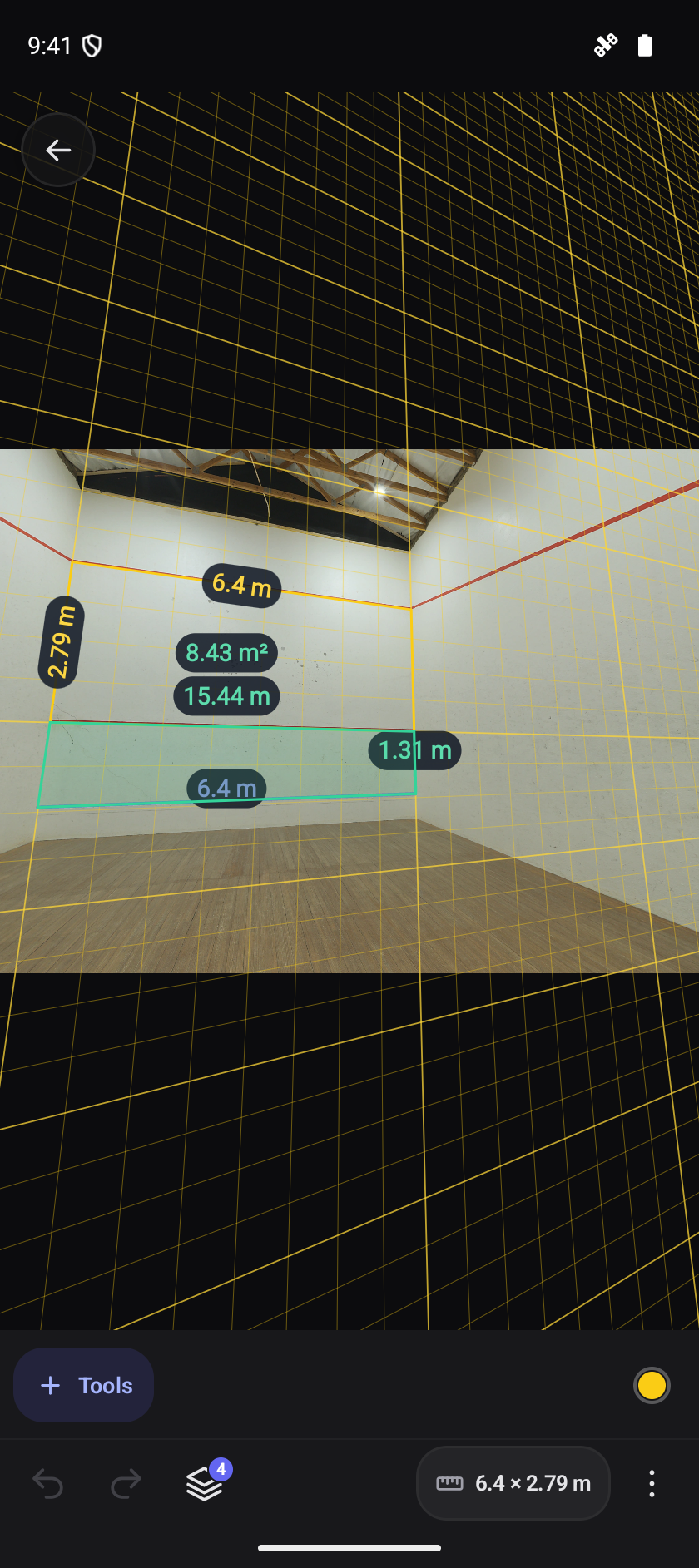
Use Perspective plane for a wall or floor seen at an angle. Match its four corners to a rectangle with known size on the same plane as the measurements.
Useful habits for your next task.
Set a known reference size before trusting a length; without it the drawing reads pixels.
Choose a long, clearly visible reference and zoom in before placing its endpoints.
For a wall or floor seen at a slant, use a four-corner perspective reference on the same plane as the measurement.
Keep measurements linked to the appropriate reference when the photo contains more than one surface.
Review detected shapes and printed sizes before confirming them; suggestions do not establish real-world scale.
Reopen the original photo in Image Meter to edit its drawings; the image saved to the gallery is a flattened copy.
Image Meter. Measure lengths, angles and areas on a photo from one known size.
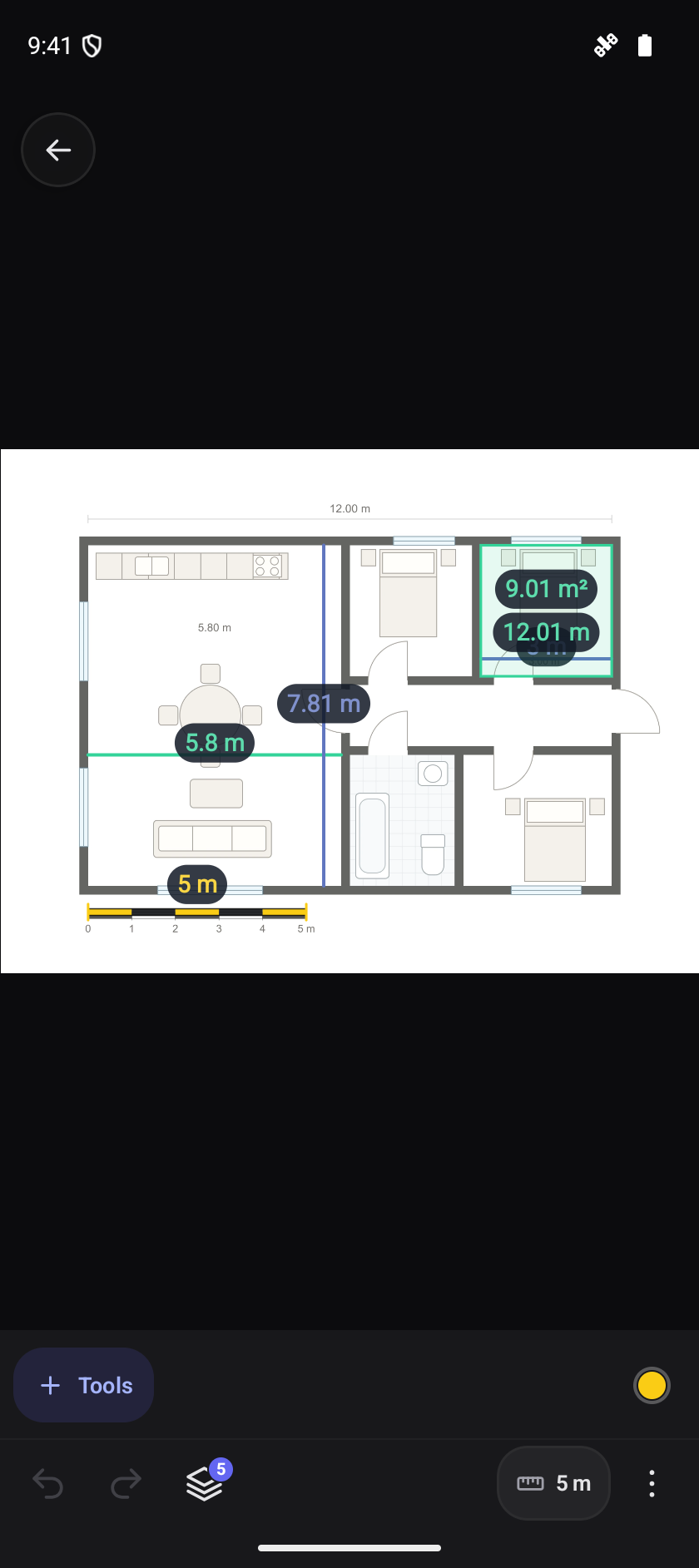
Explore the tool ›Image Meter. Image Meter floor-plan sample with a 5 m reference, measured lengths and room area
Read the guide ›Perspective wall. Image Meter real court-wall photo with a perspective reference, distance and area measurements
Read the guide ›Step-by-step instructions for the app and its tools.
Video coming soonBasics · Written steps
Read the steps : Choose a pictureVideo coming soonBasics · Written steps
Read the steps : Choose the right editionVideo coming soonBasics · Written steps
Read the steps : Open a photo and add measurementsGet the app
Coming soon. Explore the guide while we prepare the app.