Sketch a field or site
Draw editable areas, paths and distances over the map and keep them in a saved drawing.
GPS Map
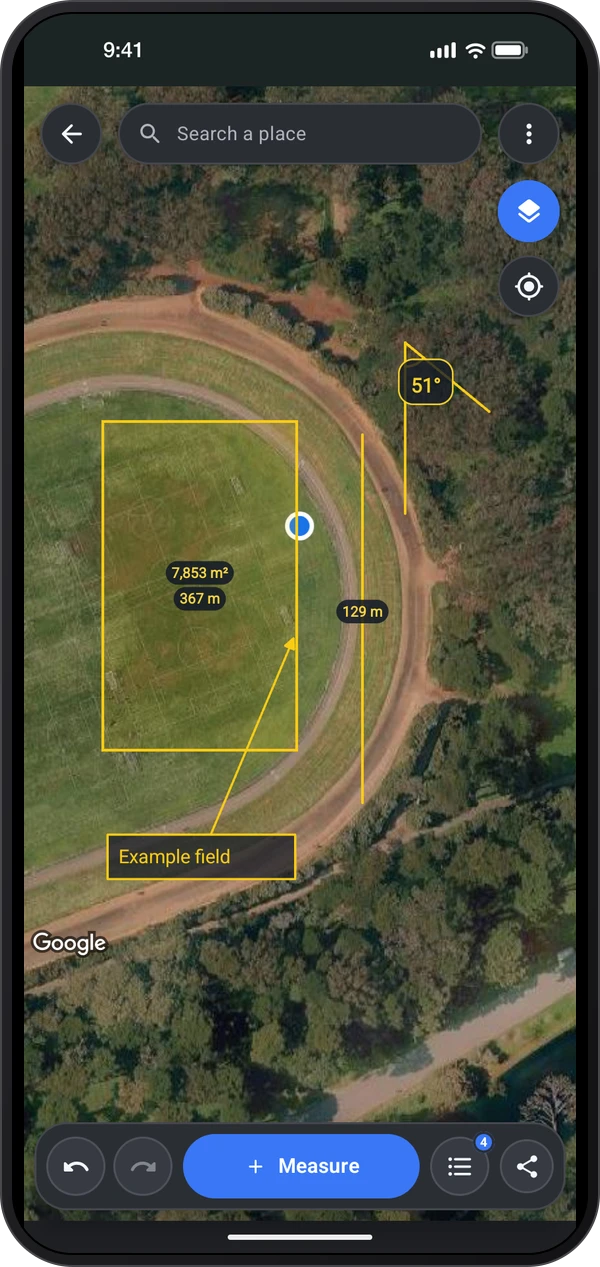
GPS Map for iPhone
Coming soon to the App Store
Android app coming soon.
Draw and save map measurements for a field, route or site. Tap points or add them while walking, edit the drawing, attach notes and photos, and share a clear report. The app opens your saved drawings. Open one or create a drawing to measure on the map. Combine editable outlines with pins, photos and notes, then keep a drawing for later review. PDF, GeoJSON and CSV output follows the app’s feature access labels. The standalone Android app is being prepared for release. This guide describes its implemented workflow; screenshots may show a development build.
Explore the screens, then follow the guide to try them yourself.
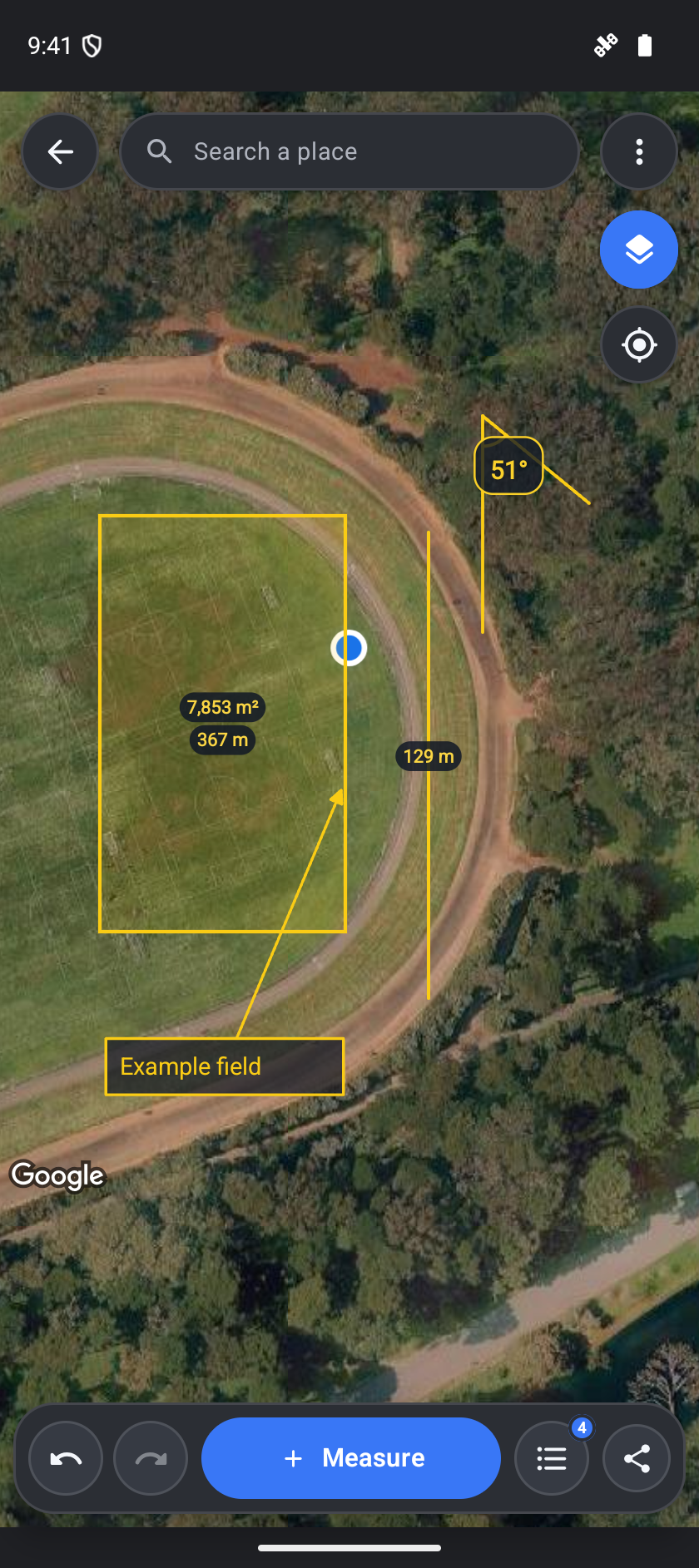
Practical ways to use GPS Map.
Draw editable areas, paths and distances over the map and keep them in a saved drawing.
Add GPS points while the tool stays open, pausing whenever you need to stop or refine the shape.
Attach photos and notes to pins, then use the available PDF, GeoJSON or CSV output.
Start with a useful task, then keep the result.
Start from saved drawings and choose one to continue, or create a new map.
Choose Measure, pick the kind, then add points by tapping, crosshair or walking.
Review the corners and units, choose Done to save, then reopen or export the drawing.
The map’s own guide cards and Help explain each step. This website walkthrough introduces drawing, walking and saving; it does not claim an in-app Tour or Showroom.
Practice 1
Tap New map, tap Measure and pick Distance, Path, Area, Angle, Label or Pin, then tap the map to place points and tap Done. Tap a shape to edit it: drag its handles, hold it to move it, or change its color, labels and name. The tips card asks what you are measuring and leads you through it; hide it with Hide tips or the Tips switch under ⋮ Map tools, where you can also turn on Crosshair placement.
Practice 2
To measure on site, pick Walking it under Add points by, or tap Walk while drawing a path or an area, then walk the boundary: a point is added every few meters while the GPS is accurate.
Practice 3
Done saves your shapes as a drawing. The tool opens on your saved drawings, and the map's back arrow returns there; open, rename, delete or share them as GeoJSON for map apps or CSV for spreadsheets. Share on the map also makes a PDF report. The tool is still in beta: tap BETA beside its name to email us your feedback. Beside each Share, Save puts the PDF report, GeoJSON or CSV in the phone's Documents folder.
Useful habits for your next task.
Zoom in and use the crosshair when a finger would hide the corner you want to place.
Check GPS accuracy before walking a boundary and keep the map open while adding points.
Pause walking when you stop or need to add a point manually.
Tap a shape to review its measurements and move its handles to refine the outline.
Add a photo or note to a pin for context that an outline alone cannot show.
Choose Done to keep the shape and save the drawing; open it again from saved drawings to continue editing.
GPS Map. Walk or tap a boundary for distance, perimeter and area.
Explore the tool ›GPS Map. GPS Map example drawing with area, perimeter, distance, angle and a label over a public park
Read the guide ›Step-by-step instructions for the app and its tools.
Video coming soonBasics · Written steps
Read the steps : Open or create a drawingVideo coming soonBasics · Written steps
Read the steps : Place points for a measurementVideo coming soonBasics · Written steps
Read the steps : Edit a shapeGet the app
Coming soon. Explore the guide while we prepare the app.