Keep a material palette
Read a surface or photo and save colors with names, tags and notes for a project.
Color Picker
Color Picker for iPhone
Coming soon to the App Store
Android app coming soon.
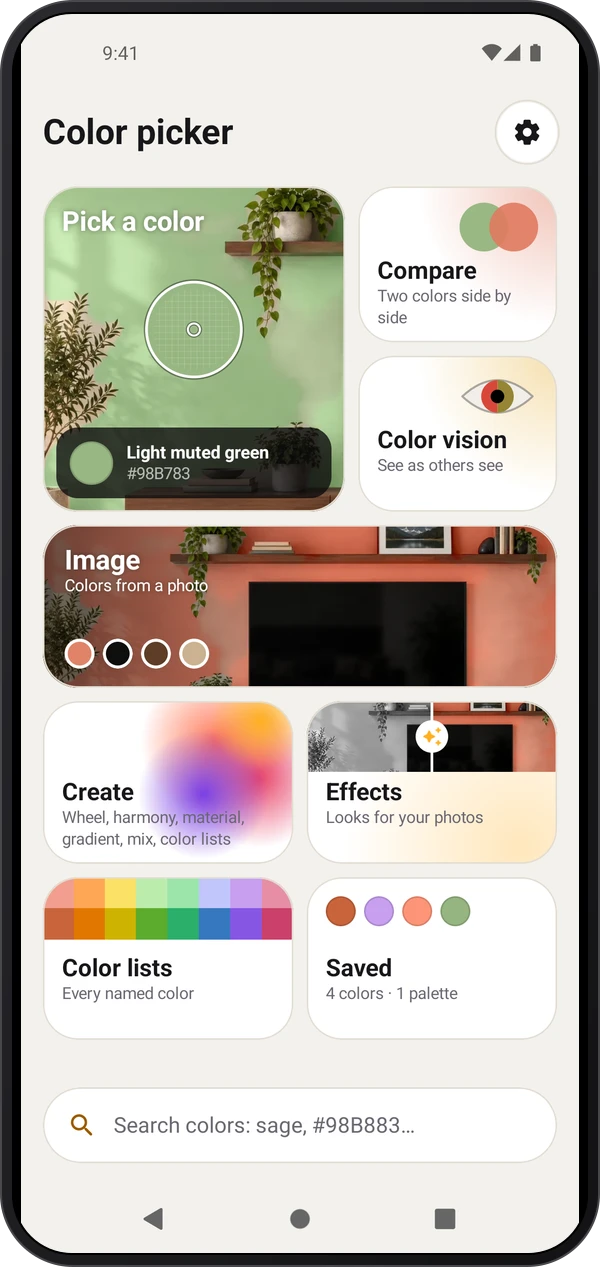
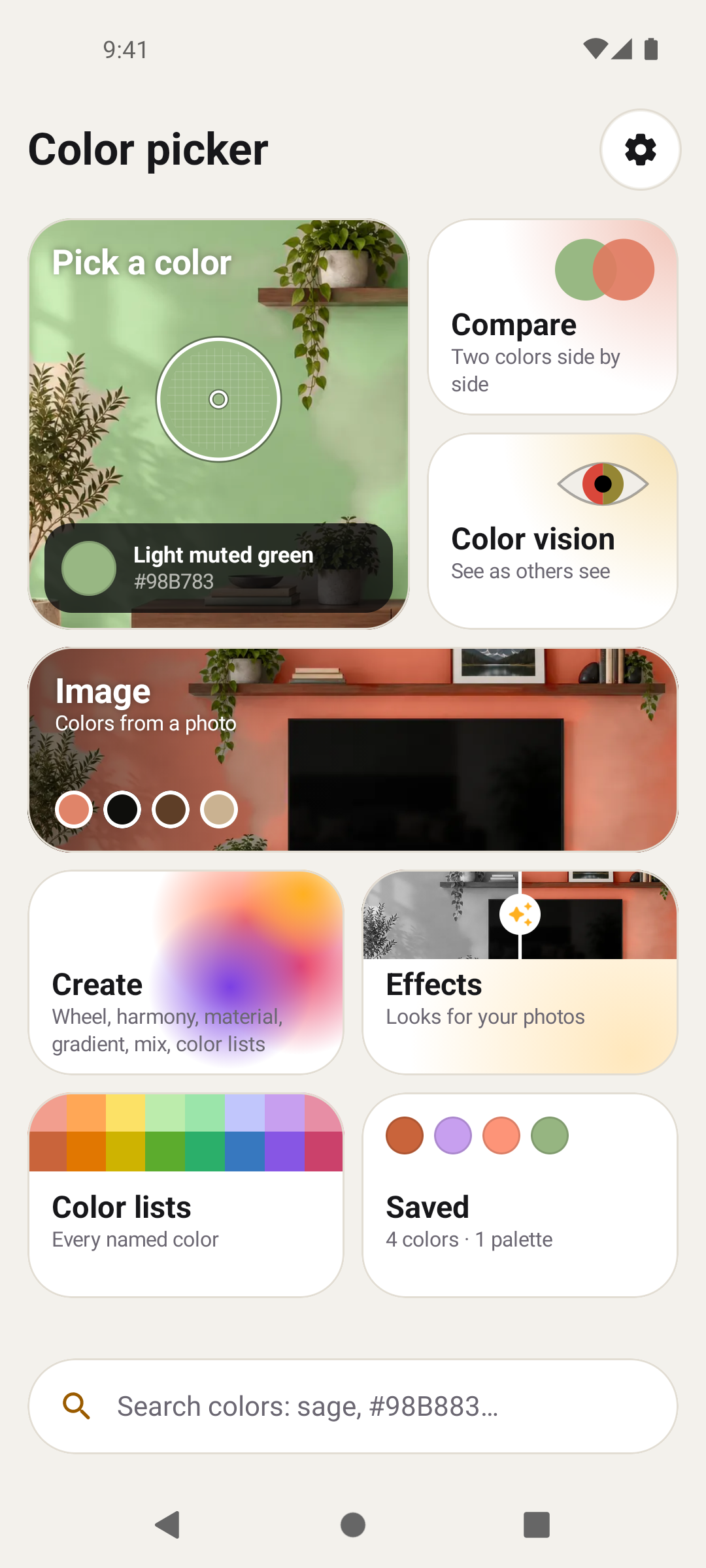
Pick a color with the camera or from a photo, compare shades and keep colors or palettes for your next project. Home brings together Pick a color, Compare, Color vision, Image, Effects, Create, Saved and Settings. Other screen layouts include Camera app and Instrument, and saved choices are remembered. The Android app is being prepared for release. Some calibration, color-library, photo and export features require Plus or Pro.
Explore the screens, then follow the guide to try them yourself.
Practical ways to use Color Picker.
Read a surface or photo and save colors with names, tags and notes for a project.
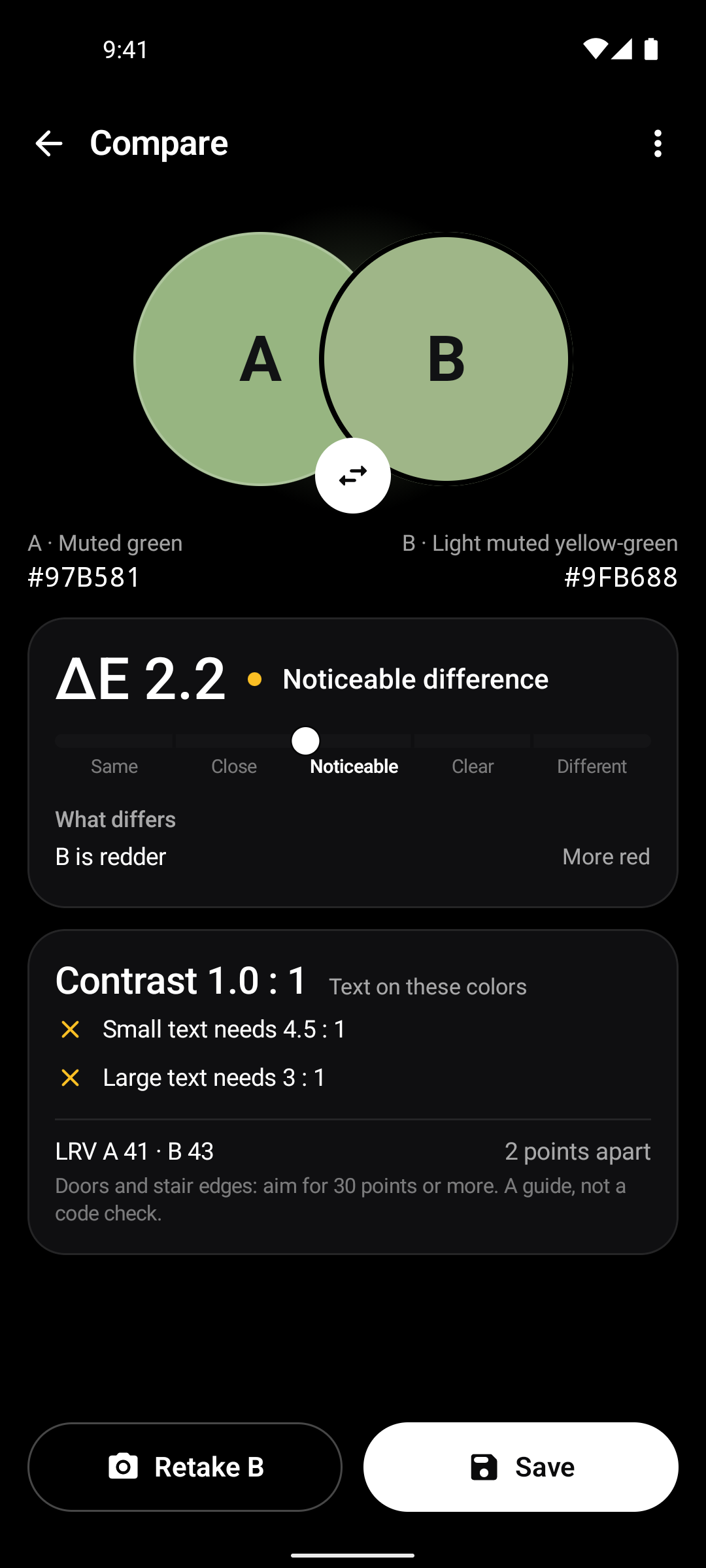
Use A and B under consistent lighting to inspect their difference and codes.
Create harmonies or gradients, or preview a photo effect and wall color on a separate image copy.
Start with a useful task, then keep the result.
Use Pick a color for the live camera or Image for a photo. Keep lighting even.
Place the sampling lens carefully, adjust spot size and Hold while checking the name and code.
Save the color, compare with a second sample, or build a palette in Create.
Open Tour & lessons from the section’s ⋮ menu or Settings for Tour, Showroom and live-camera Lessons. Practice saves and palettes are not kept, and your settings return afterward. This Android app is being prepared for release.
Practice 1
Point the camera at a familiar object and move the sampling lens. Notice how the name and codes change.
Practice 2
Keep a color, compare it with a second one, then use Create to build a palette or gradient.
Practice 3
Open Saved, select your result and copy a code or share it in a format your plan offers.
Useful habits for your next task.
Use even lighting and avoid glare, cast shadows and reflections when sampling a material.
Choose a small spot for a thread or detail and a wider spot to average a textured wall. Keep the lens on the material you intend to sample.
When comparing two samples, keep lighting and camera brightness/tint consistent. Keep camera settings prevents automatic changes between readings.
Calibrate with a white paper, gray card or color chart in the same light as the sample. Recheck when you move to different lighting.
Hold freezes the picture and reading while still letting you move the lens; Save keeps the color in Saved.
Sample photos through Image when the subject is already captured. Main colors can build a palette where the app’s plan allows it.
Effects and wall paint previews create a copy. Compare a real paint sample in the intended light before choosing a finish.
Camera display effects do not alter the original color used for names and codes. Use the code from the reading rather than judging a simulated display by eye.
Color picker. Identify colours in the camera or a photo, save colours and palettes, and compare or create colours.
Explore the tool ›Images coming soon
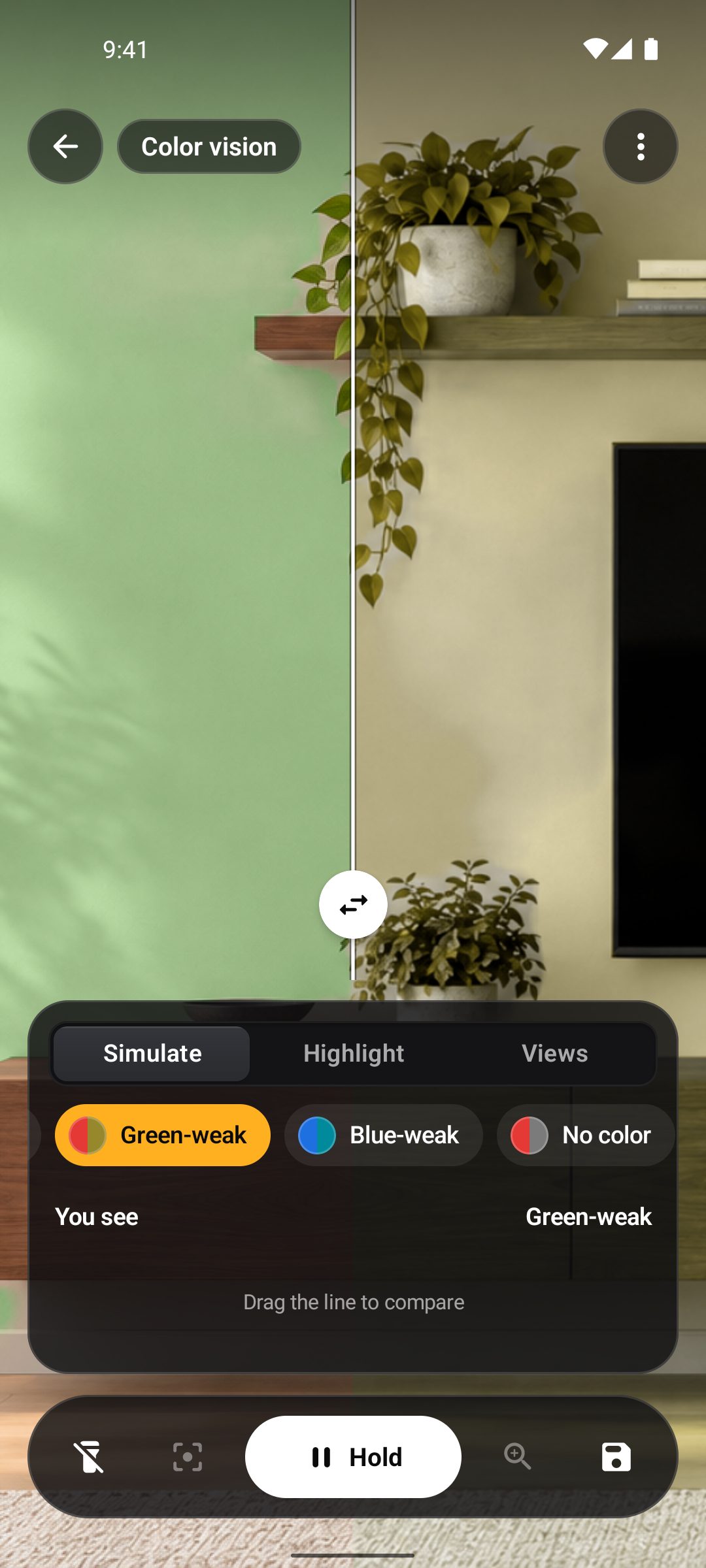
Color pickerColor vision. Simulate common colour-vision differences, or highlight selected hues in the camera.
Explore the tool ›Images coming soon
Color visionHome. Color Picker Home with illustrated feature tiles
Read the guide ›Compare. Color Picker comparison of two selected colors
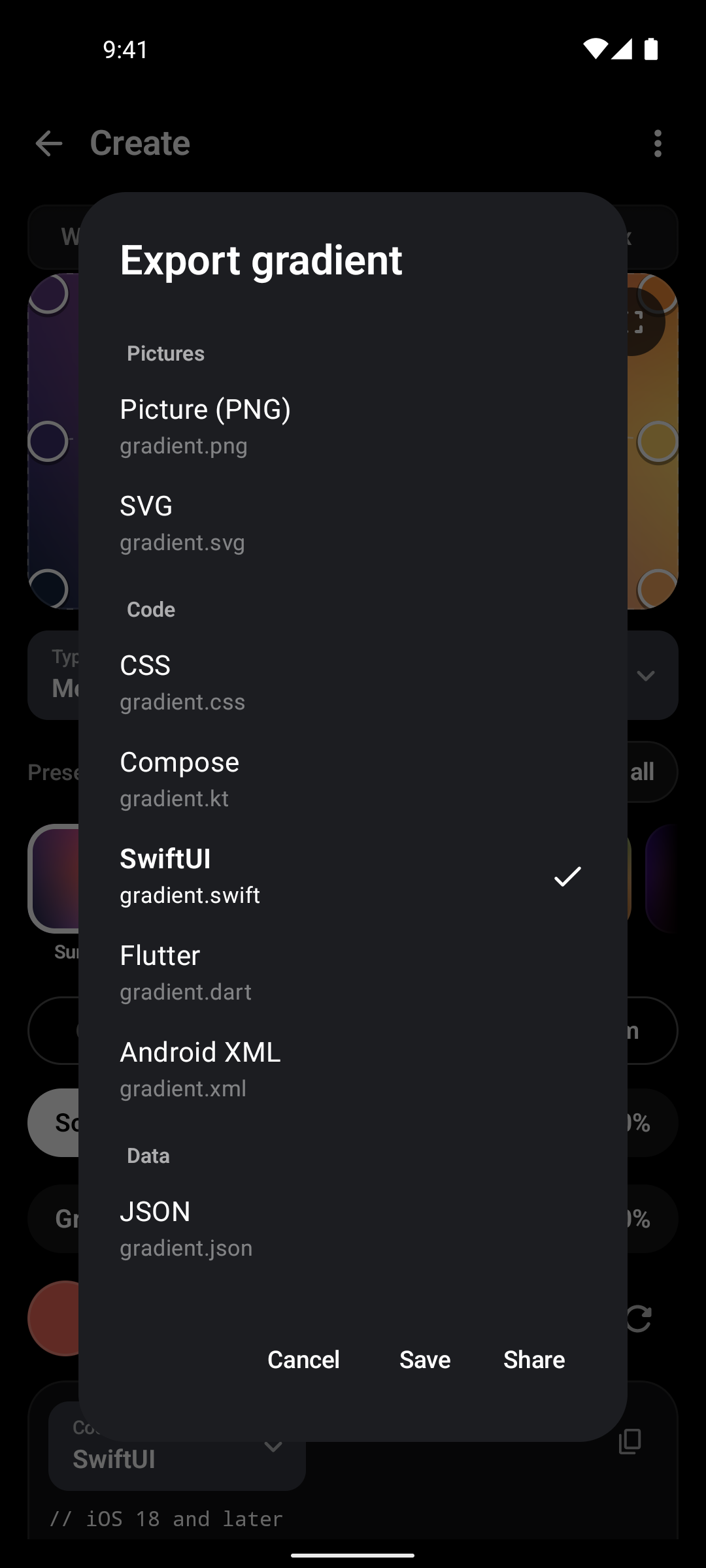
Read the guide ›Gradient export. Color Picker gradient export options
Read the guide ›Color vision. Color Picker color-vision simulation
Read the guide ›Step-by-step instructions for the app and its tools.
Video coming soonBasics · Written steps
Read the steps : Choose a section or screen layoutVideo coming soonBasics · Written steps
Read the steps : Pick a color with the cameraImages coming soon
Color visionTools · Written steps
Read the steps : Color visionGet the app
Coming soon. Explore the guide while we prepare the app.