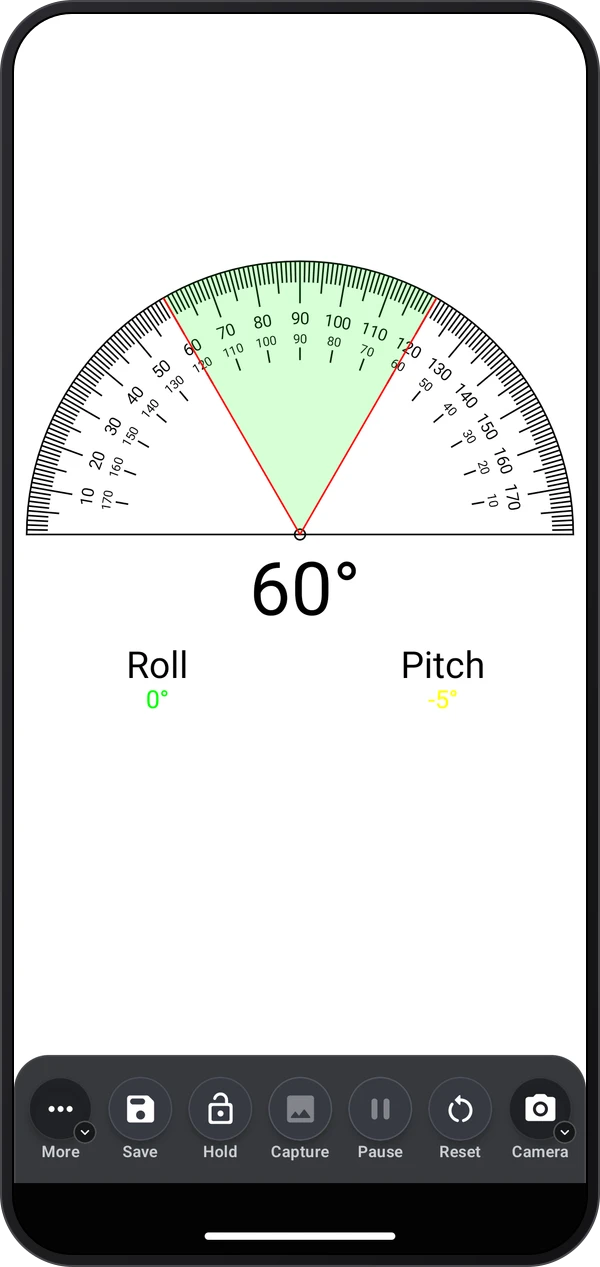
 Video coming soon
Choose Touch, Plumb or Manual
Basics · Written steps
Read the steps : Choose Touch, Plumb or ManualSteps, videos and tips for the tool.
Measure with touch, plumb, or manually entered angles.
Video coming soon
Getting started
Choose Touch mode and drag the measurement lines. Plumb mode follows device rotation. Manual mode lets you set start and end angles.
This is a still image. The how-to video has not been recorded yet.
Read the stepsVideo coming soonBasics · Written steps
Read the steps : Choose Touch, Plumb or ManualVideo coming soonBasics · Written steps
Read the steps : Align the protractorVideo coming soonBasics · Written steps
Read the steps : Capture or save a measurementChoose Touch mode and drag the measurement lines. Plumb mode follows device rotation. Manual mode lets you set start and end angles.
Turn the camera on when needed. Freeze a frame, capture an image, or tap Save to store the measurement; hold Save for Detailed Save, which opens an editable record.
Flip the protractor to suit the surface. Watch the leveling colors and hold the device steady when aligning it with a physical object.
Try these steps in the app. All tour instructions stay readable here.
Choose Touch mode and drag the measurement lines. Plumb mode follows device rotation. Manual mode lets you set start and end angles.
Flip the protractor to suit the surface. Watch the leveling colors and hold the device steady when aligning it with a physical object.
Turn the camera on when needed. Freeze a frame, capture an image, or tap Save to store the measurement; hold Save for Detailed Save, which opens an editable record.
Find Protractor in these apps.
The camera is optional inside the tool. Lens, focus, exposure, and other camera options vary by device.