 Video coming soon
Set the place and page
Basics · Written steps
Read the steps : Set the place and pageSteps, videos and tips for the app and its tools.
Plan a satellite-dish aim or solar-panel direction with angles, a moving 3D sky, camera guidance, a map and a compass view. Check the compass and inspect obstacles before you settle on an installation spot.
Video coming soon
Getting started
The app reopens the aligner page used last, with Dish first on a new install. Set your position, then choose the satellite-dish or solar-panel workflow.
This is a still image. The how-to video has not been recorded yet.
Read the stepsVideo coming soonBasics · Written steps
Read the steps : Set the place and pageVideo coming soonBasics · Written steps
Read the steps : Set your location and inspect the skyVideo coming soonBasics · Written steps
Read the steps : Face and tilt a solar panelVideo coming soonBasics · Written steps
Read the steps : Aim a satellite dishVideo coming soonBasics · Written steps
Read the steps : Check sun times and outages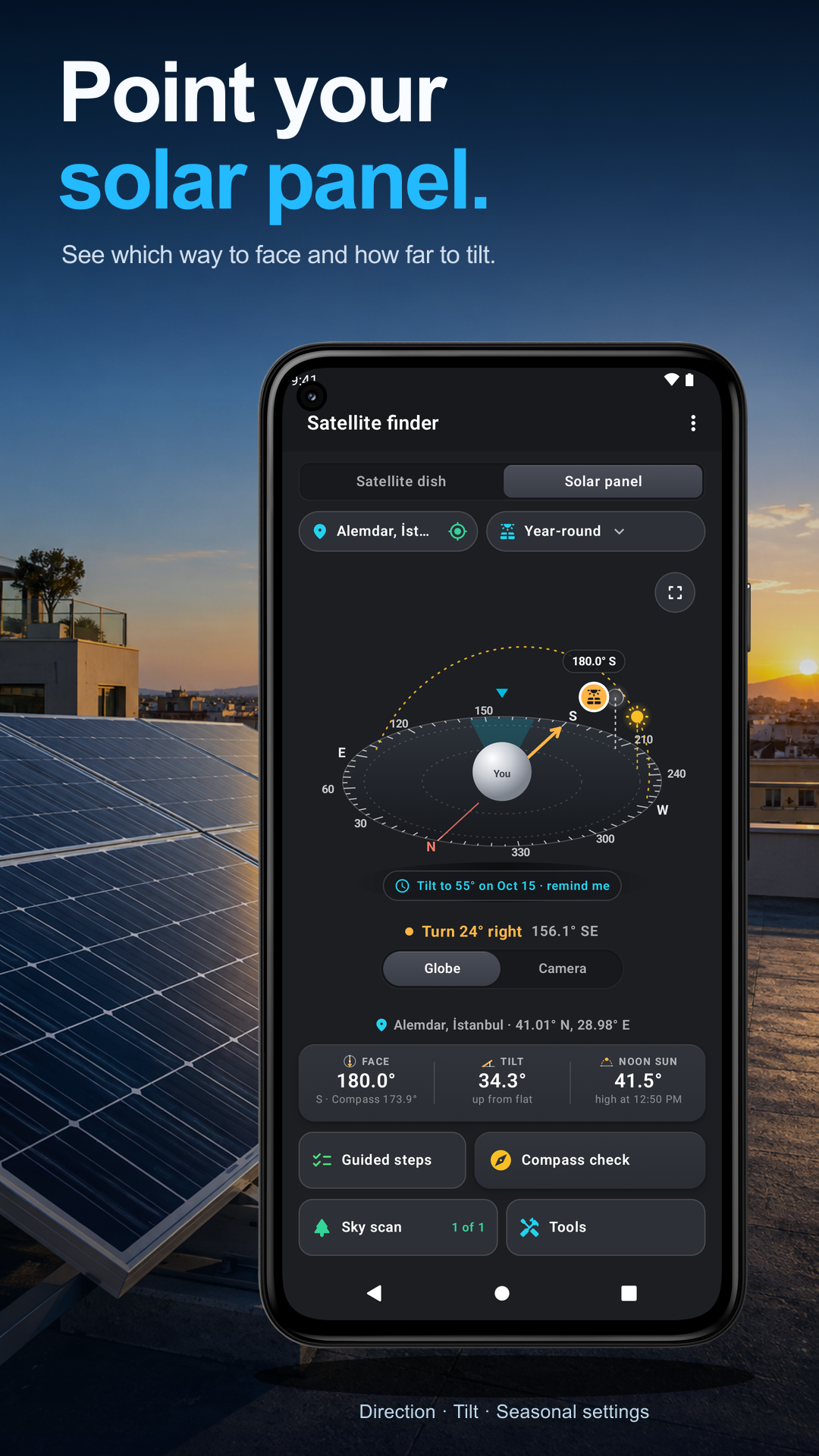 Video coming soon
Tools · Written steps
Read the steps : Sun & SkyOpen ⋮ › Tour & lessons for the Tour, Showroom and Lessons. The drawn practice sky lets you learn the workflow before aiming a real installation.
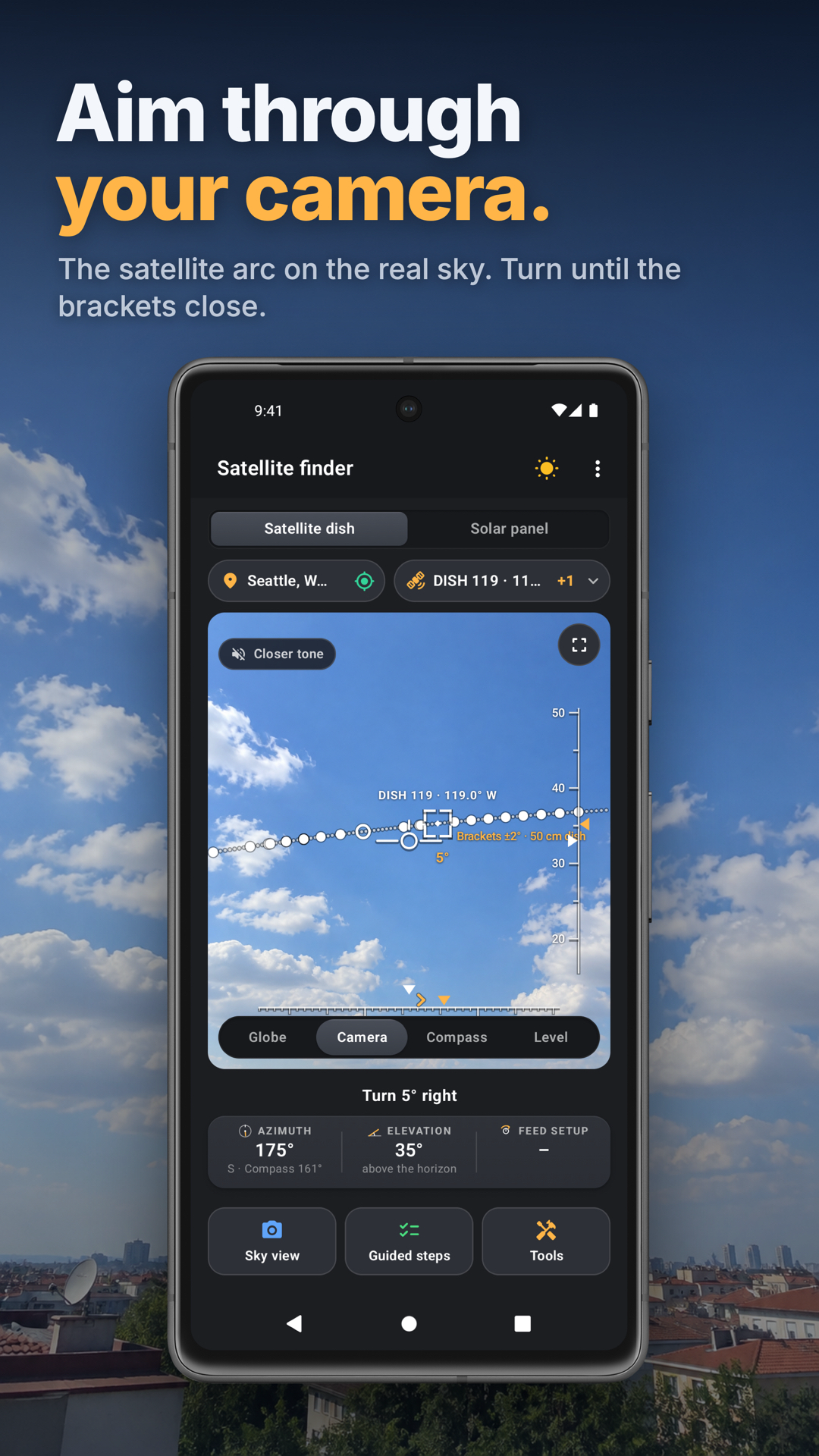
Choose a satellite and aim at the camera target; set elevation using the dish scale. Linear feeds: check the operator’s polarization offset and peak signal quality. Circular feeds need no LNB rotation. Multi-feed dishes need the model’s reflector skew and elevation table; the selected satellite is the aiming reference.
Choose among the home’s 3D view, Camera, Map and Compass views; Level opens from the home’s ⋮ menu. ⋮ › Voice commands explains listening and lets you try commands for guidance, views, steps, compass checks and sky scans.
The app reopens the aligner page used last, with Dish first on a new install. Set your position, then choose the satellite-dish or solar-panel workflow.
The Satellite finder finds your place by GPS, or you can pick a spot on the map or type the coordinates. The angles are worked out on the phone, without a connection. On the globe, tap a satellite, the sun or the moon to see where it stands in your sky; the sun and the moon also show their path for the day.
For a panel, pick a season: the globe shows where the phone points and where the panel should face. Then open the camera or guided steps. Hold the phone up and turn until the flag is in the crosshair: the panel should face that way. Then switch to Tilt, lay the phone on the panel, screen up, and tilt the panel until the gauges are green.
Tap Tools under the compass check. Sun times shows when the sun next passes behind the dish's satellite, so the picture drops for a few minutes with nothing to fix, and the sun time: the moment the sun stands where the dish faces, so a pole's shadow points straight away from it and you can aim without a compass. Turn on Remind me to get a notification just before either.
On the satellite page, set your dish's size under Your dish: the brackets close when the aim is within half the dish's beam. A provider's dish puts all its satellites on at once. Each satellite shows its frequency, polarization and symbol rate; tap ⓘ for the LNB settings a meter or receiver needs, copy them, or add your own values.
What is it aimed at? reads a dish that is already up: lay the phone flat on the back of the dish, screen out and top edge up, and hold still until it names the satellite the beam points at. Satellite list shows what changed in the list of satellites, and Your dish rights sums up the US rules for renters and homeowners' associations.
Stand where the dish will go, or hold the phone up on a pole at the dish's height. Tap Sky scan, then Start, and turn once round, slowly. It beeps for each part of the sky it has seen and draws what's in the way.
The results say how far each of the dish's satellites clears what's in front of it, in degrees, or how far it is blocked. Set how far away the obstacle is to see how much it can grow, or how much higher the dish should go. Each scan is kept as a spot: Compare puts the spots side by side, and Use spot sets the place to it. If a scan isn't good, Scan again replaces it, or Delete removes it.
Internet dish shows how much of the wide cone of sky a satellite internet dish needs is clear at a scanned spot. On the solar panel page, a scanned spot shows how much of the sun it gets today and in winter, and Tilt reminders say when to change the panel's tilt.
Try these steps in the app. All tour instructions stay readable here.
GPS finds it, or pick any spot on the map to plan an install before you climb.
Follow the amber chevrons to aim. For a linear feed, check and adjust LNB skew, then peak signal quality.
Lay the phone on the panel, screen up, and raise it until the tilt reads the target. Face it first with the camera and the flag.
A shadow points straight away from the sun. Lay the phone along one, top edge to the tip, and tap Done. The camera never faces the sun.
Each tool in Satellite Finder has its own guide.
Confirm the installation location and select the satellite your receiver or service uses.
Set the correct dish size so the aiming brackets reflect its beam.
Check the compass away from steel, wiring and magnetic cases; repeat the check if you move to a different spot.
Use the camera or 3D view to aim, then check and adjust the LNB skew for a linear feed.
Finish by peaking signal quality on the receiver; tightening the bolts can shift the aim, so check again.
For panel tilt, lay the phone screen-up with its top edge toward the panel’s top; gravity supplies tilt independently of compass heading.