 Video coming soon
Choose a tool
Basics · Written steps
Read the steps : Choose a toolSteps, videos and tips for the app and its tools.
Check the inclination of panels, roofs, ramps and other surfaces with Edge, Back and Level views. Read slope in the unit you work with, set a relative reference, hold a result and keep notes in Records. The app also brings together field and construction tools, with clear tier labels on optional extras.
Video coming soon
Getting started
Start with the main measuring screen, or choose another tool from the app’s navigation. The included-tool list below links to each tool’s manual.
This is a still image. The how-to video has not been recorded yet.
Read the stepsVideo coming soonBasics · Written steps
Read the steps : Choose a toolVideo coming soonBasics · Written steps
Read the steps : Choose Edge, Back or LevelVideo coming soonBasics · Written steps
Read the steps : Hold and resume a readingVideo coming soonBasics · Written steps
Read the steps : Save a readingVideo coming soonBasics · Written steps
Read the steps : Choose a measurement or target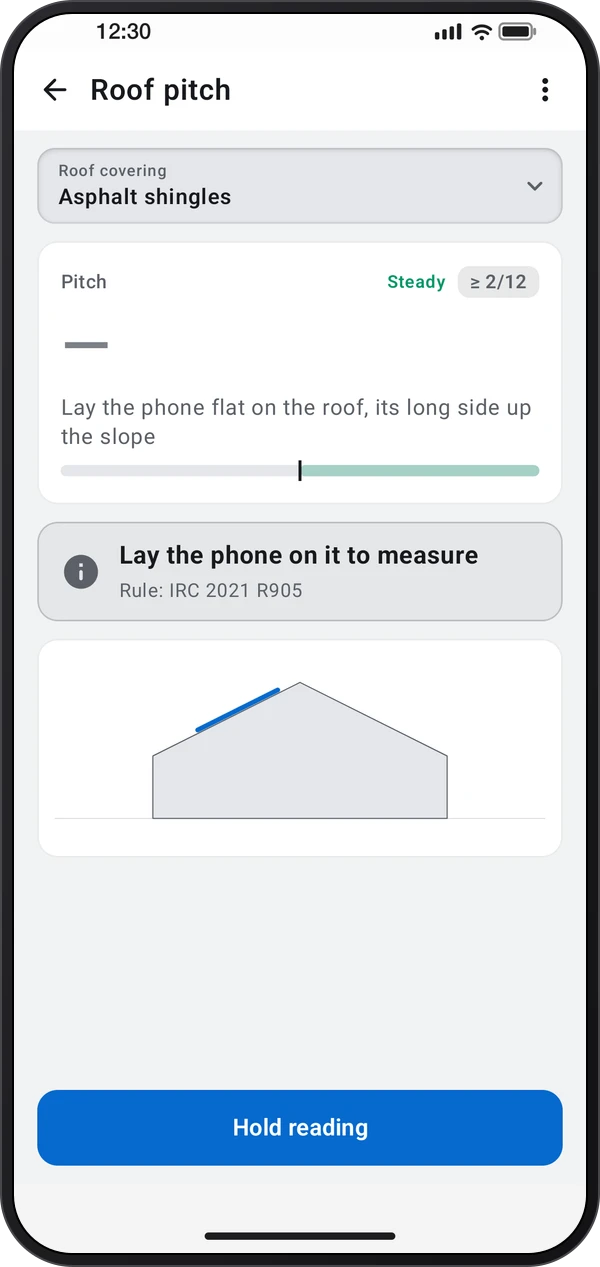 Video coming soon
Tools · Written steps
Read the steps : Roof pitch & slope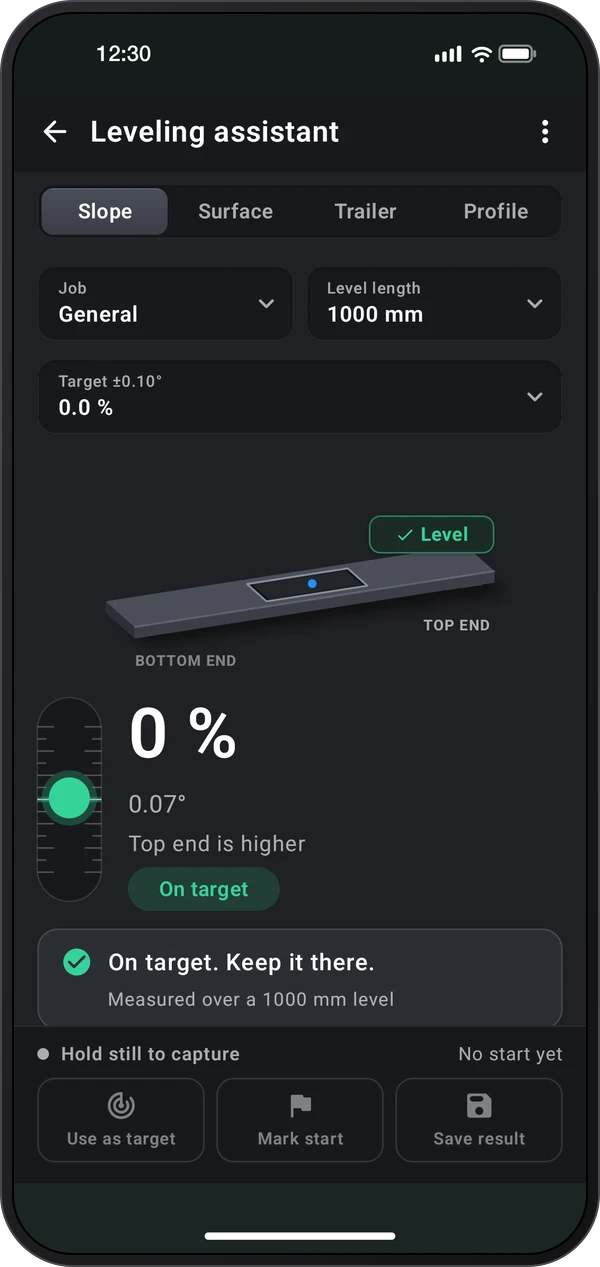 Video coming soon
Tools · Written steps
Read the steps : Leveling assistant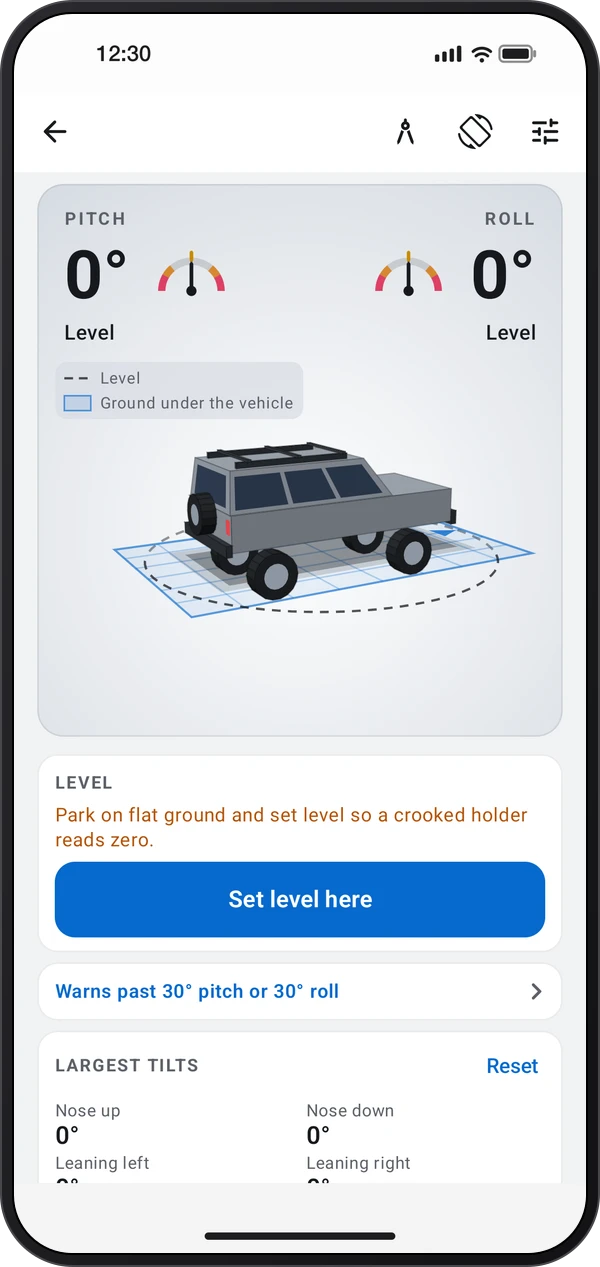 Video coming soon
Tools · Written steps
Read the steps : Off-road inclinometerStart with the main measuring screen, or choose another tool from the app’s navigation. The included-tool list below links to each tool’s manual.
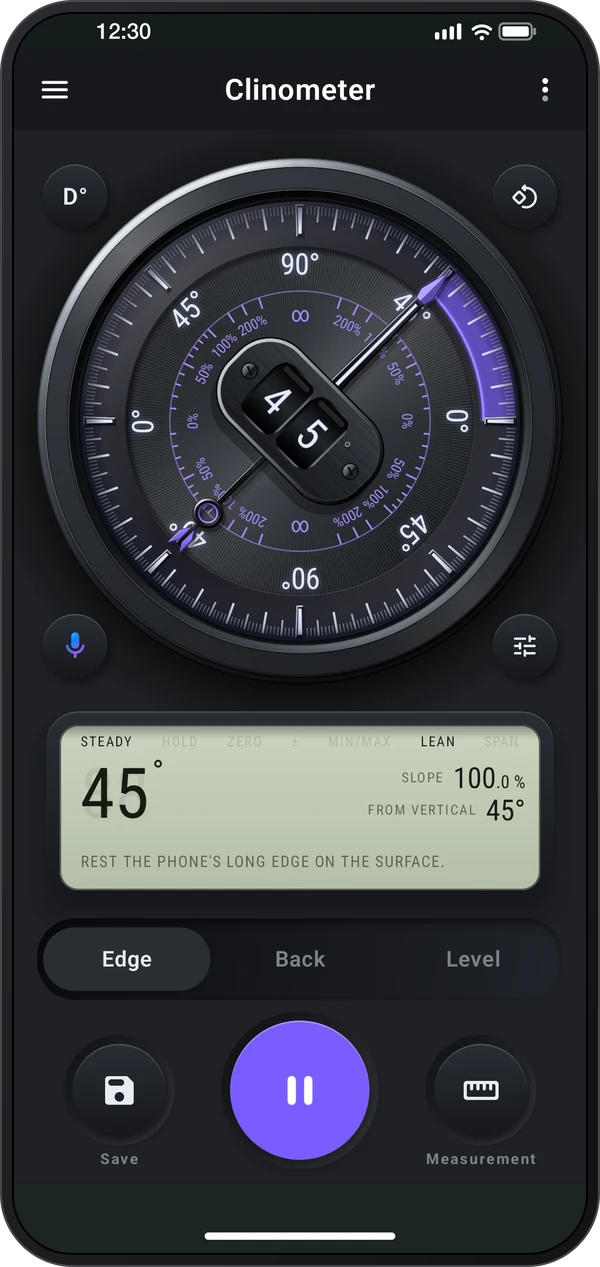
Pick a tab: Edge reads the angle of an edge the phone stands on, Back the slope of the surface under it, and Level both directions on a flat surface.
The right Measurement menu offers Single angle and Relative angle on Edge. Target and Reference are in Quick settings; Interval measurement is in ⋮. Target also opens from the right Measurement menu on Edge and Back.
On the welcome page choose Console or Classic (Dial Theme); change it later in Quick settings. Console uses the black Midnight dial and Display panel; Classic uses the white dial and Quiet panel.
Hold the phone still and read the dial. Tap Hold to keep the reading, and Measure again to go on.
The Save menu keeps readings in Records without a save limit.
Voice commands have no usage limit.
Use the unit control for degrees, percent, ratio, pitch or mm/m. Lay the phone on its back with the top edge uphill when using Back.
Open ⋮ › Tour & lessons › Tour for the calibration demonstration. To set your own reference, place the phone on a known level surface, keep it still, then open Calibrate and tap Calibrate to set it to 0°. The demonstration does not change your saved calibration.
Edge keeps a separate calibration for each zero mark: Right, Top, Left and Bottom. Choose the zero mark for the side you are using before calibrating. Calibrate and Reset affect only that zero mark. Back and Level share their calibration.
Choose Relative angle on Edge and tap Set reference on the first part. A parallel second part then reads zero from that reference.
Try these steps in the app. All tour instructions stay readable here.
Use a known level surface to set the reference for the phone’s sensors. Place the phone on a known level surface, keep it still, then open Calibrate and tap Calibrate to set it to 0°. Each zero mark on Edge keeps its own calibration.
Rest the phone’s long side on the edge. Zones color the dial for the job: with Stairs & ladders, green is a standard stair.
Lay the phone on its back, top edge uphill. The display gives the grade, the ratio and the pitch together; the unit button picks the big number.
Level shows both directions at once: the bubble drifts to the high side and sits in the middle when the surface is level.
Tap Save: Quick save keeps the reading in Records at once, and Save with details lets you name it and add a note first.
Each tool in Clinometer has its own guide.
Point the top edge uphill: When using Back on a slope, lay the phone on its back with its top edge uphill. The side view helps show how it is sitting.
Use percent for a grade: Change the unit to percent, ratio or pitch when that matches your plan. This avoids treating a degree reading as a percentage.
Calibrate from a known reference: Keep the phone still on a known level surface. On Edge, choose the zero mark for the side you are using first; each side stores its own reference.
Check both directions: Use Level for shelves, tables and similar surfaces. The bubble moves toward the high side; hold the reading before lifting the phone.
Measure from an existing part: Choose Relative angle and Set reference on the first surface. Other surfaces then read from that reference, so parallel parts read zero.
Keep the reading with a note: Use Save with details to name the site or part. The saved message opens the record so you can check it immediately.