Understand a direction
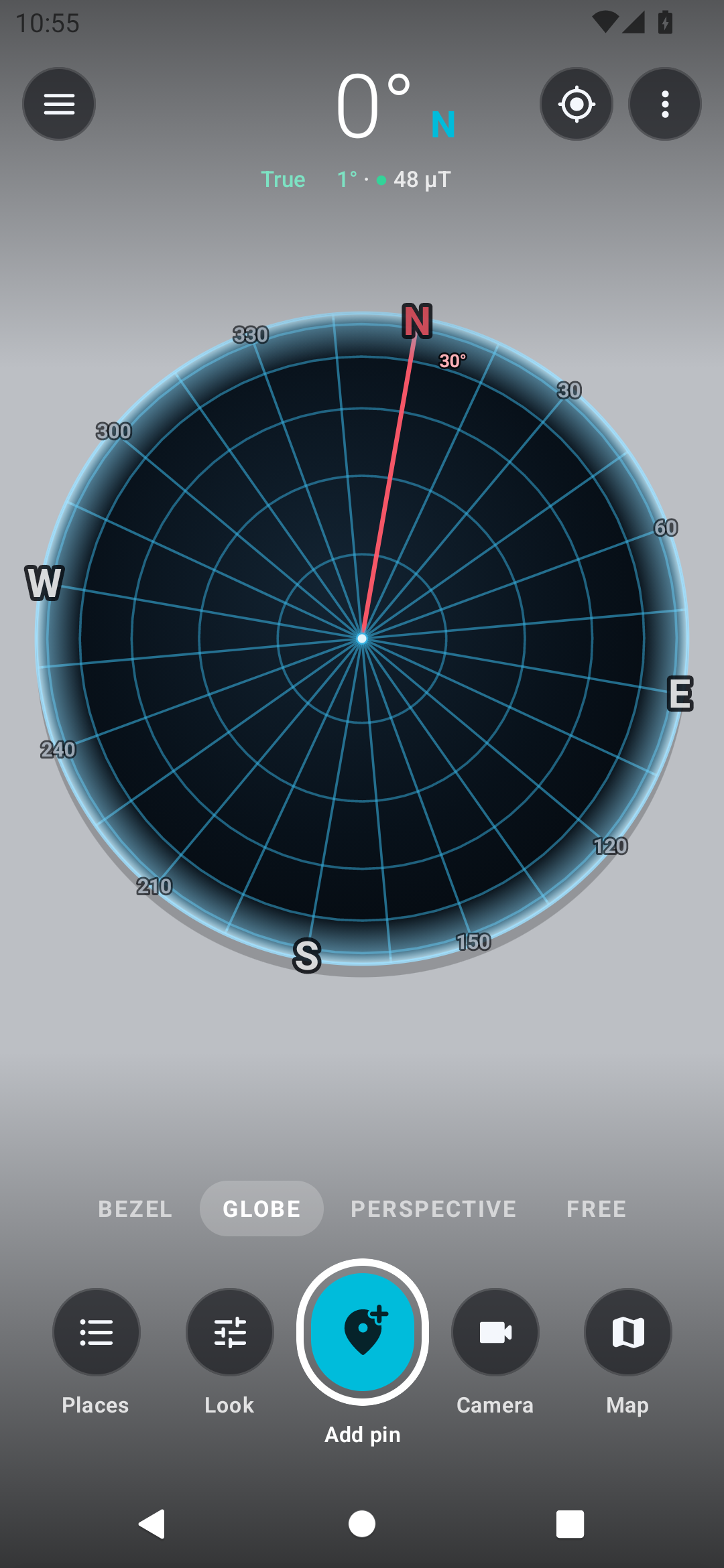
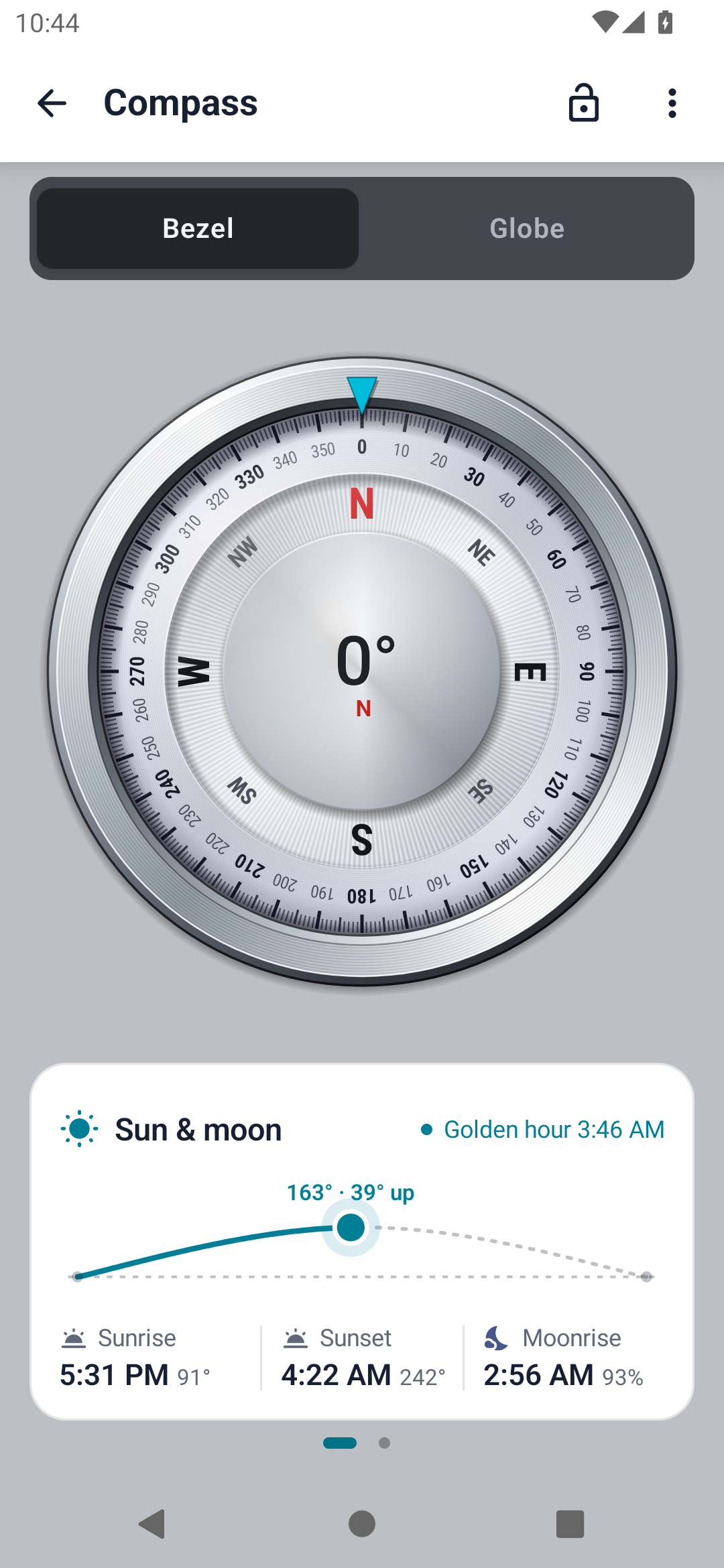
Switch between the compass dial, globe and camera views for the clearest heading presentation.
Compass AR
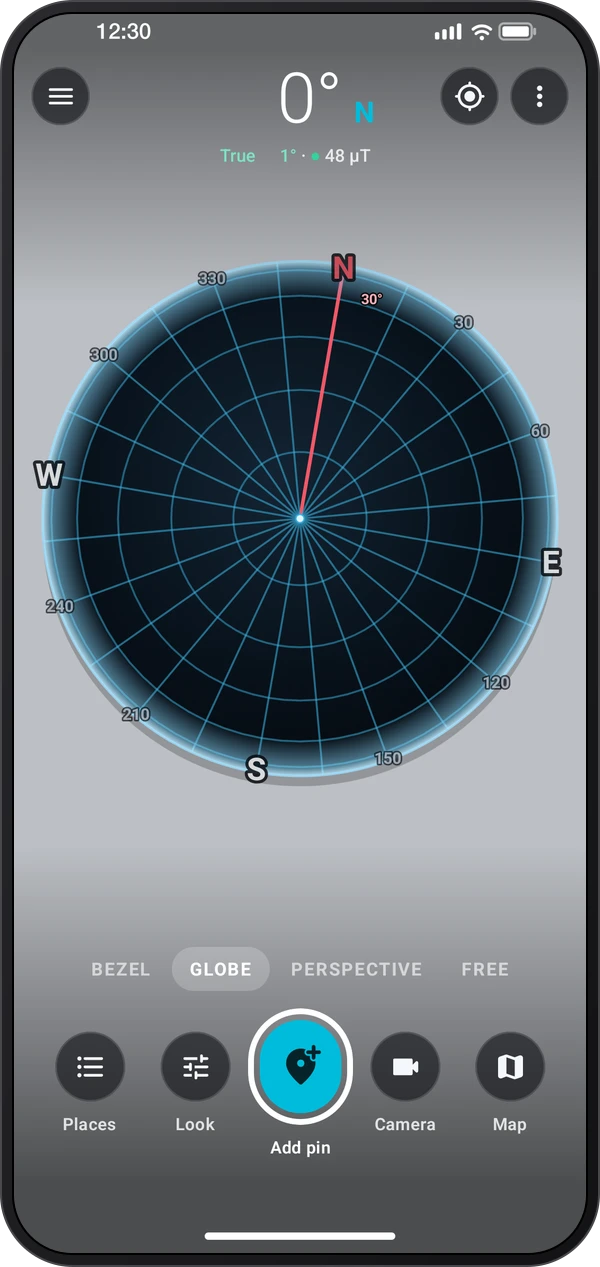
Compass AR for iPhone
Coming soon to the App Store
Android app coming soon.
See heading and saved places through a compass bezel, globe or camera view. Add places, inspect them on the map and follow the direction to a chosen destination. The first opening uses Perspective with the camera enabled; later openings restore the chosen view. The standalone Android app is being prepared for release. This guide describes its implemented workflow; screenshots may show a development build.
Explore the screens, then follow the guide to try them yourself.
Practical ways to use Compass AR.
Switch between the compass dial, globe and camera views for the clearest heading presentation.
Keep places with names and map positions, then show their direction in AR or open destination guidance.
Capture compass context on the camera picture and review saved places later.
Start with a useful task, then keep the result.
Start with Bezel, Globe, Perspective or Free and allow camera or location access as needed.
Let the position settle, stay clear of magnetic interference and use alignment guidance when required.
Create and name a place on the map, verify its position and bring it into the chosen view.
The app’s Help explains views, places and alignment. This website walkthrough offers a guided introduction; it does not represent an in-app animated Tour or Showroom.
Practice 1
Pick Bezel for the compass dial, Globe for a spatial overview, or Perspective or Free for camera views. Look changes the current view’s appearance.
Practice 2
Use Add on the map to create a saved place at a chosen point or at your location. Give it a useful name and check its map position.
Practice 3
Open a place’s card and choose Show in AR to see its direction over the camera, or Navigate for the destination guidance.
Useful habits for your next task.
Move away from magnets, steel and electronics if the heading looks inconsistent, and use the compass calibration guidance.
Allow a good location fix before relying on the distance and direction to a saved place.
Switch between the bezel, globe and camera views to choose the clearest presentation for the task.
Name saved places clearly and review their map position before starting toward one.
Use the location and heading uncertainty as context when interpreting a pin over the camera picture.
Capture the view when you need a visual record of a direction or destination.
Compass AR. Headings, saved places and paths over the camera.
Explore the tool ›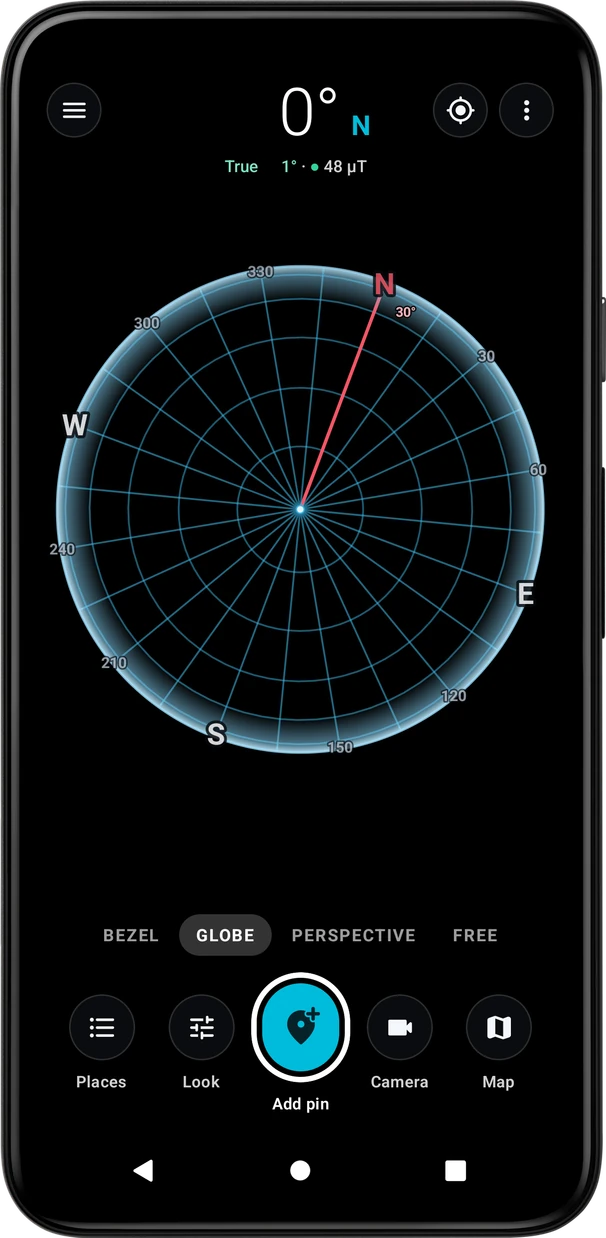
Globe. Compass AR globe view and heading
Read the guide ›Compass bezel. The shared Compass bezel and heading
Read the guide ›Step-by-step instructions for the app and its tools.
Video coming soonBasics · Written steps
Read the steps : Choose a viewVideo coming soonBasics · Written steps
Read the steps : Choose a compass or camera viewVideo coming soonBasics · Written steps
Read the steps : Save places and use the mapGet the app
Coming soon. Explore the guide while we prepare the app.