 Video coming soon
Position the phone toward the sound
Basics · Written steps
Read the steps : Position the phone toward the soundSteps, videos and tips for the tool.
Measure A-, C- or Z-weighted sound on a ring, a hero card, level bars or a meter display; record sound or video at once; keep logs with their sound, videos, place and notes; make noise reports, map the noise of a walk and log nights.
Video coming soon
Getting started
Allow the microphone and hold the phone steady toward the sound. Live measurement does not record audio or save a log. Choose Record when you want to keep measurement data, audio or video.
This is a still image. The how-to video has not been recorded yet.
Read the stepsVideo coming soonBasics · Written steps
Read the steps : Position the phone toward the soundVideo coming soonBasics · Written steps
Read the steps : Choose the meter drawingVideo coming soonBasics · Written steps
Read the steps : Choose a sound mode and its settingsVideo coming soonBasics · Written steps
Read the steps : Try optional sound recognitionVideo coming soonBasics · Written steps
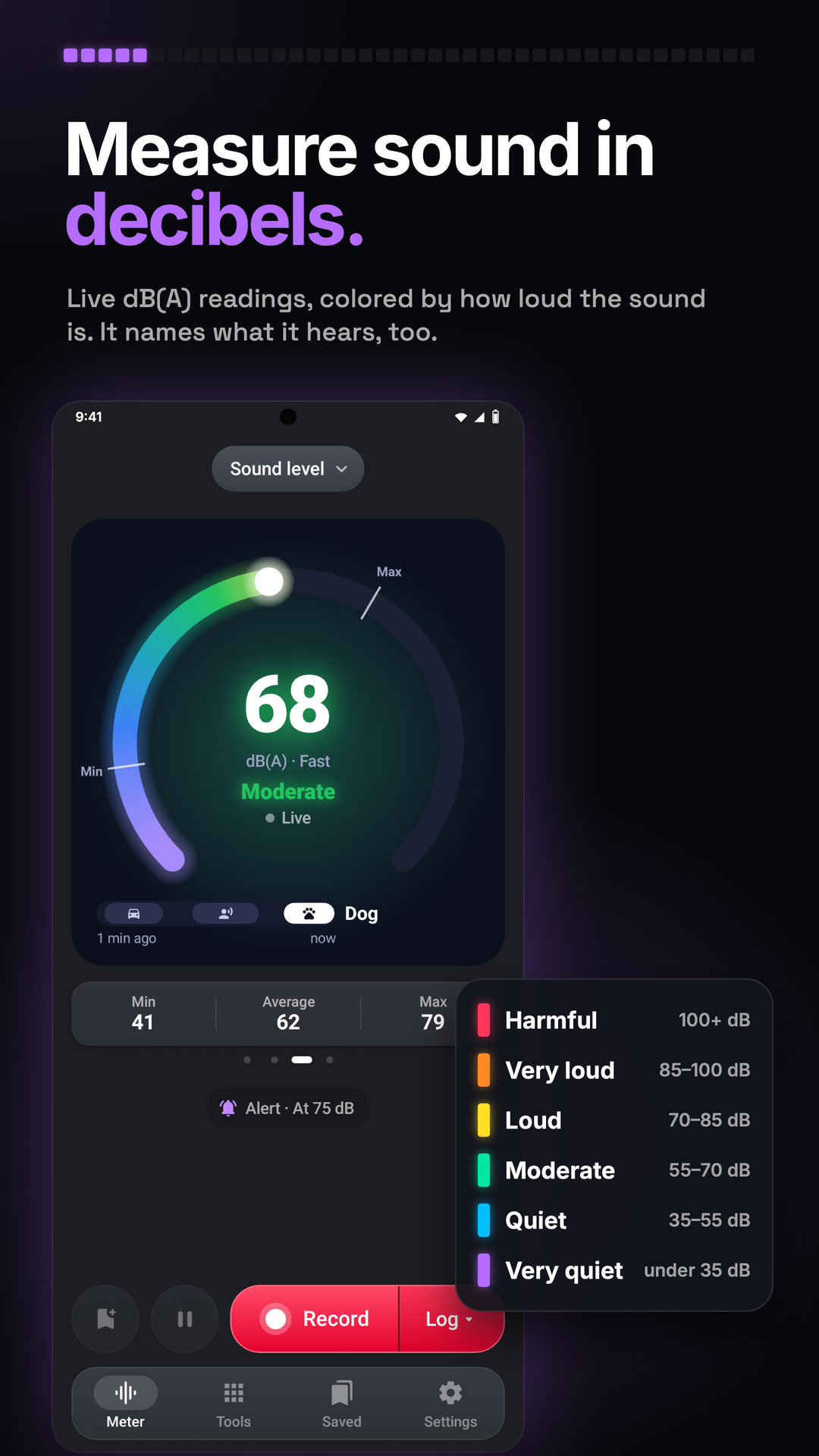
Read the steps : Choose what Record keepsOn Meter, the drawing at the top shows the sound now: swipe it to choose Ring, Hero card, Level bars or Meter display, all the same size and each with Min, Average and Max. The dots under it show which one, and the meter opens on the one you swiped to last.
Mode, the pill above it, opens Sound level, Noise report, Sleep and Noise walk. The Settings tab has the typed timer, threshold and calibration.
Nothing is kept until you press Record, the red button at the bottom; its right part picks what it does. Log keeps the levels, the chart and everything added to it until Stop; Audio records the sound at once and Stop saves it as audio; Video opens the camera.
Picking Log opens Keep with the log: tick Audio, Video or Place and they start with the log; its levels and chart are always kept.
Video, picked in Record's part, opens the camera over the whole screen to film video or take photos with the reading drawn on them. Close, the recording time and Flash sit above the picture and the controls below it, so nothing covers what is recorded; On the picture, under it, picks the drawing: Level bars, Graph, Number, Meter display or Off.
Noise report is for any noise that bothers you, from neighbours, building work, traffic or a bar. Start a noise report asks two things: what the noise is and where (a title, a few words and the place from your location), then where you hear it (a bedroom at night, a living room by day or outside), which gives the usual quiet to start from; the limit is it plus the margin.
Sleep measures sound while the tool is open and compares it with the bedroom guide.
In Sleep mode, Start night log in the bar at the bottom starts measuring while the tool is open and the screen is on. Whenever the level stays over the limit, it saves a clip with the sound just before; Settings › Clips sets how long the level must stay over, how much sound before it to keep, the most clips a night and whether each clip gets a fingerprint.
Settings › Tour & lessons, the first row of the meter's settings, has the Tour (the welcome's Take the tour plays it too): short pages on the sound level, a log, the alert, a noise report and Sleep, each with Try it.
The Tips switch turns on or off the tips that show once, at the moment they help; Show all tips again brings them back.
While a log runs, Record reads Stop with the log's time, Pause and Resume leave the paused time out, and the chips under the drawing add to the log: Audio records its sound, Video films a clip into it, Place keeps where it was measured, and Note writes something at that moment. Marker marks the moment in one tap. A timer, when set, ends the log as Stop does.
Place, a chip while a log runs, or Place on logs in Measurement settings, adds the address, the coordinates or both to logs, CSV files and the camera's photos and videos.
The report's page shows its steps with ticks. Record, with Log picked, logs the noise, day or night, and keeps a clip whenever it stays over the limit, while Add note writes what you hear and Bedside shows a dark clock page; each log shows under step 3, red with its clips when it went over.
Noise walk colors your route by sound level, with the colors' key on the map's foot and the loudest spot larger on the route; Walk level, Loudest and Quietest sit under the map. Until the phone knows where it is, the map waits with Finding where you are….
Record offers Log to map levels, Audio to map the walk and record sound, and Video to open the camera during a walk; while you walk, the microphone and camera on the map record the walk's sound and film clips into it, and both stay with the walk.
Allow the microphone and hold the phone steady toward the sound. Live measurement does not record audio or save a log. Choose Record when you want to keep measurement data, audio or video.
When available, beta sound recognition is off by default. Enable it on the welcome screen or in Settings › Sound recognition. It is still in development: names can be wrong. Share feedback to help us improve it.
More options (⋮) on a saved log makes it into a file. Log report shows its PDF as it will print, with ticks for what goes in (the chart, marks and notes, what was recorded with it and the map); Save PDF puts it in the phone's Documents folder and Share PDF sends it.
Saved lists your noise reports first, each with its map, days and clips, then everything else newest first, a day at a time: logs, the sound recorded with Audio, and the photos and videos kept from the camera. A report keeps its logs inside it; its page has its loudest clips, each log, the notes and photos, and ⋮ › Report PDF.
The Alert chip under the drawing says whether the alert is on and at which level, like Alert · At 75 dB; a tap opens Alert to turn it on or off, set the level, how long it must stay over and what the phone does. While it is on, a dashed line with its level crosses the Level bars. Once the level stays over it for the time you chose, the phone vibrates, flashes the page, beeps or says it, and the chip and the line turn red until it has been quiet long enough.
When sound is too loud for the microphone, the level turns red with OVER, since the real level is higher.
Nothing has to be measured first: set your own usual quiet any time with Settings › Usual quiet (measure half a minute of quiet, or type it), and every report uses it instead.
Add notes as you hear things, and Bedside shows a large clock on a dark page, where Dim screen turns the brightness down. The night saves itself every few minutes and when you stop it.
The expand icon opens a larger map; close it to return, or use the target icon to center on your location.
Compare places, in the Tools tab and at the end of the Mode list, puts rooms and places on one scale by their level, with the level here among them. Once adds the place you're in with this reading; Average measures its Leq for 30 seconds, or the length in ⋮ › Average length. Give it a title, a description and a photo or video; ⋮ › Side by side shows how much louder one place is than another.
The showroom shows every feature with a short film and the way to it, and Lessons teach each part with your own sounds on the live microphone, where nothing is kept: no logs, sound, video or settings.
A saved log's page shows its Min, Average and Max, the levels through its time with its marks, its sound under them to play and seek, the videos filmed into it and its place. The details are sections that open with a tap: its loud (L10), typical (L50) and background (L90) levels, its marks and notes, the time above your threshold with each crossing, and how it was measured. Tap its name to rename it and write notes. The threshold is a reference line, not a hearing-safety limit.
CSV saves or shares every level with its time, Audio saves or shares its sound, and Add to a noise report puts it in a noise report with other logs.
Sound recorded with Audio plays in place: tap play, and drag along its waveform to move. All, Reports, Logs, Audio and Video & photos at the top show one kind; Video & photos shows them as a grid.
Without Save log in your plan, a log stays a week unless you tap its bookmark. To delete several at once, long-press one to select it, tap others or Select all, then Delete. ⋮ on the list shares or saves the CSV of every log, or deletes them all.
After each video or photo, Save keeps it in Saved, where a tap opens it in the phone's viewer, Share saves and shares it, and Cancel throws it away. A video filmed while a log runs goes with the log. The video's sound comes from the meter's microphone.
Make the report opens its page: pick the logs, change its title and description, see the PDF's first page and tick what goes in, then Save PDF or Share PDF. Start a new report keeps the old one in Saved.
In Saved, tap the marks on its chart to play its clips, with previous and next, see the map of its place, check that its fingerprints are unchanged and make its PDF report from ⋮ › Log report, which prints the map too.
Pin marks a place; Pause suspends measuring, and Stop saves the walk. Open it in Saved to review the map and pins.
Settings › Calibration opens a page with the phone's live reading. With a sound level meter: put the phone beside it, play a steady sound with the same weighting and response on both, and type what the meter reads; the page says when the sound is steady and shows the new offset. Without one, set an offset you know on the scale: drag it, or tap −1, −0.1, +0.1 or +1. Nothing changes until Calibrate, which goes back; the back arrow leaves with nothing changed, and Reset sets 0 dB at once. How to calibrate shows the steps with a picture. The offset belongs to the microphone it was set with; another microphone starts at 0 dB.
Try these steps in the app. All tour instructions stay readable here.
Hold the phone still, its bottom edge (the microphone) toward the sound. The level shows at once, with its band from Very quiet to Harmful.
Record › Log keeps the levels until Stop. Tap Marker when the noise starts; add its sound, a video, the place or a note as it runs.
Pick a level in Alert. When the sound stays over it for 3 seconds, the phone vibrates and the edge of the screen flashes.
Find Decibel Meter in these apps.
Leave the microphone unobstructed and keep the phone still in the same position when comparing places.
Calibrate beside a sound level meter using a steady source, then use consistent weighting and response settings for comparisons.
Use Average (Leq) for the sound over a period and Max to inspect its loudest moment.
Tap Marker when a source changes so the chart has a point you can return to.
Keep the tool open while logging: leaving it or locking the phone stops and saves the log.
For a night log, connect power, place the phone by the bed and use Bedside to dim the screen.