 Video coming soon
Face the sensor toward the light
Basics · Written steps
Read the steps : Face the sensor toward the lightSteps, videos and tips for the tool.
Measure light for rooms, plants and photos, log it while the tool is open and the screen is on, and keep readings on a map for a PDF report.
Video coming soon
Getting started
Open the Lux meter and face the top edge of the screen toward the light. Keep your fingers off the sensor.
This is a still image. The how-to video has not been recorded yet.
Read the stepsVideo coming soonBasics · Written steps
Read the steps : Face the sensor toward the lightVideo coming soonBasics · Written steps
Read the steps : Choose Room, Plants or PhotoVideo coming soonBasics · Written steps
Read the steps : Save or hold a light readingVideo coming soonBasics · Written steps
Read the steps : Start, mark and stop a light logVideo coming soonBasics · Written steps
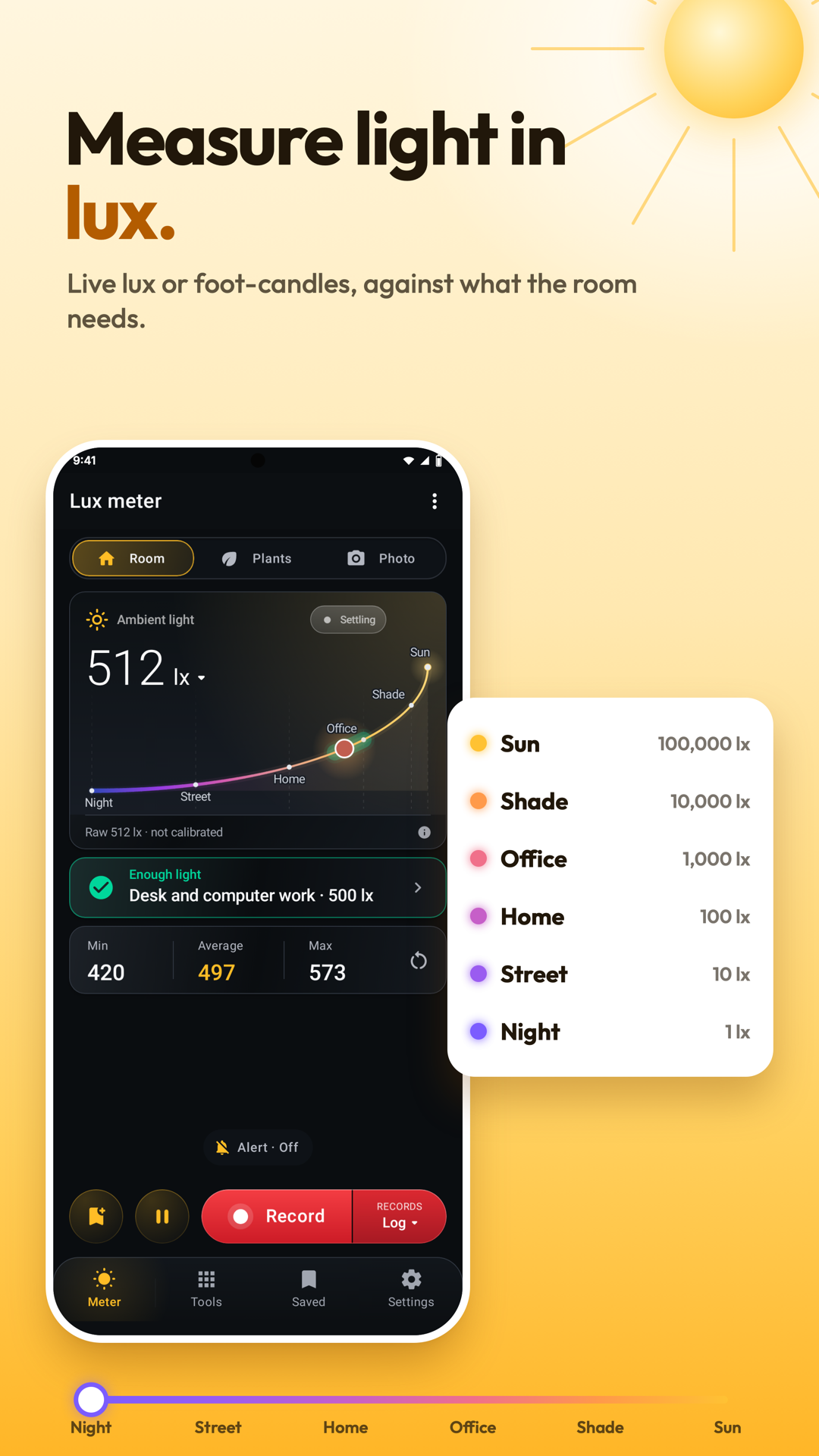
Read the steps : Choose audio or video with the logPick Room, Plants or Photo. Room compares the light with the recommended level for a place, from homes and offices to hospitals, labs and shops. Plants works out plant light (PPFD) and daily light (DLI) for the light source, hours and plant you pick, and Photo gives the aperture and shutter for your ISO.
Record starts the light log: Stop saves it to Saved, Marker marks a moment in it and Pause pauses it.
The right part of Record picks Log; Audio, the log's sound, saved with the log, which Record starts when none runs; or Video, which films the light with the reading drawn on.
Video opens the capture camera. Choose Image for a photo or Video for a video. On the picture picks the display saved with the capture: Level bars, Graph, Number, Meter display or Off.
In the camera, the thumbnail opens the latest image or video in the gallery. Use the flash button for lighting and Switch camera to choose the front or back camera.
Settings has Screen layout, Voice commands, Auto-hold when steady, Speak readings and Darken the screen in dim light, then Readings: Tilt check, Dark offset (cover the sensor and set it, so the dark reads zero), Calibrate, Place on saves and Find the sensor.
Settings › Tour & lessons, the first row of the meter's settings, has the Tour (the welcome's Take the tour plays it too): short pages on Room, Plants, Photo, the light log and calibrating, each with Try it.
The Tips switch turns on or off the tips that show once, at the moment they help; Show all tips again brings them back.
Save saves the reading in Records, on the Saved tab, and with Place on saves also where it was taken, for the map. Pause holds a reading on screen; Settings › Auto-hold when steady takes it by itself once the light is steady.
While audio records, Record reads Stop with the recording's time; a stopped recording waits over the meter with Share and Cancel, and goes with the log when you save it, where its page in Saved plays and shares it. Use the audio slider to jump to a specific time.
More tools: Plant list and Grow lamp height for plants; Recorder, with Darkness alarm, Bedroom darkness and Daylight today; Light map walk; Saved readings, your readings on a map with a PDF Report you can sign; and with the camera Color temperature, Flicker, Surface brightness, Sky darkness and Cine meter.
Open the Lux meter and face the top edge of the screen toward the light. Keep your fingers off the sensor.
The Tools tab lists every light tool in groups, starting with Logs and maps: Log, Recorder, Light map walk and Saved readings, your readings on a map. Canopy map, under Plants, measures the light over your plants spot by spot, and Log charts the light over time once you start it; Record audio, at the end of its page on Room and Plants, records the log's sound from Start too.
When the light is brighter than the sensor can read, the meter shows Sensor maxed out.
Tools › Compare places shows your rooms and places on the sky scale with the light here among them and where it would rank. Tap Once to add the place you're in with this reading, or Average to measure it for a few seconds (⋮ › Average length), then give it a title, a description and a photo or video. Tap a place to change it or measure it again; ⋮ › Side by side shows two places together.
The showroom shows every feature with a short film and the way to it, and Lessons teach each part on the live sensor, where nothing you do is kept: no logs, saved readings or settings.
Where a light tool shares a CSV, KML or PDF file, Save puts it in the phone's Documents folder instead; on the walk, ⋮ shares or saves the track as CSV or KML, and the recorder's ⋮ shares or saves its CSV.
Calibrate takes what a lux meter beside the phone reads, or a factor you set on its scale; How to calibrate shows the steps, and Reset goes back to × 1.00.
Try these steps in the app. All tour instructions stay readable here.
Lay the phone where you work, screen up: the sensor sits on its top edge. Pick the place and it says whether the light is enough.
Hold the phone at leaf height. Pick the light source and its hours: you get the plant light, the light it gathers a day, and a verdict.
Hold the phone at your subject, top edge to the camera. Set the ISO and the aperture; the shutter speed follows.
While the tool is open and the screen is on, Record keeps a reading every 5 seconds until Stop. Mark each change, like the lamp going on; Stop saves it with its chart.
Find Lux Meter in these apps.
Use Find the sensor first and keep fingers, a case edge and your own shadow clear of it.
For a workspace, measure where the work is done, with the phone in the same orientation each time.
For plants, measure at leaf height and select the actual light source and its hours before comparing daily-light estimates.
For incident-light photo readings, hold the sensor at the subject rather than at the camera.
If you have a trusted lux meter, place both in the same light and calibrate the phone against it.
Mark a log when a lamp switches on or the position changes so the chart explains what happened.