 Video coming soon
Find a calculator and choose its layout
Basics · Written steps
Read the steps : Find a calculator and choose its layoutSteps, videos and tips for the tool.
Calculators · Guides · What to buy · Shopping list · Rooms · Reference
Video coming soon
Getting started
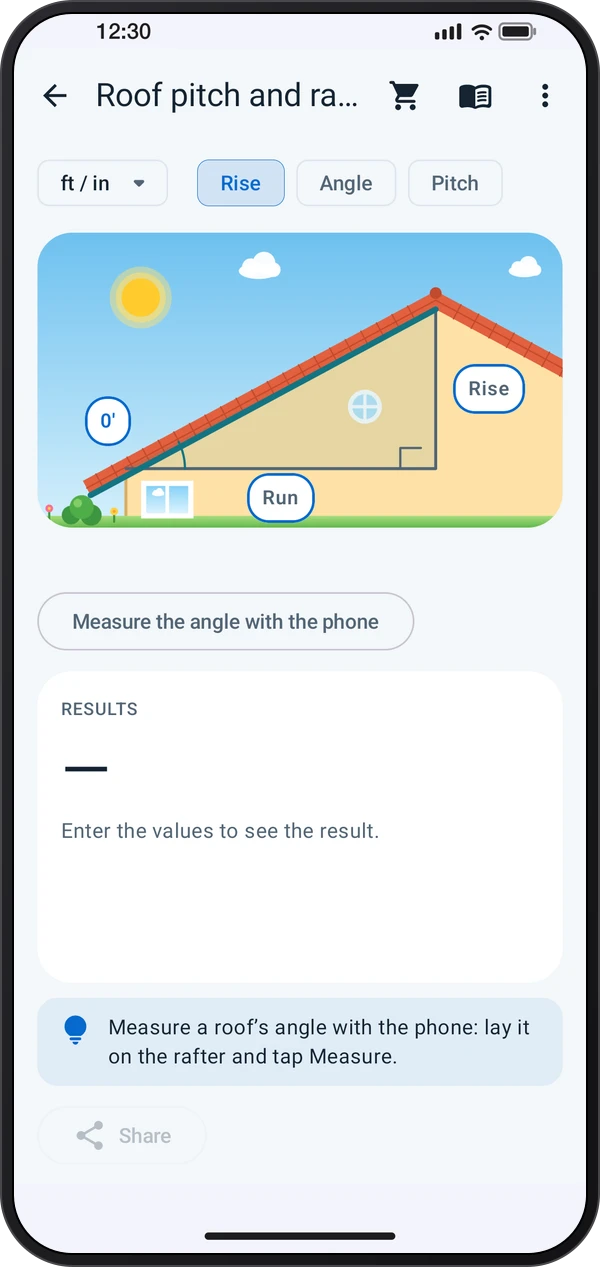
Pick a calculator on the start page, or search for it. The groups run from concrete and framing to walls, floors, roofs, earthwork and layout. Change the layout with ⋮ › Screen layout: Drawn, List and forms, or the Job calculator.
This is a still image. The how-to video has not been recorded yet.
Read the stepsVideo coming soonBasics · Written steps
Read the steps : Find a calculator and choose its layoutVideo coming soonBasics · Written steps
Read the steps : Enter dimensions and material sizesVideo coming soonBasics · Written steps
Read the steps : Build a shopping listVideo coming soonBasics · Written steps
Read the steps : Estimate the room’s materialsVideo coming soonBasics · Written steps
Read the steps : Consult material and size referencesPick a calculator on the start page, or search for it. The groups run from concrete and framing to walls, floors, roofs, earthwork and layout. Change the layout with ⋮ › Screen layout: Drawn, List and forms, or the Job calculator.
Tap a value and type it on the keypad. In feet and inches use ′ and ″ and the fraction keys, as in 20′ 6 1/2″; holding Delete clears it. Choices such as the bag or sheet size sit above the drawing.
What to buy draws each thing as it looks in the shop, with the code to look for on its label; tap one with a card to see what its label says. Add to shopping list collects them by shop area, to tick off as you buy, share or send to To-do.
Rooms work out a room’s flooring, paint, drywall and baseboard at once, and keep the paints used there with a photo of the tint sticker.
Guides walk through a job step by step with drawings of the work, open the tool or calculator a step needs, and tick off each step as you go. Jobs that need a licensed pro, such as mains wiring or gas, have no steps.
⋮ › Units switches every calculator and room between metric and feet and inches, and ⋮ › Sizes and units sets the sizes new calculators start with.
The book in the top bar opens reference pages: lumber, bricks, nails and screws drawn to scale (tap one to see it at its true size), drill bits, wall plugs, standard heights, doors, paint labels and colour codes, the codes on materials, stair rules and more.
Try these steps in the app. All tour instructions stay readable here.
Pick a calculator on the start page, or search for it. The groups run from concrete and framing to walls, floors, roofs, earthwork and layout. Change the layout with ⋮ › Screen layout: Drawn, List and forms, or the Job calculator.
Tap a value and type it on the keypad. In feet and inches use ′ and ″ and the fraction keys, as in 20′ 6 1/2″; holding Delete clears it. Choices such as the bag or sheet size sit above the drawing.
What to buy draws each thing as it looks in the shop, with the code to look for on its label; tap one with a card to see what its label says. Add to shopping list collects them by shop area, to tick off as you buy, share or send to To-do.
Rooms work out a room’s flooring, paint, drywall and baseboard at once, and keep the paints used there with a photo of the tint sticker. The book in the top bar opens reference pages: lumber, bricks, nails and screws drawn to scale (tap one to see it at its true size), drill bits, wall plugs, standard heights, doors, paint labels and colour codes, the codes on materials, stair rules and more.
Find Construction tools in these apps.
A stair shows whether it is within a named rule (IRC, Part K, DIN 18065…); your inspector has the final say. Sizes and weights are typical, so check the label of the product you buy.