 Video coming soon
Choose a page
Basics · Written steps
Read the steps : Choose a pageSteps, videos and tips for the tool.
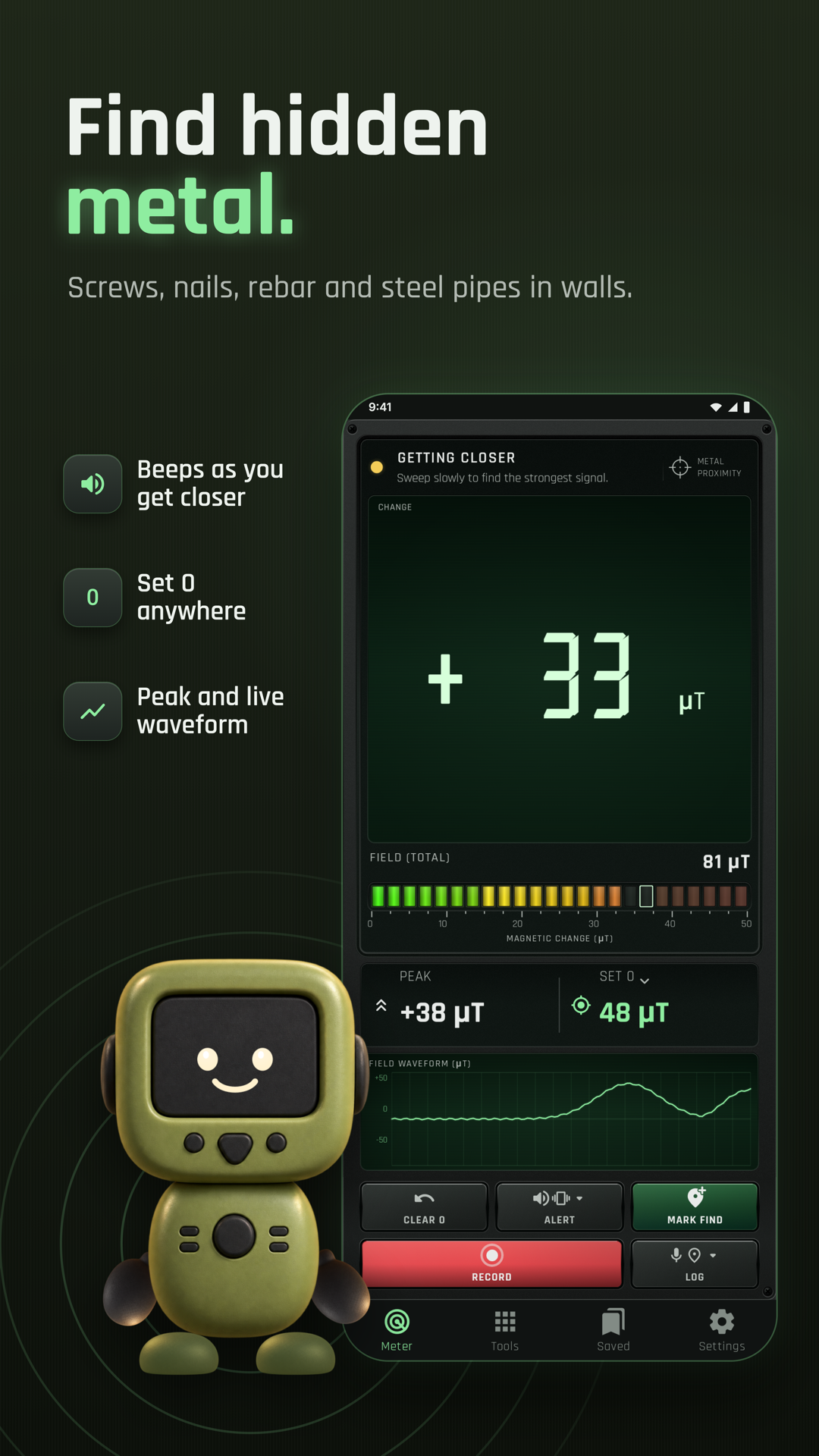
Find iron, steel and magnets: read the field in µT, sweep with the Finder and keep your finds on a map.
Video coming soon
Getting started
Meter shows the live reading. Tools opens the extra measurement and logging pages; Saved opens kept work; Settings holds the tool and general options.
This is a still image. The how-to video has not been recorded yet.
Read the stepsVideo coming soonBasics · Written steps
Read the steps : Choose a pageVideo coming soonBasics · Written steps
Read the steps : Choose where the field counts fromVideo coming soonBasics · Written steps
Read the steps : Read the whole magnetic fieldVideo coming soonBasics · Written steps
Read the steps : Set sensitivity, feedback and unitsVideo coming soonBasics · Written steps
Read the steps : Check an item’s magnetic responseMeter shows the live reading. Tools opens the extra measurement and logging pages; Saved opens kept work; Settings holds the tool and general options.
What the reading counts from. Set 0 makes it 0 where the phone is now; Clear 0 comes back to this.
Tools › Scan log records the field while you sweep. Nothing is kept until you tap Start log, which zeroes the detector where you hold the phone; every half second the log keeps the strongest change, and Mark find adds a find to it. Pause leaves the paused time out, and Stop, which shows the time, saves the log at once. Earlier logs are listed on the Scan log page: open one to see its chart and finds, or delete it with ⋮ › Delete.
No zero: the reading is the whole field. The beep starts past Earth's field.
Tools › Field vector shows the field's direction through the phone and its X, Y, Z over time. Record keeps each reading's clock time and, when location is allowed, where you recorded; Save CSV writes them all to the phone's Documents folder.
Settings › Sensitivity, Sound, Vibrate and Volume control the response to Change. Unit chooses µT or G; Screen layout chooses Big number or Color field. Decimal places selects 0 for whole numbers or 1 for one decimal. Live readings are smoothed. For Gauss, the choices are 2 or 3 decimal places to keep equivalent precision.
Tools › Check an item: Is it magnetic? tells a magnet from iron or steel, Magnet pole shows which pole faces the screen, Watch check tells whether a watch is magnetized, and Magnet safe distance says how far to keep a magnet from a compass. Hold the item on the +, over the phone's sensor.
Tools › Find my sensor marks where your phone's sensor is: slide a fingertip with a screw just above it over the whole screen.
Tools › Compare places puts spots and items on one scale by their field, with the reading here among them. Once adds the spot you're at with this reading, and Average measures it for a few seconds (⋮ › Average length); give it a title, a description and a photo or video. Tap a spot to change it or measure it again; ⋮ › Side by side shows two together.
Tap Mark find at the bottom of the Finder to save the reading with a type, a note, a photo and the place. The Saved tab lists them; Tools › Finds map shows their pins and your searches, Walk back on a find points the way to it, and ⋮ › Export shares them as GPX, KML or CSV. In Saved, long-press a find or search to select it, tap others or Select all, then Delete.
Lost item outdoors, in the Saved tab's ⋮ or under Tools: tap Start and walk slowly with the phone held low. The map colors the ground you covered by the change and marks each hit; Mark find saves a spot with the search, and ⋮ › Stop and save keeps it.
Try these steps in the app. All tour instructions stay readable here.
Open Tools › Find my sensor, lay the phone flat and slide a small screw held above a fingertip across the screen. The + marks where the response peaks.
Keep the phone away from the object and choose Set 0. Bring the sensor toward the item slowly and watch the change; Clear 0 restores the selected baseline.
Move at a steady distance and orientation. If the reading falls after a peak, go back a little and compare again before marking the spot.
Tap Mark find to save the reading with a type, note, photo and location. Review it in Saved or on Finds map.
Open Tools › Scan log and tap Start log when ready. It sets zero where the phone is held; Pause leaves time out and Stop saves the chart and finds.
Find Metal Detector in these apps.
Run Find my sensor first so the + marks the part of the phone that should pass closest to the object.
Set the baseline away from the object, then sweep slowly and return to the strongest reading.
Keep the phone at a similar angle and distance for a useful comparison.
Remove a magnetic phone case and move away from other magnets or large steel objects before establishing the baseline.
Add a photo and note when marking a find so you can identify the spot later.
Use it for magnetic materials such as iron and steel; gold, silver, copper, aluminium and brass generally will not register as a metal find.