Keep the whole code visible and steady; move back if the camera cannot focus.
How to use QR Scanner
Instructions and practical tips for the tool.
Scan QR codes and barcodes, create your own, and organize saved codes and lists.
Step by step.
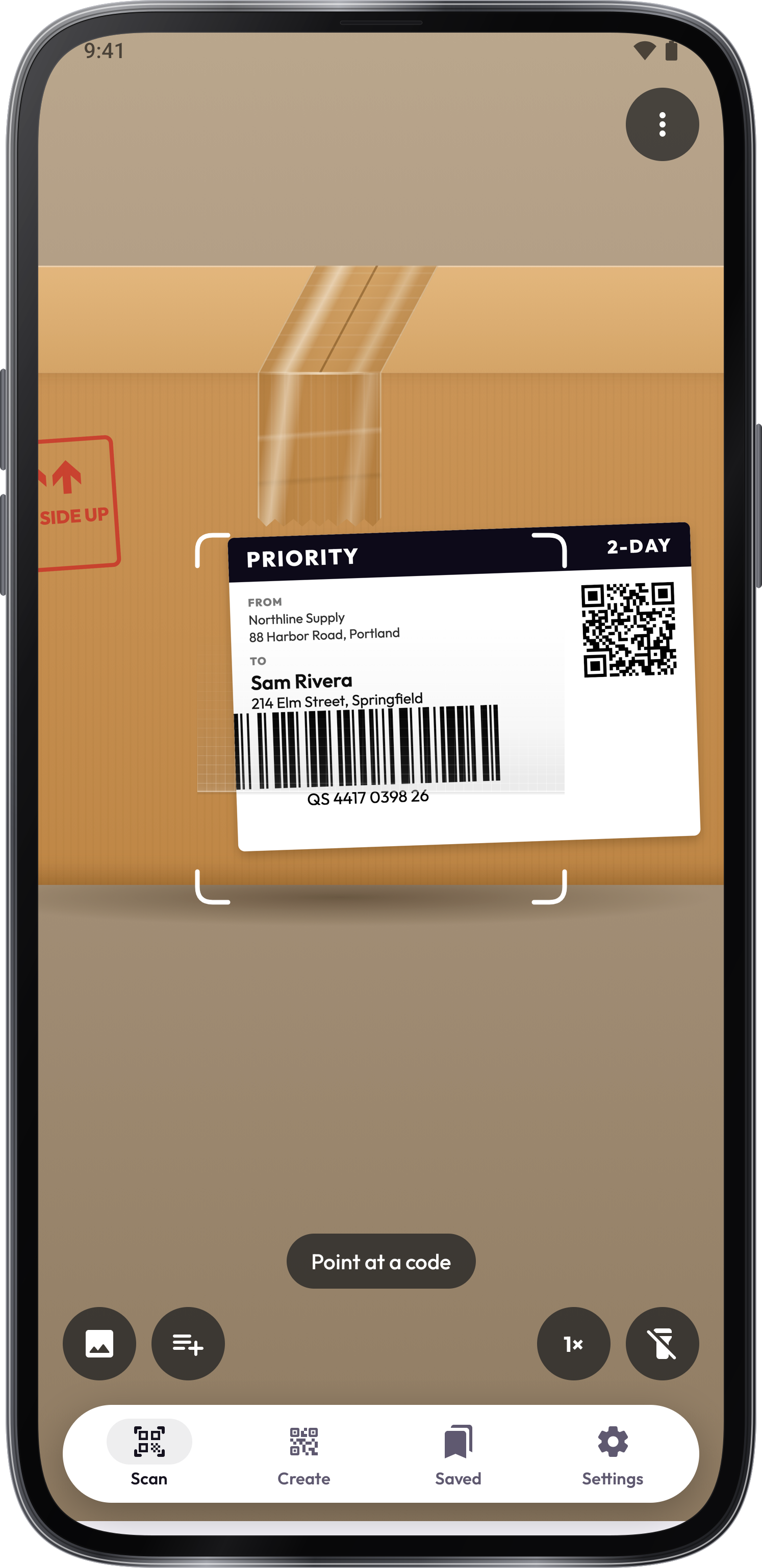
Scan a code
Scan a code
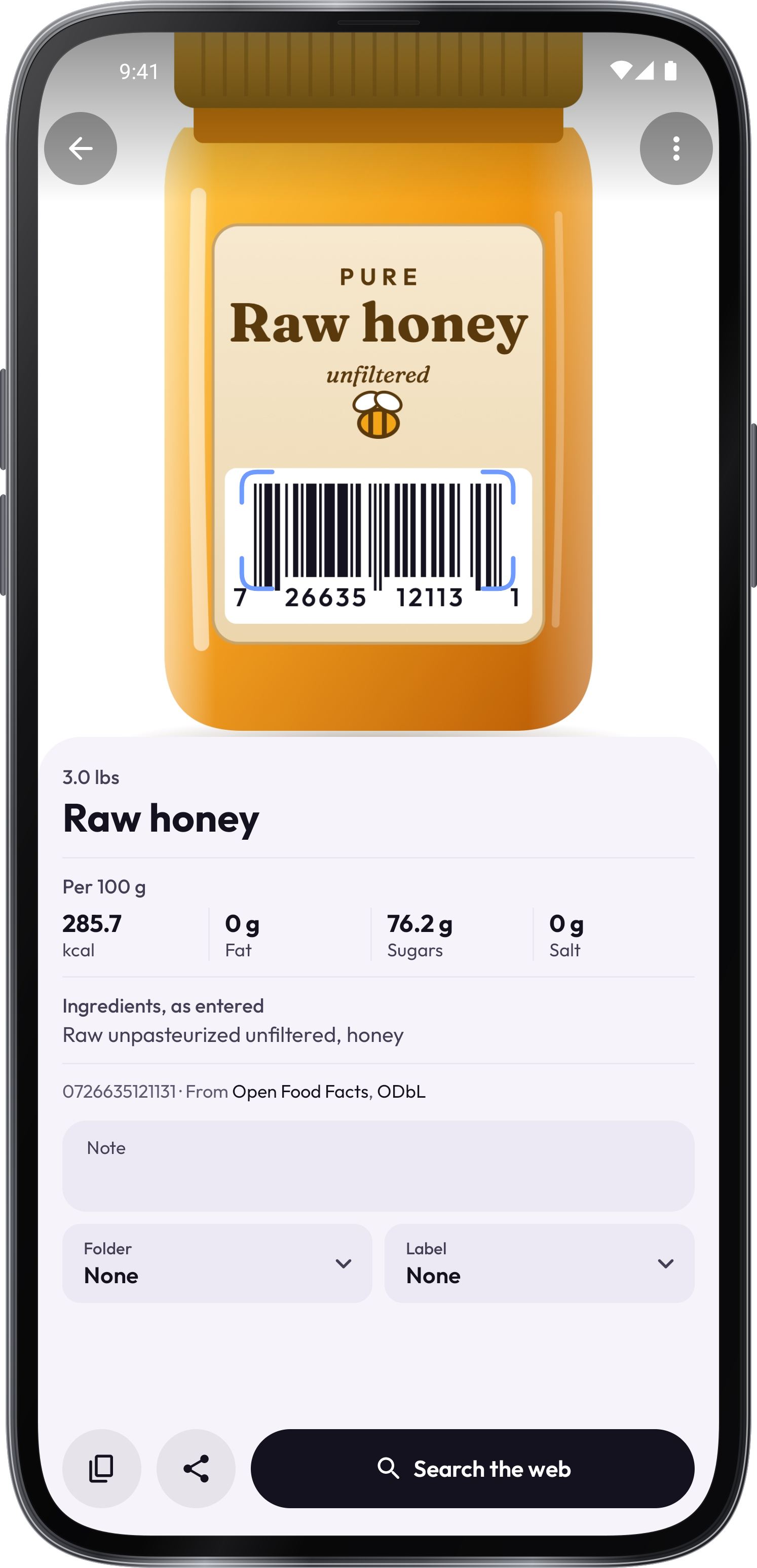
Open Scan and point the camera at a sharp code, or choose a photo or PDF. Use Torch when more light helps.
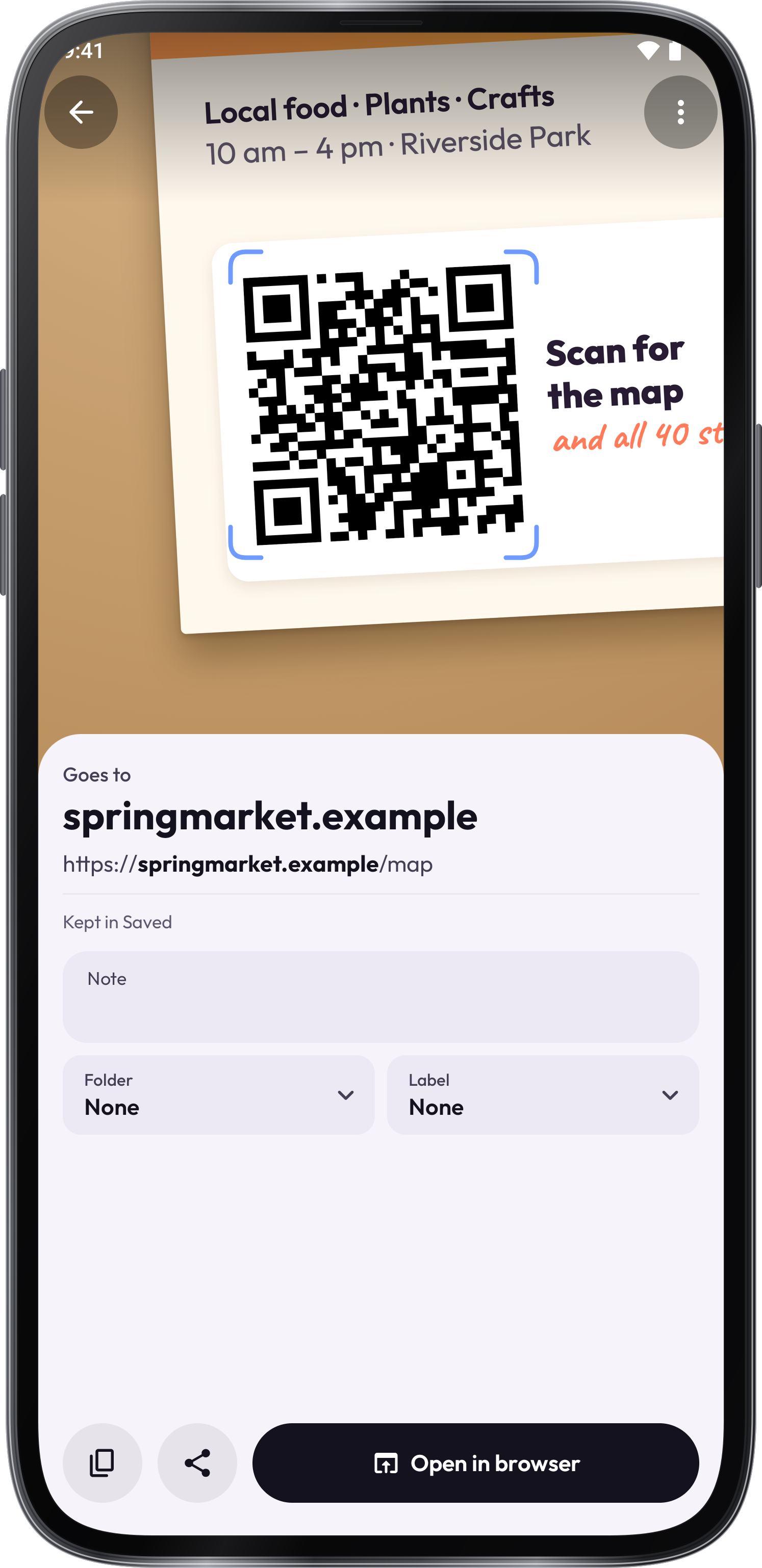
Review the result
Check the text and destination before choosing Open, Copy or Share. Settings controls whether links open immediately and whether scans are kept in Saved.
Scan several codes
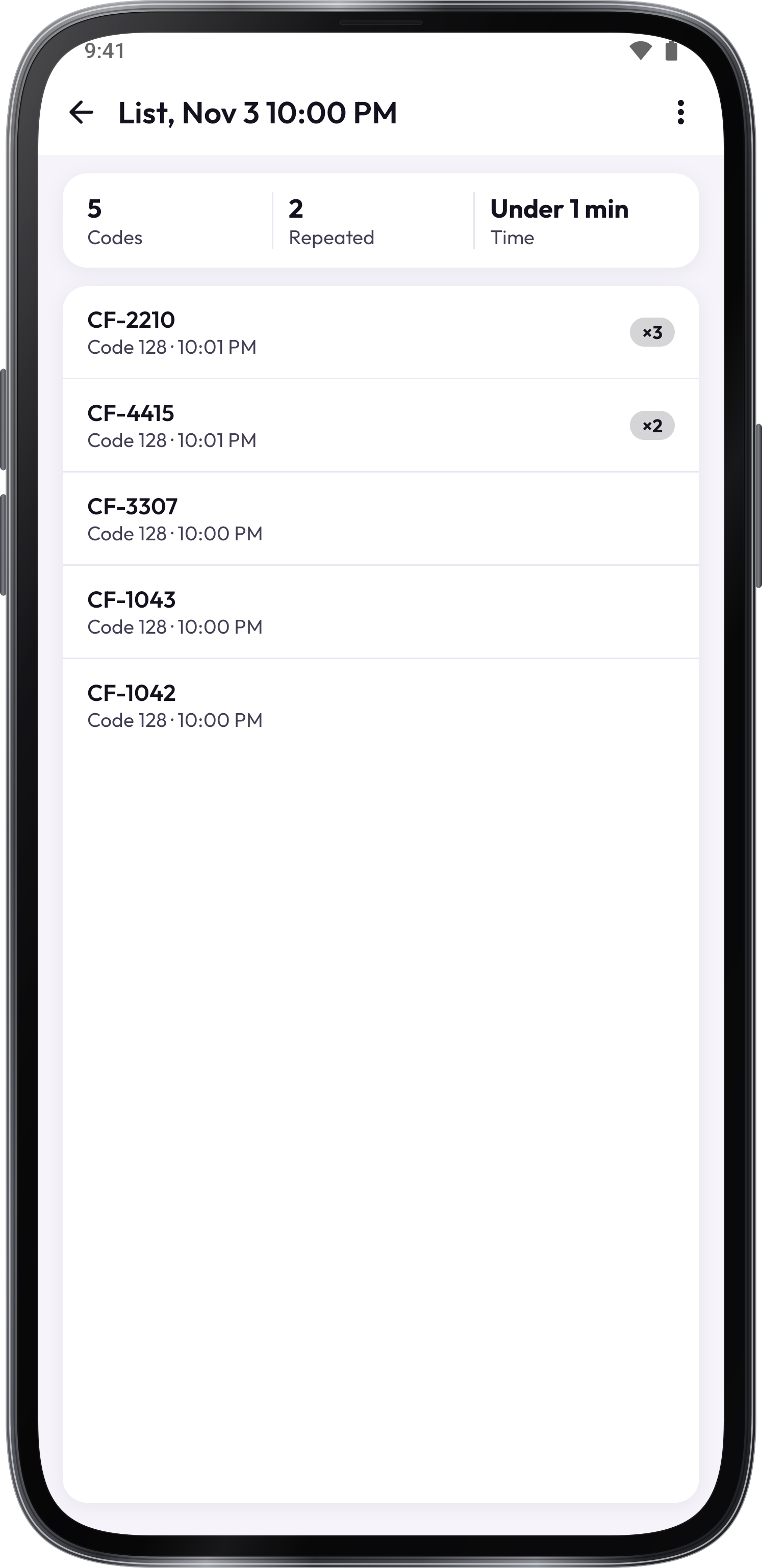
Open Scan several and tap Start. Scan the items, then Stop to review the list and export it.
Create a code
Create a code
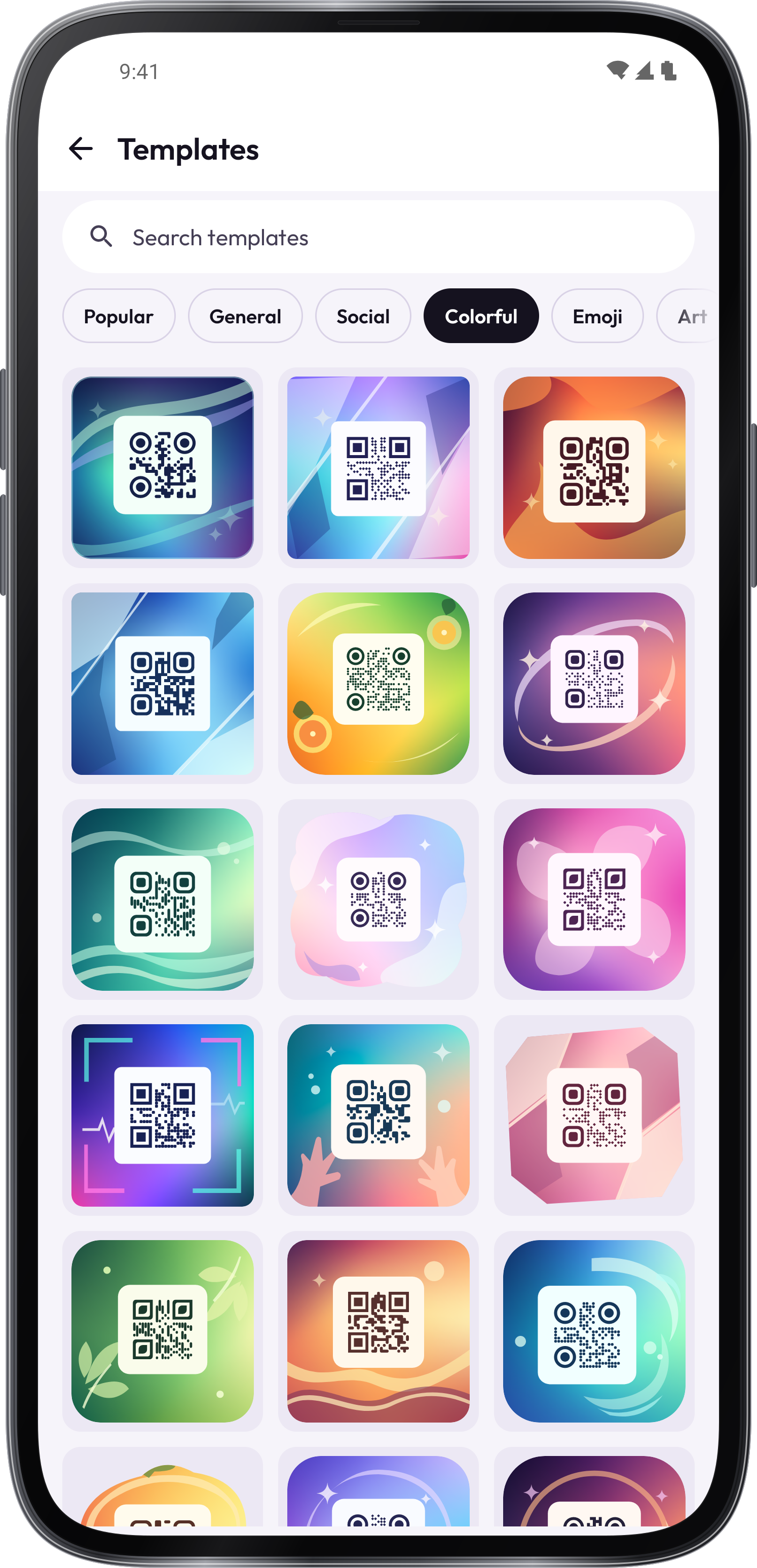
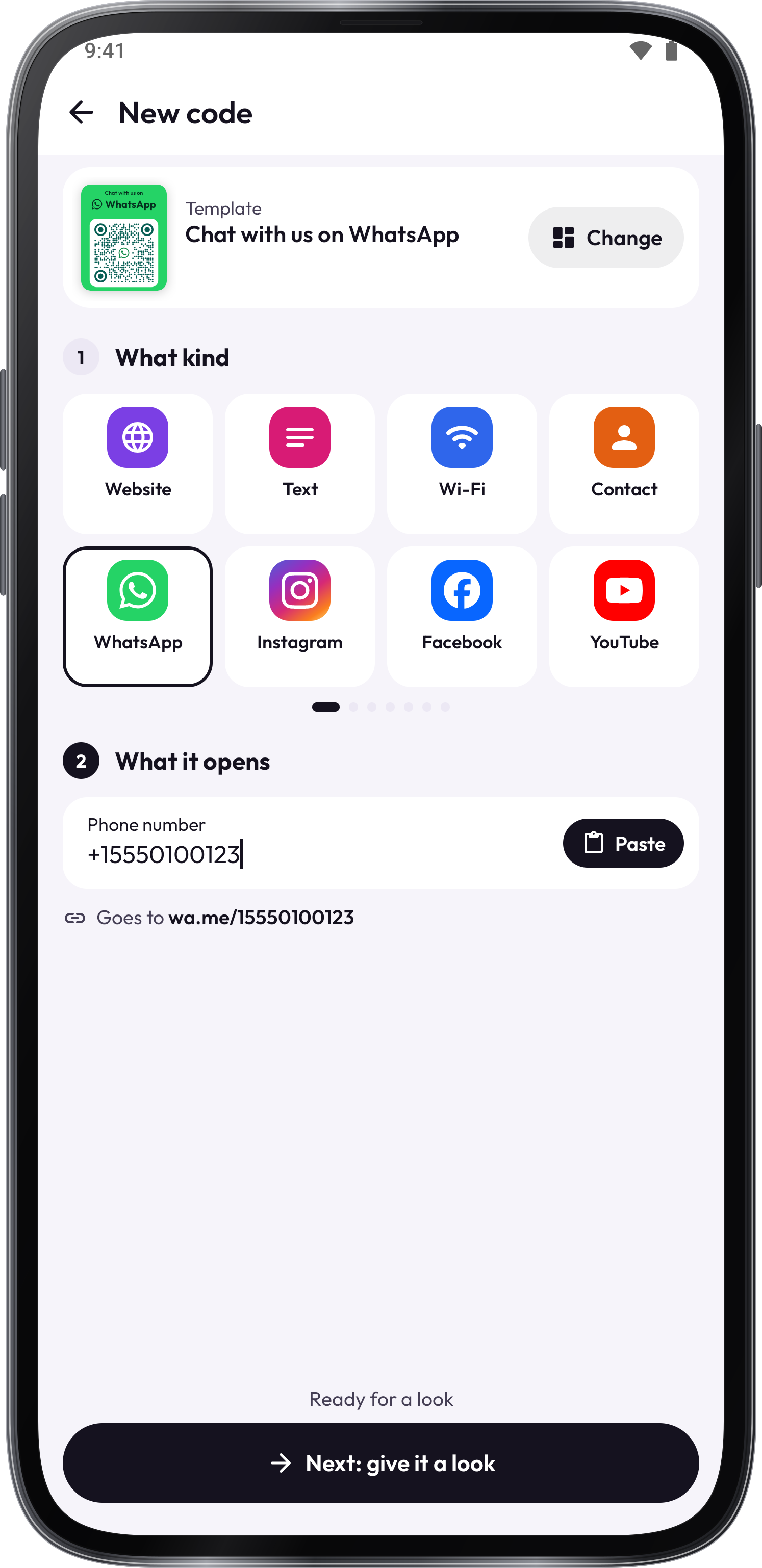
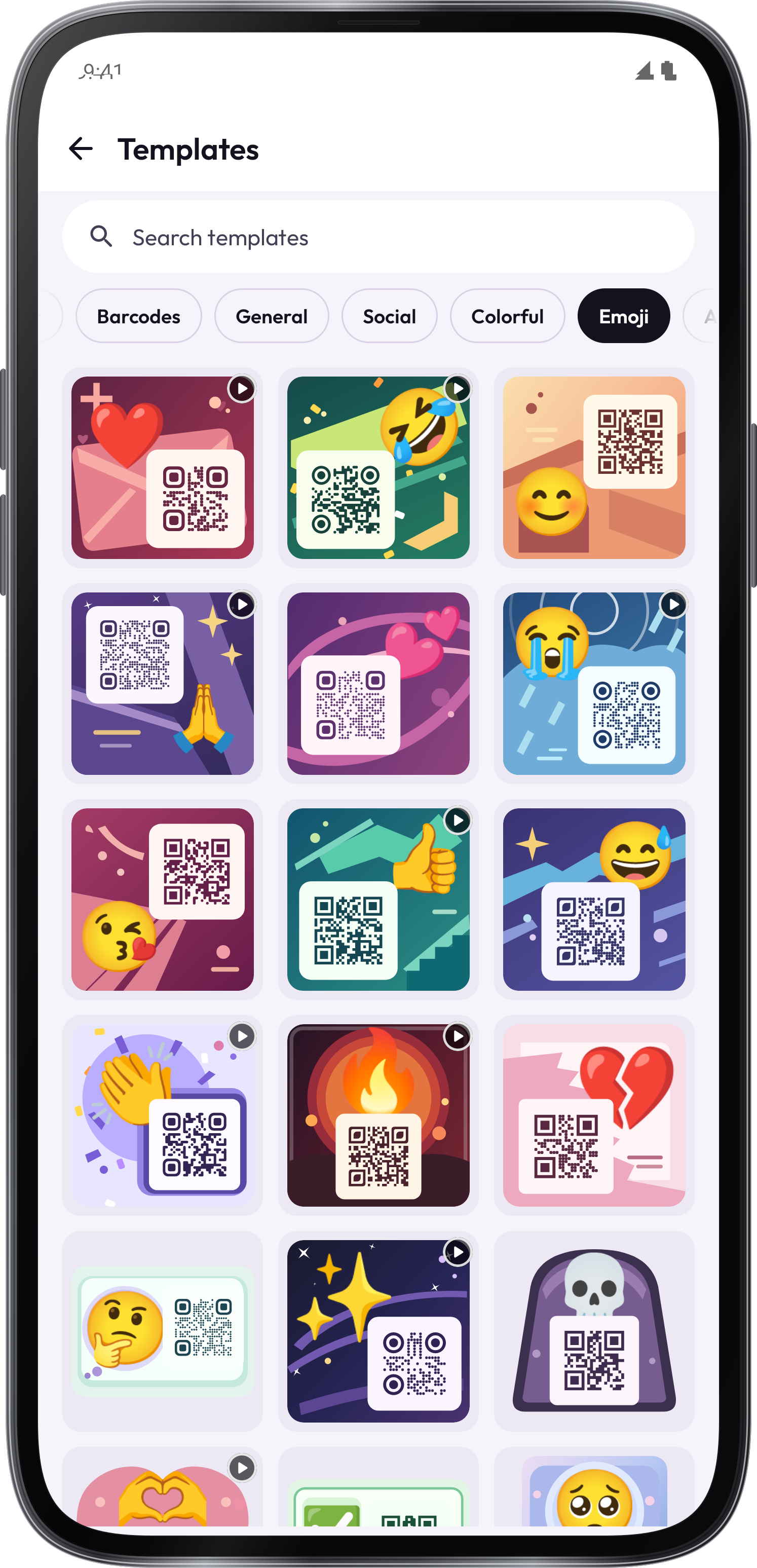
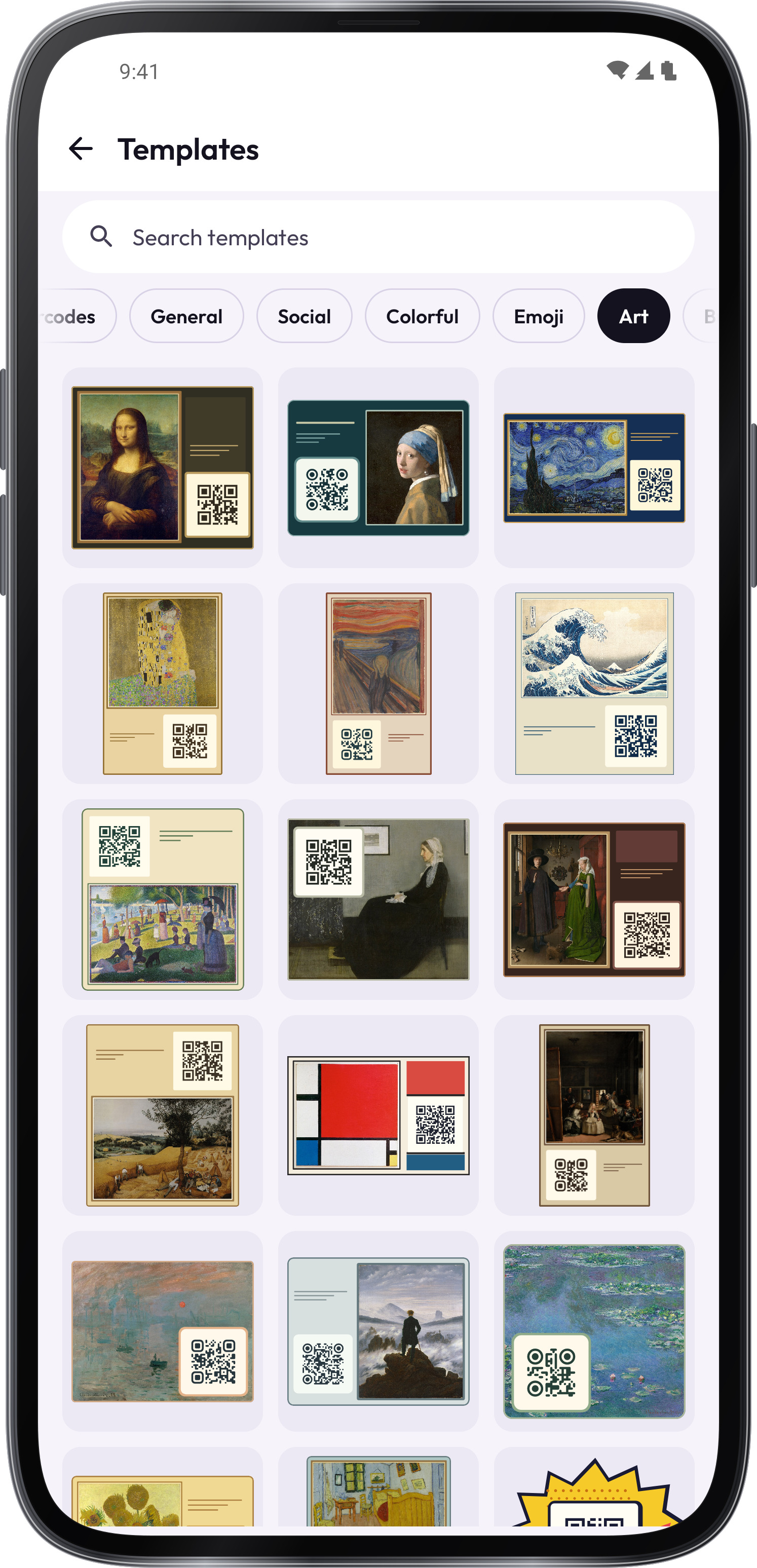
Open Create, choose the content or a template, and enter your details. Save the code, then use Verify, Download or Print.
Give your code a look
Logo shape changes the badge in the center of the QR code. In the color picker, type or paste a HEX or RGB value, or use the wheel.
Organize saved codes
Organize saved codes
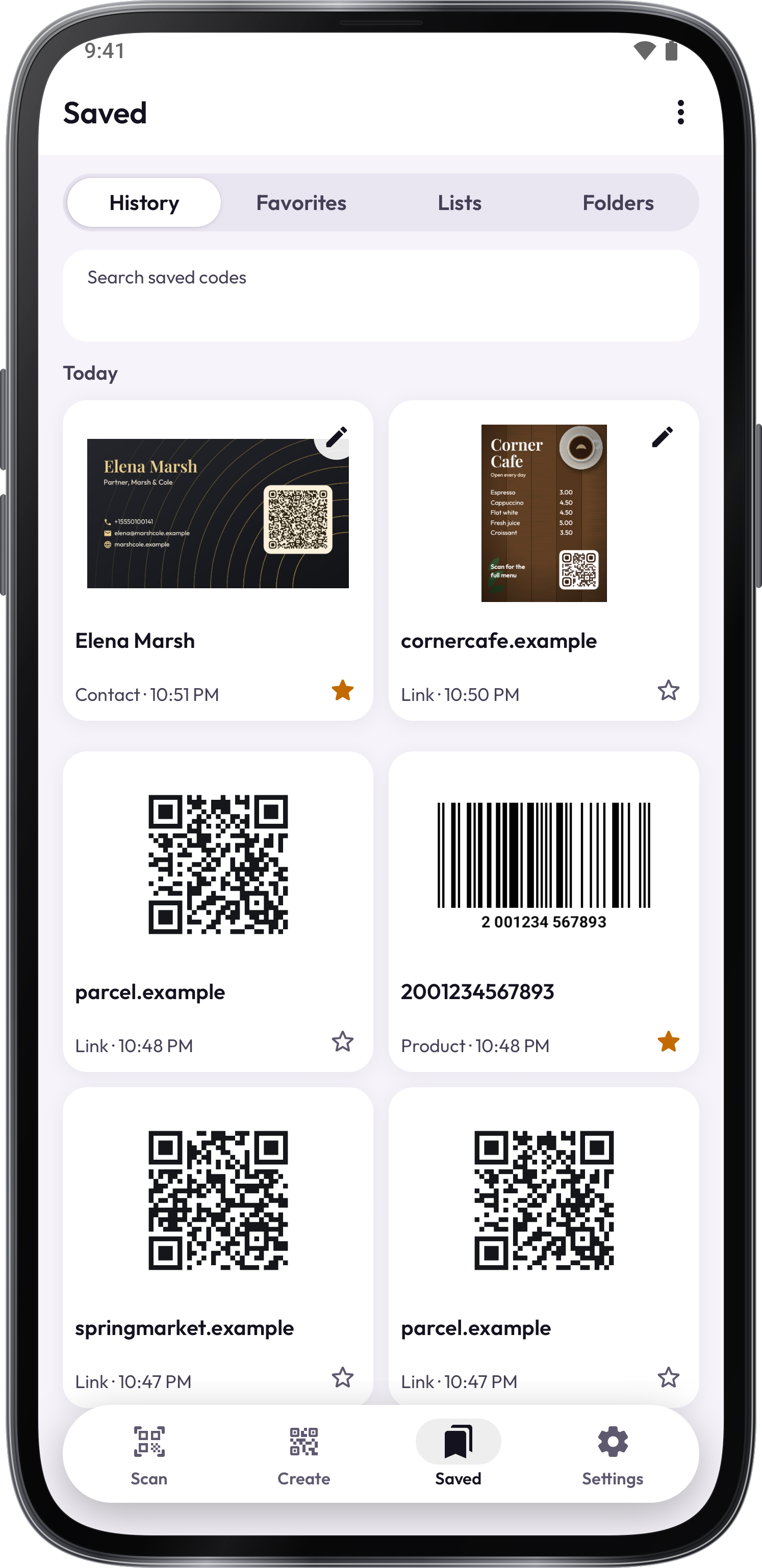
Search Saved, star favorites and use folders, labels and notes. Open a code you made to edit it again.
Back up your work
Use Back up to keep codes, lists and settings in a file. Restore adds them to your existing saved work.
Screenshots
1 / 8
Get the tool.
Find QR Scanner in these apps.
Tips.
Avoid glare and use a sharp, well-lit photo when scanning a picture.
Read a link’s destination before opening it. A readable code does not prove that a website is trustworthy.
Test a code with Verify and another reader before printing many copies.
Keep strong contrast and clear space around a code when changing its design.
Back up useful codes and lists before changing phones.