 Video coming soon
Attach the phone and set zero
Basics · Written steps
Read the steps : Attach the phone and set zeroSteps, videos and tips for the tool.
Measure how far something turns, such as a valve, a wheel, a bolt, a door or a lid, past full turns and either way.
Video coming soon
Getting started
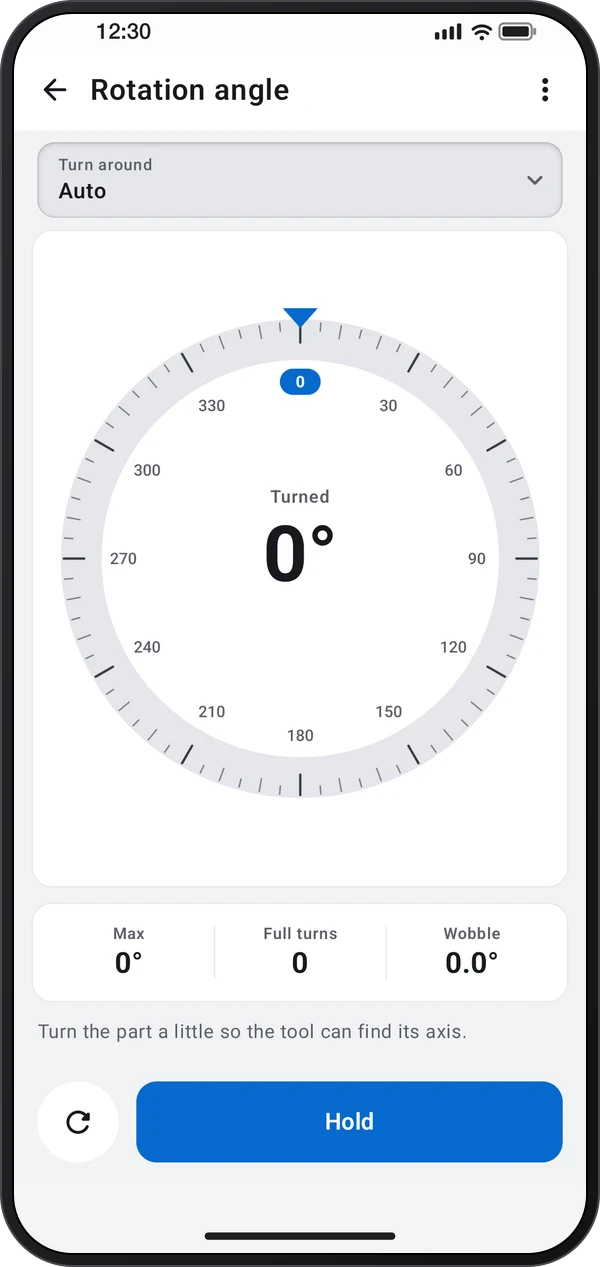
Fix or hold the phone on the part that turns: every spot on it turns by the same angle. The turn starts at zero when the tool opens; tap the round Zero here button to start again from where the part is now.
This is a still image. The how-to video has not been recorded yet.
Read the stepsVideo coming soonBasics · Written steps
Read the steps : Attach the phone and set zeroVideo coming soonBasics · Written steps
Read the steps : Count turns and hold the readingVideo coming soonBasics · Written steps
Read the steps : Choose a layout or set a targetUse ⋮ › Screen layout to switch screens: Dial (a ring that fills in), Picture (pick what's turning and watch it turn) and Target (set an angle such as 90° and get a beep or a vibration when the turn reaches it). In Target, choose Target › Custom value… to enter an angle from 1° to 3600°.
Turn the part. The reading counts on past 360° with full turns and says which way it went. Hold keeps the reading while the part moves on, and Release lets it follow again.
Fix or hold the phone on the part that turns: every spot on it turns by the same angle. The turn starts at zero when the tool opens; tap the round Zero here button to start again from where the part is now.
Try these steps in the app. All tour instructions stay readable here.
Fix or hold the phone on the part that turns: every spot on it turns by the same angle. The turn starts at zero when the tool opens; tap the round Zero here button to start again from where the part is now.
Turn the part. The reading counts on past 360° with full turns and says which way it went. Hold keeps the reading while the part moves on, and Release lets it follow again.
Use ⋮ › Screen layout to switch screens: Dial (a ring that fills in), Picture (pick what's turning and watch it turn) and Target (set an angle such as 90° and get a beep or a vibration when the turn reaches it). In Target, choose Target › Custom value… to enter an angle from 1° to 3600°.
Find Rotation angle in these apps.
Wobble shows how far the phone moved off the axis: keep it small for a clean reading. The reading drifts a little over minutes, so zero again for long jobs.