 Video coming soon
Inspect a live sensor
Basics · Written steps
Read the steps : Inspect a live sensorSteps, videos and tips for the tool.
Check that the phone's sensors work: motion, compass, light, proximity, air pressure, GPS and microphone.
Video coming soon
Getting started
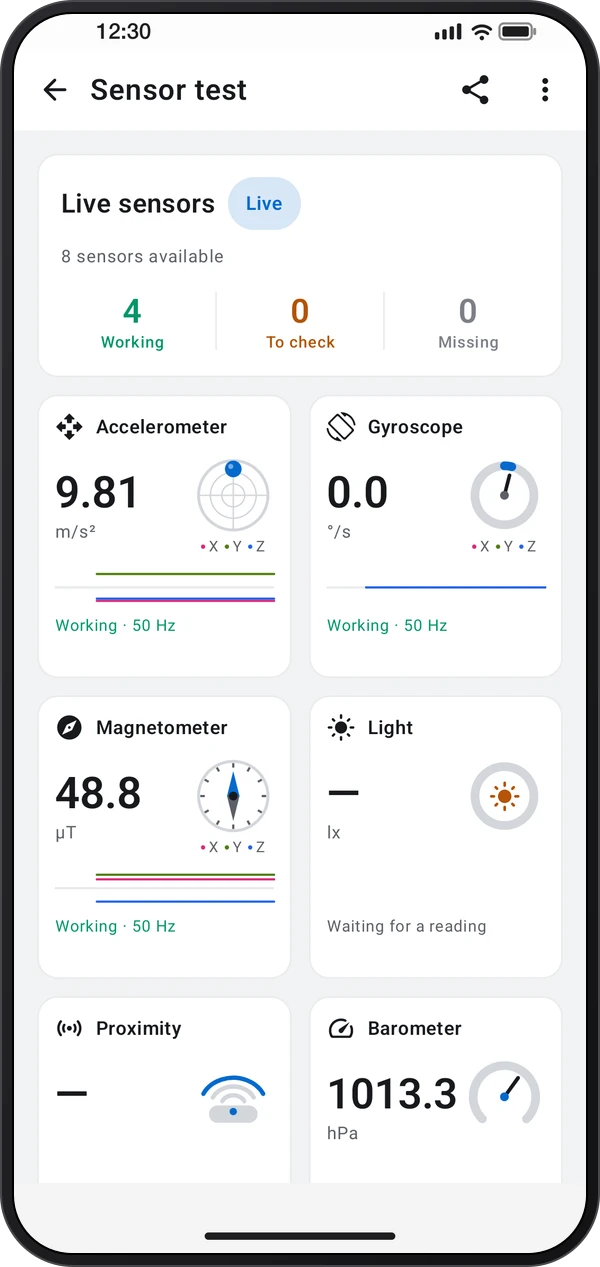
Each sensor runs live on its own tile, with its state: Working, To check, or Not on this phone. Tap one for its page: its reading, the last seconds as a graph, its chip and range, and the tools that use it. The GPS and the microphone run only on their own page, once you allow them.
This is a still image. The how-to video has not been recorded yet.
Read the stepsVideo coming soonBasics · Written steps
Read the steps : Inspect a live sensorVideo coming soonBasics · Written steps
Read the steps : Run the guided checkupVideo coming soonBasics · Written steps
Read the steps : Choose a layout and share the reportVideo coming soonBasics · Written steps
Read the steps : Inspect GPS satellites and signalUse ⋮ › Screen layout to try the screens: Live tiles (each sensor as a small live instrument), Sensor list and Checkup (the guided test, with a Sensors tab). Share report sends the results as text.
Each sensor runs live on its own tile, with its state: Working, To check, or Not on this phone. Tap one for its page: its reading, the last seconds as a graph, its chip and range, and the tools that use it. The GPS and the microphone run only on their own page, once you allow them.
The checkup (⋮ › Run checkup, or the first tab of the Checkup layout) walks you through short steps: lay it flat, turn it, draw a figure 8, cover the top, say something and, outside, find satellites. It ends with which of the app's tools can run on this phone.
Open GPS for a live satellite list: navigation system and ID, signal strength (C/N₀), elevation above the horizon and azimuth clockwise from north. Each satellite shows whether it is used for the location fix. Higher C/N₀ means a stronger signal. Allow precise location and go outdoors for better reception.
Try these steps in the app. All tour instructions stay readable here.
Each sensor runs live on its own tile, with its state: Working, To check, or Not on this phone. Tap one for its page: its reading, the last seconds as a graph, its chip and range, and the tools that use it. The GPS and the microphone run only on their own page, once you allow them.
The checkup (⋮ › Run checkup, or the first tab of the Checkup layout) walks you through short steps: lay it flat, turn it, draw a figure 8, cover the top, say something and, outside, find satellites. It ends with which of the app's tools can run on this phone.
Use ⋮ › Screen layout to try the screens: Live tiles (each sensor as a small live instrument), Sensor list and Checkup (the guided test, with a Sensors tab). Share report sends the results as text.
Open GPS for a live satellite list: navigation system and ID, signal strength (C/N₀), elevation above the horizon and azimuth clockwise from north. Each satellite shows whether it is used for the location fix. Higher C/N₀ means a stronger signal. Allow precise location and go outdoors for better reception.
Find Sensor test in these apps.
Angles look off? Lay the phone on a flat table: the accelerometer should read about 9.81 m/s². A compass that drifts needs a figure 8, away from metal.