 Video coming soon
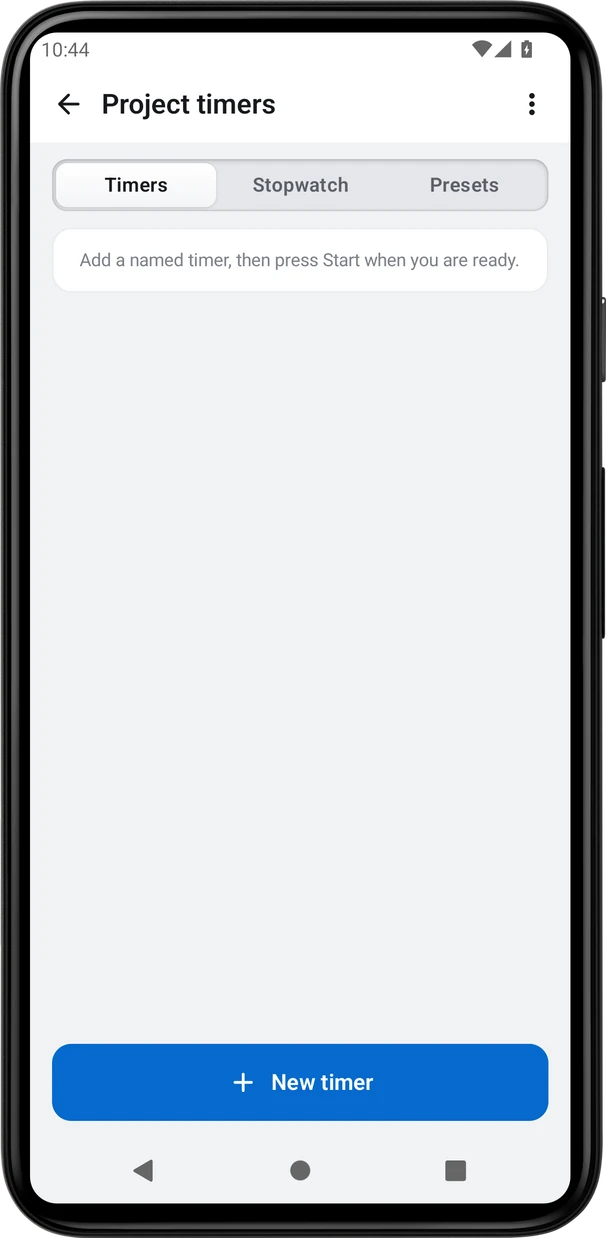
Name a job and set its duration
Basics · Written steps
Read the steps : Name a job and set its durationSteps, videos and tips for the tool.
Named timers, intervals and stopwatch.
Video coming soon
Getting started
Name each job and set its duration.
This is a still image. The how-to video has not been recorded yet.
Read the stepsVideo coming soonBasics · Written steps
Read the steps : Name a job and set its durationVideo coming soonBasics · Written steps
Read the steps : Set up work and rest intervalsVideo coming soonBasics · Written steps
Read the steps : Keep timers running with alertsVideo coming soonBasics · Written steps
Read the steps : Choose presets and material timingsPresets never start timers. Use your material manufacturer’s timings.
Name each job and set its duration.
Repeating intervals alternate work and rest; the last work round finishes the timer.
Timers keep their deadlines when you leave. Allow notifications and precise alerts for background delivery.
Try these steps in the app. All tour instructions stay readable here.
Name each job and set its duration. Repeating intervals alternate work and rest; the last work round finishes the timer. Timers keep their deadlines when you leave. Allow notifications and precise alerts for background delivery. Presets never start timers. Use your material manufacturer’s timings.
Find Project timers in these apps.
Allow notifications and precise alerts for background delivery.