 Video coming soon
Choose an electrical tool
Basics · Written steps
Read the steps : Choose an electrical toolSteps, videos and tips for the tool.
Calculators for power, cables, motors, electronics (555 timers, coils, transformers, antennas, speaker boxes and LED strips), batteries and solar strings; home tools for power strips, energy use, travel, power stations and bulbs; resistor and SMD codes; reference pages from wire colors to breakers, fuses and batteries; your panel map; and guides for what anyone may do at home, in three screen layouts.
Video coming soon
Getting started
Pick a tool: turn the dial in the Multimeter layout, or tap it on the start page of the list and drawn layouts. Some dial stops hold more than one tool: the first chip under the dial switches between them. Change the layout with ⋮ › Screen layout.
This is a still image. The how-to video has not been recorded yet.
Read the stepsVideo coming soonBasics · Written steps
Read the steps : Choose an electrical toolVideo coming soonBasics · Written steps
Read the steps : Enter values and prefixesVideo coming soonBasics · Written steps
Read the steps : Read resistor bands or SMD codesVideo coming soonBasics · Written steps
Read the steps : Consult the electrical referencesVideo coming soonBasics · Written steps
Read the steps : Check home equipment and energy usePick a tool: turn the dial in the Multimeter layout, or tap it on the start page of the list and drawn layouts. Some dial stops hold more than one tool: the first chip under the dial switches between them. Change the layout with ⋮ › Screen layout.
For a resistor, pick a band and tap its color, or tap Type a value to see the bands of a value. For an SMD part, type the code printed on it.
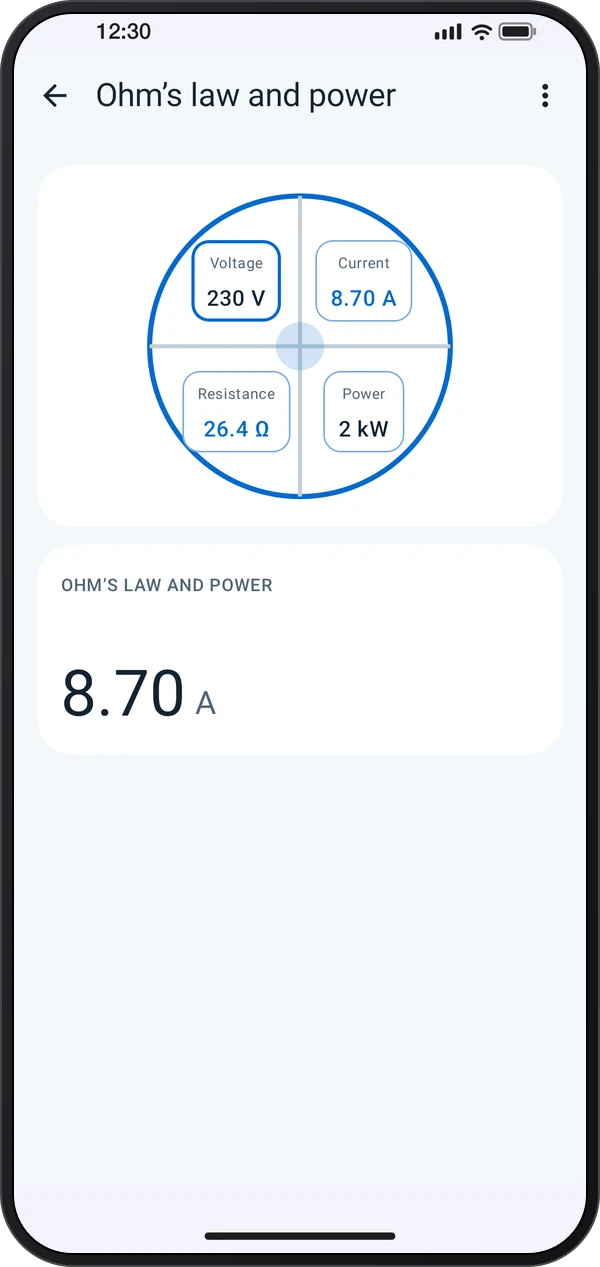
Tap a value and type it on the keypad: k, m, µ and M add a prefix, and holding Delete clears it. For Ohm’s law, type any two values and the other two are worked out.
The Home tools check a power strip’s load, a device’s energy use, whether a device works abroad, the power station you need, which bulb to buy and an LED strip’s power supply.
Guides walk you through what anyone may do, such as a tripped breaker, testing an RCD or changing a bulb. Each one stops where an electrician takes over. Open them from Guides on the start page, or from the book on the Multimeter.
Panel map keeps a photo of your panel and what each switch feeds.
For wire colors, plugs, IP ratings, pinouts, breakers and fuses, RCDs, batteries, chargers and label symbols, open the book in the Multimeter’s top bar, or the Reference group on the start page. Pick your country where a page asks.
Try these steps in the app. All tour instructions stay readable here.
Pick a tool: turn the dial in the Multimeter layout, or tap it on the start page of the list and drawn layouts. Some dial stops hold more than one tool: the first chip under the dial switches between them. Change the layout with ⋮ › Screen layout.
Tap a value and type it on the keypad: k, m, µ and M add a prefix, and holding Delete clears it. For Ohm’s law, type any two values and the other two are worked out.
For a resistor, pick a band and tap its color, or tap Type a value to see the bands of a value. For an SMD part, type the code printed on it.
For wire colors, plugs, IP ratings, pinouts, breakers and fuses, RCDs, batteries, chargers and label symbols, open the book in the Multimeter’s top bar, or the Reference group on the start page. Pick your country where a page asks.
Find Electrical calculator in these apps.
Results come from formulas, not from code tables. Check them against your local wiring rules, and test before you touch a wire.