 Video coming soon
Choose a view
Basics · Written steps
Read the steps : Choose a viewSteps, videos and tips for the tool.
See directions and saved targets over the camera view.
Video coming soon
Getting started
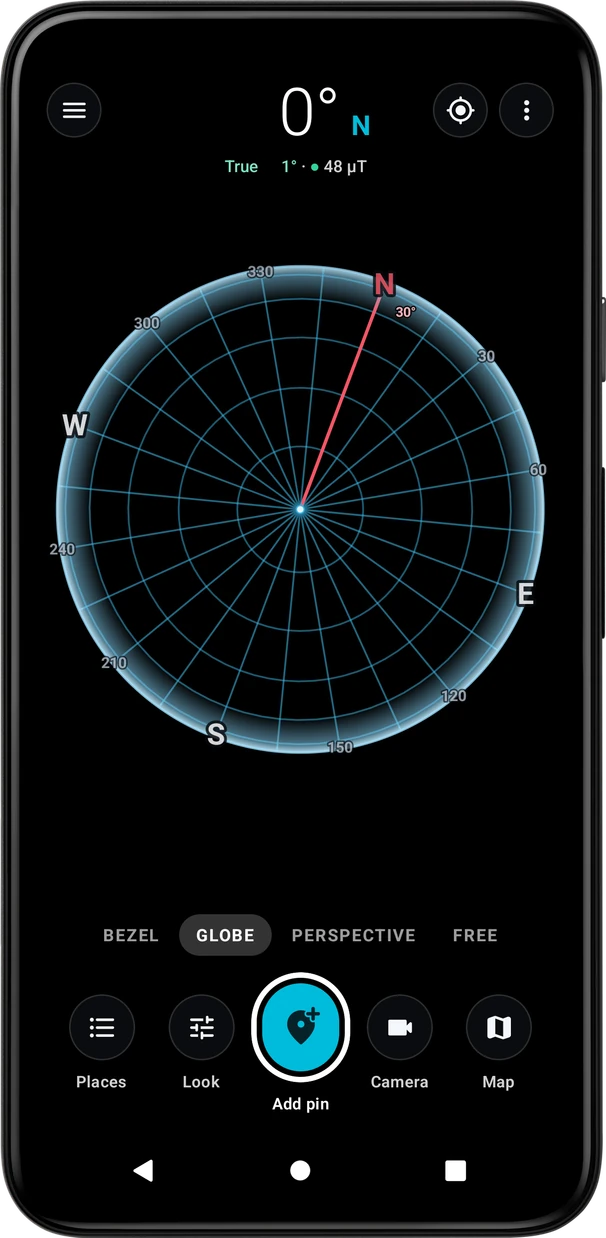
The app starts in Perspective with the camera enabled on first use, and then remembers its view. Choose Bezel, Globe, Perspective or Free and allow the needed camera and location access.
This is a still image. The how-to video has not been recorded yet.
Read the stepsVideo coming soonBasics · Written steps
Read the steps : Choose a viewVideo coming soonBasics · Written steps
Read the steps : Choose a compass or camera viewVideo coming soonBasics · Written steps
Read the steps : Save places and use the mapVideo coming soonBasics · Written steps
Read the steps : Align or lock the compassThe app starts in Perspective with the camera enabled on first use, and then remembers its view. Choose Bezel, Globe, Perspective or Free and allow the needed camera and location access.
Pick a view under the heading: Bezel, Globe, Perspective or Free. The bottom row holds Places, Look, Add pin, Camera and Map; Look changes what the view on screen shows, and ⋮ › Screen layout switches between Dock and Quick row. ⋮ › Settings lists every option in one place. Allow camera and location access when asked.
When markers sit off their places, open ⋮ › Align the compass: aim the crosshair at the Sun, the Moon, Polaris or a far saved place, or lay the phone along a shadow, and tap Align; the gyroscope keeps the correction. ⋮ › Lock compass holds the heading, and the dot under it shows how much the field around the phone disturbs the compass.
On the map, Add saves a place where you tap, or at your position; drag its pin or tap the map to move it, and Settings › Map › Place editor picks the Classic sheet or the Callout card. Tap a place for its card: Navigate, Show in AR, Align and Share. Route draws a path, Area an alert area, Places lists your places, and Heading up turns the map with the phone. On the Earth globe, drag to turn it, pinch to zoom, double-tap to come back, and tap the Sun or the Moon to see when it rises or sets.
Try these steps in the app. All tour instructions stay readable here.
Pick Bezel for the compass dial, Globe for a spatial overview, or Perspective or Free for camera views. Look changes the current view’s appearance.
Use Add on the map to create a saved place at a chosen point or at your location. Give it a useful name and check its map position.
Open a place’s card and choose Show in AR to see its direction over the camera, or Navigate for the destination guidance.
If places appear off their real direction, move away from magnetic interference and use Align the compass. A shadow offers an alignment reference without facing the Sun.
Use the camera capture when you want to keep the direction and place context in a picture. The map and saved-place list remain available for later review.
Find Compass AR in these apps.
Move away from magnets, steel and electronics if the heading looks inconsistent, and use the compass calibration guidance.
Allow a good location fix before relying on the distance and direction to a saved place.
Switch between the bezel, globe and camera views to choose the clearest presentation for the task.
Name saved places clearly and review their map position before starting toward one.
Use the location and heading uncertainty as context when interpreting a pin over the camera picture.
Capture the view when you need a visual record of a direction or destination.