 Video coming soon
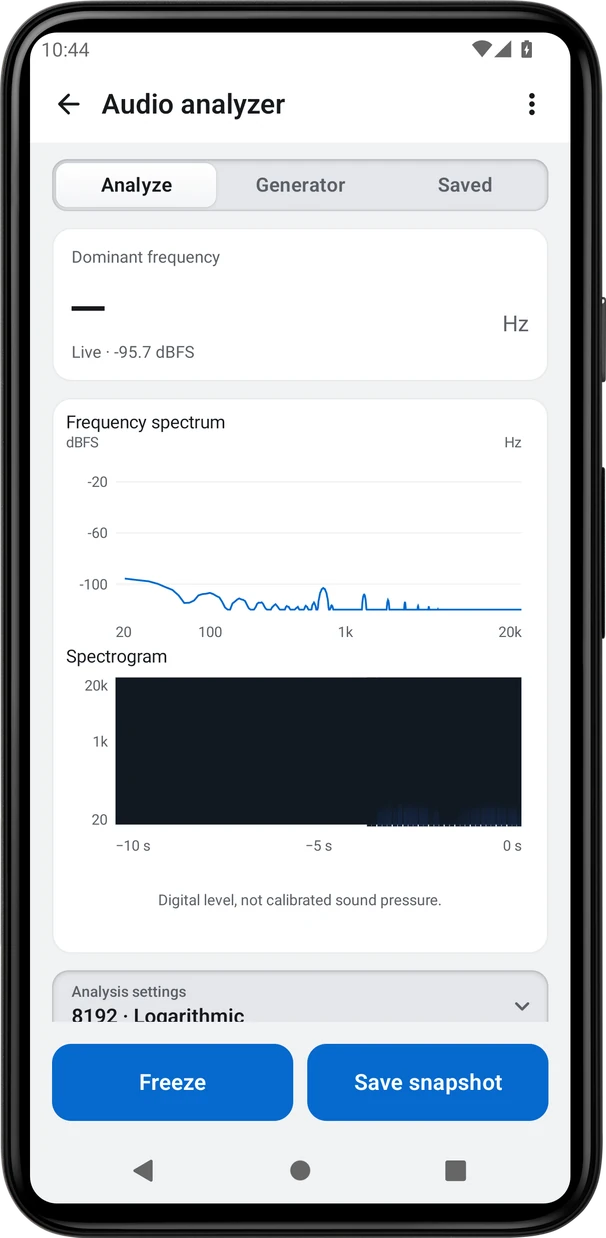
Read live frequencies
Basics · Written steps
Read the steps : Read live frequenciesSteps, videos and tips for the tool.
Spectrum, spectrogram and speaker checks.
Video coming soon
Getting started
Allow the microphone to see live frequencies.
This is a still image. The how-to video has not been recorded yet.
Read the stepsVideo coming soonBasics · Written steps
Read the steps : Read live frequenciesVideo coming soonBasics · Written steps
Read the steps : Freeze the plots and save a snapshotVideo coming soonBasics · Written steps
Read the steps : Choose the frequency spacingVideo coming soonBasics · Written steps
Read the steps : Set up and start a test signalChoose logarithmic or linear frequency spacing in Analysis settings.
Generator plays only after Start output. Choose a signal, channel and low output level before starting. Leaving Generator or the app stops playback.
Allow the microphone to see live frequencies.
Freeze holds a reading; Save snapshot keeps both plots without recording audio.
Try these steps in the app. All tour instructions stay readable here.
Allow the microphone to see live frequencies. Freeze holds a reading; Save snapshot keeps both plots without recording audio. Choose logarithmic or linear frequency spacing in Analysis settings. Generator plays only after Start output. Choose a signal, channel and low output level before starting. Leaving Generator or the app stops playback.
Find Audio analyzer in these apps.
Levels are digital dBFS, not calibrated SPL.