 Video coming soon
Choose Edge, Back or Level
Basics · Written steps
Read the steps : Choose Edge, Back or LevelSteps, videos and tips for the app and its tools.
Read a slope on the phone, keep a level guide over the camera, or draw an angle on a photo.
Video coming soon
Getting started
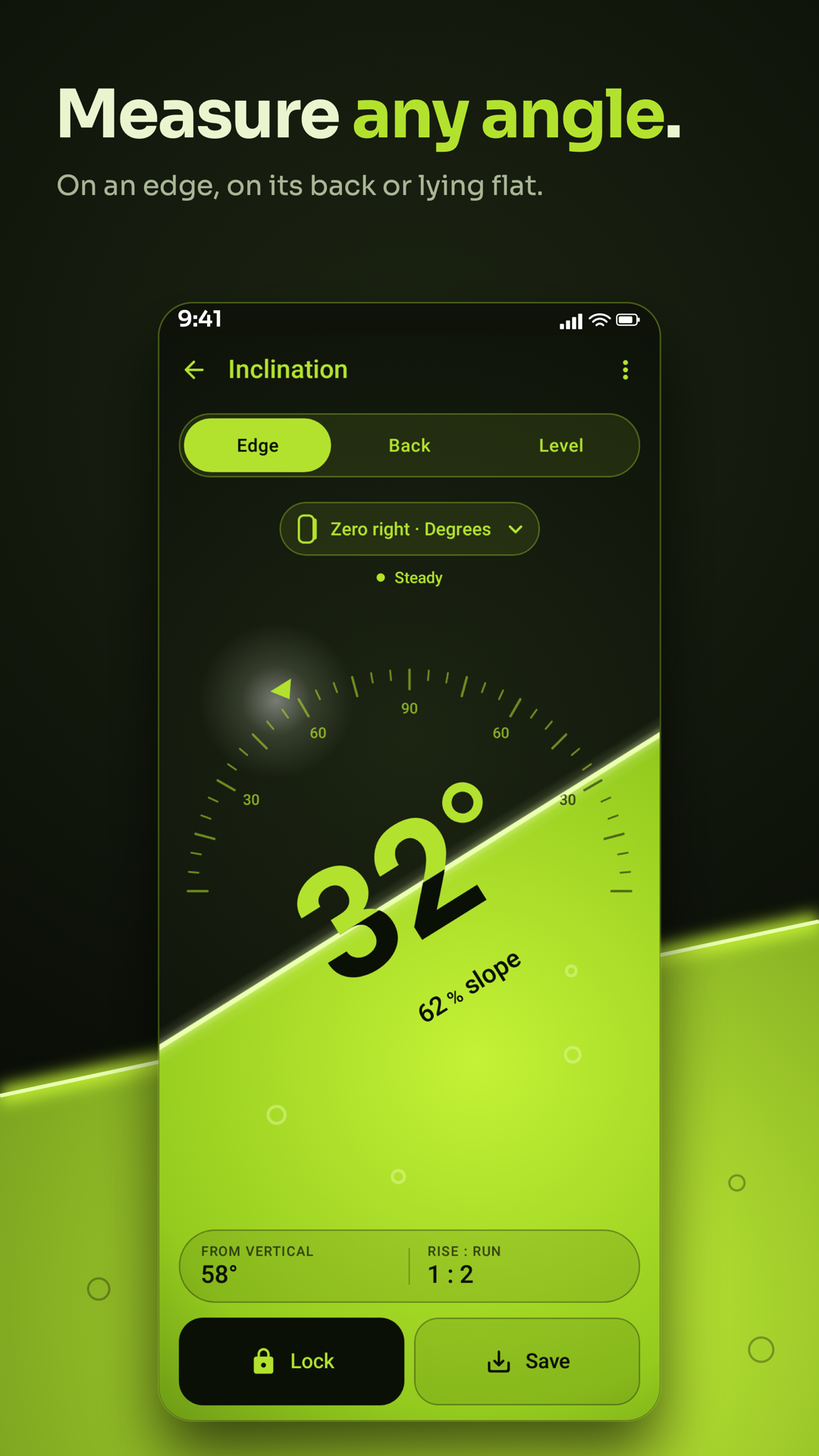
Use Edge with the phone on a long edge, Back with it lying on its back, or Level to see the two directions together.
This is a still image. The how-to video has not been recorded yet.
Read the stepsVideo coming soonBasics · Written steps
Read the steps : Choose Edge, Back or LevelVideo coming soonBasics · Written steps
Read the steps : Choose a unit and hold a readingVideo coming soonBasics · Written steps
Read the steps : Measure from a referenceVideo coming soonBasics · Written steps
Read the steps : Calibrate and saveVideo coming soonBasics · Written steps
Read the steps : Use the camera levelImages coming soon
Laser levelTools · Written steps
Read the steps : Laser levelImages coming soon
Image angleTools · Written steps
Read the steps : Image angleUse Edge with the phone on a long edge, Back with it lying on its back, or Level to see the two directions together.
Open the setup pill for units and the zero mark. Let the reading settle, then use Lock. Unlock returns to the live reading.
On Edge, open ⋮ › Measurement and choose relative measurement. Take the reference with Zero, then move the phone to read the angle from it.
Open Image angle, take or choose a photo and tap points or draw an angle. Select an angle to move it or adjust its points, remove one you do not need, then Save to Records.
Open Laser level from the app menu. Choose a horizontal, vertical or cross line, hold the phone upright and drag the guide to the edge you want to check. Lock holds it and Save keeps the result in Records.
Use ⋮ › Calibrate on a known level surface and keep the phone steady. Save keeps the shown reading in Records; Open on the saved message opens the saved work.
Try these steps in the app. All tour instructions stay readable here.
Choose the placement that matches how the phone rests and read the live angle.
Lock the reading, save it and open Records from the saved message.
Open Image angle from the app menu, choose a picture and draw along two visible edges.
Each tool in Inclination has its own guide.
Rest the phone on a clean stable contact surface and account for a protective case or camera bump.
Choose Edge, Back or Level to match the way the phone rests; changing a screen layout only changes its presentation.
Choose the Edge zero mark for the side in use before calibrating on a known level reference.
Wait for a stable reading, Lock it and then lift the phone away. Unlock returns to live measurement.
Use Relative on Edge when comparing two parts: Zero on the first part, then read from that reference on the next.
Photograph straight edges as square-on as possible for Image angle, then tap or draw the angle points manually and adjust them carefully.
The camera level’s line is a screen guide. Place it on a visible edge in the image; the phone does not project a physical beam.
After Save, use Open on the message to check the result in Records. A photo angle describes the photographed perspective.