 Video coming soon
Open or create a drawing
Basics · Written steps
Read the steps : Open or create a drawingSteps, videos and tips for the app and its tools.
Draw and save map measurements for a field, route or site. Tap points or add them while walking, edit the drawing, attach notes and photos, and share a clear report.
Video coming soon
Getting started
The app opens saved drawings. Open a drawing or create one to measure on the map by tapping or walking.
This is a still image. The how-to video has not been recorded yet.
Read the stepsVideo coming soonBasics · Written steps
Read the steps : Open or create a drawingVideo coming soonBasics · Written steps
Read the steps : Place points for a measurementVideo coming soonBasics · Written steps
Read the steps : Edit a shapeVideo coming soonBasics · Written steps
Read the steps : Follow the map’s guide cardsVideo coming soonBasics · Written steps
Read the steps : Walk a boundaryThe app opens saved drawings. Open a drawing or create one to measure on the map by tapping or walking.
Done saves your shapes as a drawing. The tool opens on your saved drawings, and the map's back arrow returns there; open, rename, delete or share them as GeoJSON for map apps or CSV for spreadsheets.
On the map, Map Look sets how the map looks, dims it so the shapes stand out, and shows it full screen. A path's or a distance's Plan shows how long it takes on foot, by bike and by car, and in Quantities a roof's pitch also reads as a slope, such as ≈ 7.5/12 in feet or ≈ 62% in meters.
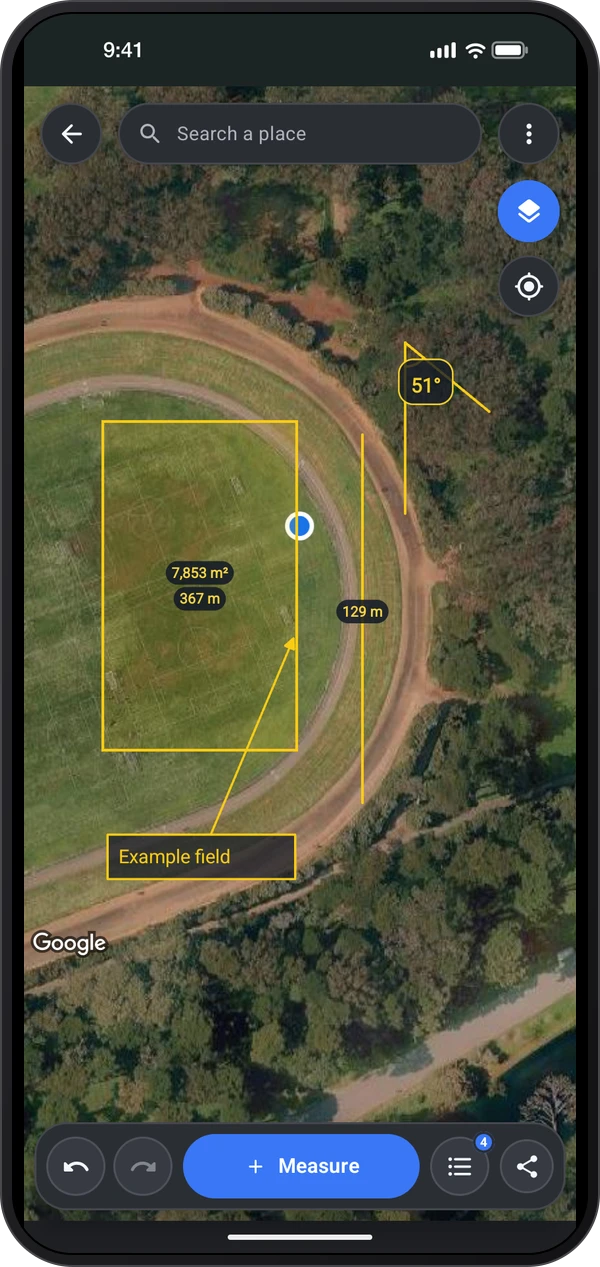
Tap New map, tap Measure and pick Distance, Path, Area, Angle, Label or Pin, then tap the map to place points and tap Done.
Tap a shape to edit it: drag its handles, hold it to move it, or change its color, labels and name.
Share on the map also makes a PDF report. The tool is still in beta: tap BETA beside its name to email us your feedback. Beside each Share, Save puts the PDF report, GeoJSON or CSV in the phone's Documents folder.
The tips card asks what you are measuring and leads you through it; hide it with Hide tips or the Tips switch under ⋮ Map tools, where you can also turn on Crosshair placement.
To measure on site, pick Walking it under Add points by, or tap Walk while drawing a path or an area, then walk the boundary: a point is added every few meters while the GPS is accurate.
Try these steps in the app. All tour instructions stay readable here.
Tap New map, tap Measure and pick Distance, Path, Area, Angle, Label or Pin, then tap the map to place points and tap Done. Tap a shape to edit it: drag its handles, hold it to move it, or change its color, labels and name. The tips card asks what you are measuring and leads you through it; hide it with Hide tips or the Tips switch under ⋮ Map tools, where you can also turn on Crosshair placement.
To measure on site, pick Walking it under Add points by, or tap Walk while drawing a path or an area, then walk the boundary: a point is added every few meters while the GPS is accurate.
Done saves your shapes as a drawing. The tool opens on your saved drawings, and the map's back arrow returns there; open, rename, delete or share them as GeoJSON for map apps or CSV for spreadsheets. Share on the map also makes a PDF report. The tool is still in beta: tap BETA beside its name to email us your feedback. Beside each Share, Save puts the PDF report, GeoJSON or CSV in the phone's Documents folder.
On the map, Map Look sets how the map looks, dims it so the shapes stand out, and shows it full screen. A path's or a distance's Plan shows how long it takes on foot, by bike and by car, and in Quantities a roof's pitch also reads as a slope, such as ≈ 7.5/12 in feet or ≈ 62% in meters.
Each tool in GPS Map has its own guide.
Zoom in and use the crosshair when a finger would hide the corner you want to place.
Check GPS accuracy before walking a boundary and keep the map open while adding points.
Pause walking when you stop or need to add a point manually.
Tap a shape to review its measurements and move its handles to refine the outline.
Add a photo or note to a pin for context that an outline alone cannot show.
Choose Done to keep the shape and save the drawing; open it again from saved drawings to continue editing.